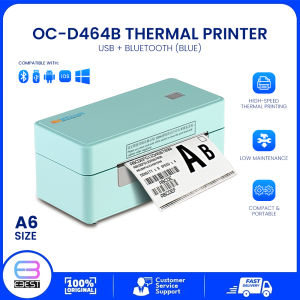
A6 Waybill Thermal Printer OC-D464B Bluetooth Printer with Label Holder Wireless Portable Printer for Ecommerce Business
A6 Waybill Thermal Printer OC-D464B Bluetooth Printer with Label Holder Wireless Portable Printer for Ecommerce Business
Introduction to Label Holder Printer
The A6 Waybill Thermal Printer OC-D464B Bluetooth Printer is a cutting-edge wireless portable printer designed specifically for ecommerce businesses. With its label holder feature, it enables users to print high-quality labels quickly and efficiently. This article will provide a comprehensive overview of the printer, its features, and how it can benefit your ecommerce business.
Overview of A6 Waybill Thermal Printer
The A6 Waybill Thermal Printer OC-D464B Bluetooth Printer is a compact and portable label holder printer that can be easily connected to your computer or mobile device via Bluetooth. It is specifically designed for ecommerce businesses to print shipping labels, product labels, and waybills. The printer has a resolution of 203 DPI, a direct thermal printing method, and a maximum print speed of 152mm (6") per second. The printer supports continuous, gap, black mark, fan-fold, and punched hole media types, with a media width range of 26mm to 116mm, a media thickness range of 0.06mm to 0.20mm, and a label length range of 10mm to 1778mm.
Key Features & Benefits
The A6 Waybill Thermal Printer OC-D464B Bluetooth Printer offers several key features that make it an ideal choice for ecommerce businesses:
- Wireless printing: Connect the printer to your computer or mobile device via Bluetooth, allowing for easy and convenient printing.
- High-resolution printing: With a resolution of 203 DPI, the printer produces sharp and clear labels.
- Fast printing speed: The maximum print speed of 152mm (6") per second ensures quick label printing.
- Compatibility: Supports a wide range of media types, widths, thicknesses, and label lengths, making it versatile for various ecommerce business needs.
- Compact and portable design: The printer's compact size allows for easy transportation and storage.
Understanding Wireless Portable Printer
Wireless portable printers offer several advantages over traditional wired printers, particularly for ecommerce businesses. By connecting the printer to your computer or mobile device via Bluetooth, you can print labels quickly and easily without the need for cables.
How to Connect Bluetooth Printer
To connect the A6 Waybill Thermal Printer OC-D464B Bluetooth Printer to your computer or mobile device, follow these steps:
- Turn on the printer and ensure it is in pairing mode.
- On your computer or mobile device, go to the Bluetooth settings and search for available devices.
- Select the A6 Waybill Thermal Printer OC-D464B Bluetooth Printer from the list of available devices.
- Follow the prompts to complete the pairing process.
Advantages of Wireless Printing
Using a wireless portable printer like the A6 Waybill Thermal Printer OC-D464B Bluetooth Printer offers several advantages:
- Convenience: Print labels quickly and easily without the need for cables.
- Flexibility: Connect the printer to multiple devices, allowing for easy label printing from anywhere in your office.
- Space-saving: The compact size of the printer allows for easy transportation and storage.
Detailed Specifications of OC-D464B Bluetooth Printer
The A6 Waybill Thermal Printer OC-D464B Bluetooth Printer offers several key specifications that make it an ideal choice for ecommerce businesses:
Resolution, Printing Method & Speed
- Resolution: 203 DPI
- Printing method: Direct thermal
- Max. print speed: 152mm (6") per second
Media Type & Size Compatibility
- Media type: Continuous, gap, black mark, fan-fold, and punched hole
- Media width: 26mm to 116mm
- Media thickness: 0.06mm to 0.20mm
- Label length: 10mm to 1778mm
Max Print Width & Length
- Max. print width: 108mm (4.25")
- Max. print length: 1778mm (70")
Optimizing Ecommerce Business Printer Usage
To get the most out of your A6 Waybill Thermal Printer OC-D464B Bluetooth Printer, follow these best practices:
Setting Up Your Printer
- Install the printer driver: Download and install the printer driver from the manufacturer's website to ensure optimal printer performance.
- Connect the printer: Connect the printer to your computer or mobile device via Bluetooth.
- Test print: Print a test label to ensure the printer is working correctly.
Troubleshooting Common Issues
- Printer not connecting: Ensure the printer is in pairing mode and try resetting the printer.
- Label quality issues: Check the media type, width, thickness, and label length settings to ensure they match the media being used.
- Slow printing speed: Check the printer settings to ensure the print speed is set correctly.
Best Practices for Label Printing
- Use high-quality media: Use high-quality media to ensure sharp and clear labels.
- Regularly clean the printer: Clean the printer regularly to prevent dust and debris buildup.
- Store the printer properly: Store the printer in a cool, dry place when not in use.

Ebest Solutions
You May Also Like
HP Smart Tank 750 All-in-One (6UU47A)
Canon Cartridge for Canon Pixma Printer: iP2870 & Compatible Models
57mm Mini Thermal Printer Portable Bluetooth Label Maker Photo Sticker Label Memo Wrong Question Printing
264x276mm PEI Magnetic Build Plate PEI Spring Steel for S1 3D Printers Spring Steel Plate Print Bed Sheet

Kyocera Compatible Toner Chip for P3060dn P3055dn P3045dn P3050dn TK3193 3196 3195K 3160 3170 Office Equipment Consumables

LIOTOG C22 Mini Thermal Printer for Student Portable Bluetooth RGB Printer with 1 Roll Paper Compatible with Phone System for Office/Home/Kitchen Storage
PT-280 Receipt Printer Bluetooth Thermal | 50mm Receipt Paper | Line Thermal Printer | Android iOS Windows | Plastic
70ml Original Dye Epson 003 Ink Refill Guide
Print Digital 1 Liter CUYI Cleaning Solution for Eco-Solvent Ink

CLI-281 XXL Magenta Ink Cartridge Replacement for Canon 281XXL M Work with Canon PIXMA TR7520 TR8520 TS6320 TS8120 TS8320 TS9120 (2X CLI-281XXL M)
4×6 Barcode Printer High Speed Bluetooth WIFI USB Shipping Label Printer 4 Inch Thermal Express 100×150 Printer Waybill