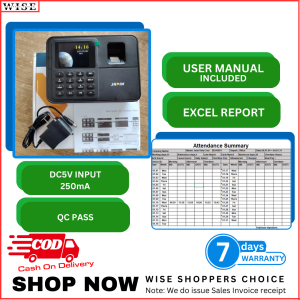
2.4 Inch TFT USB Biometric Fingerprint Time Clock Recorder Attendance Finger Biometric
2.4 Inch TFT USB Biometric Fingerprint Time Clock Recorder Attendance Finger Biometric
Introduction to Biometric Fingerprint Time Clock Recorders
Biometric fingerprint time clock recorders have become increasingly popular among businesses looking for efficient and secure ways to track employee attendance. These devices use advanced technology to capture and store fingerprint data, which is then used to log employees' arrival and departure times. This article will guide you through the installation, setup, usage, and maintenance of a 2.4 inch TFT USB biometric finger scanner, helping you maximize its benefits.
Key Features of Biometric Fingerprint Time Clock Recorders
- 2.4 inch TFT display: Provides a clear and easy-to-read interface for employees to interact with.
- USB connectivity: Allows for seamless integration with existing computer systems and networks.
- Fingerprint recognition: Uses biometric technology to accurately identify employees based on their unique fingerprint patterns.
- Attendance tracking system: Keeps track of employee attendance, providing valuable data for payroll processing and time management.
Benefits of Using a Biometric Fingerprint Time Clock Recorder
- Increased security: By using biometric technology, fingerprint time clock devices minimize the risk of unauthorized access or time theft.
- Improved accuracy: Compared to manual time tracking methods, biometric devices provide more accurate and reliable attendance records.
- Enhanced efficiency: Streamlining the process of tracking employee attendance can save businesses valuable time and resources.
How to Install and Set Up a Biometric Fingerprint Time Clock Recorder
Step-by-Step Installation Process
- Unpack the device and familiarize yourself with its components.
- Connect the USB cable to the device and plug it into a computer's USB port.
- Install the necessary software and drivers on your computer.
- Follow the on-screen instructions to complete the installation process.
Connecting the Device to Your Network
Once the device is installed, connect it to your network by following these steps:
- Log in to the device's web interface using the provided IP address.
- Configure the network settings according to your company's network specifications.
- Save the changes and test the connection to ensure everything is working properly.
Configuring the Device Settings
After connecting the device to your network, configure the settings according to your business needs:
- Set up user accounts and permissions for employees.
- Customize the attendance rules and policies.
- Define the time zones and date formats.
How to Use a Biometric Fingerprint Time Clock Recorder
Enrolling Employees' Fingerprints
To enroll employees' fingerprints, follow these steps:
- Log in to the device's web interface.
- Navigate to the employee enrollment section.
- Capture the employee's fingerprint by placing their finger on the scanner.
- Repeat the process for each finger to be enrolled.
Logging In and Out with the Device
Employees can log in and out by placing their enrolled finger on the scanner. The device will automatically record the time and date of their arrival and departure.
Viewing Attendance Reports
Attendance reports can be accessed through the device's web interface. These reports provide valuable insights into employee attendance patterns, helping managers make informed decisions about workforce management.
Maintaining and Troubleshooting Your Biometric Fingerprint Time Clock Recorder
Regular Maintenance Tasks
To ensure the device operates smoothly, perform regular maintenance tasks such as cleaning the scanner, updating the firmware, and backing up data.
Common Issues and Solutions
Some common issues and their solutions include:
- Scanner not recognizing fingerprints: Clean the scanner and ensure the employee's fingers are dry and free from dirt.
- Device not connecting to network: Check the network settings and ensure the device is properly connected to the network.
- Slow performance: Update the firmware and ensure the device has sufficient memory.
Contacting Support for Further Assistance
If you encounter any issues that cannot be resolved through troubleshooting, contact the manufacturer's support team for further assistance.

WISE SHOPPERS CHOICE
Review

You May Also Like
GM861XS Small UART/USB Interface 1D/QR/2D Bar Code Scanner QR Code Barcode Scanner Module With White Green LED For Arduino
Ricoh MP1350, MP1356, MP1357, MP1100, MP9000, MP1106, MP1107 Pager Cardboard
Paper Pick up Feed Roller for Use and Compatible in MP1600 MP1900 MP2000 Series
Phomemo M03 Portable Thermal Label PrinterBluetooth Mini Photo Printer for PictureBarcodeStudy NoteDIY Sticker

INKSCRIBED 128A CE320A CE321A CE322A CE323A Compatible Toner Cartridge for HP Laserjet CM1415fnw CP1525nw CP1525n CM1415fn
iData K3S Inventory Data Collection Terminal: Portable Barcode Scanner for Flash Kit J&T SPX Ninja
Epson 664 Ink 100% Original Genuine For Epson L Series Printer L120 L130 L220 L310 L360 L565 L1300 L455 L558(with box)
NIIMBOT N1(B18) Heat Transfer Label Printer - Smart Bluetooth Sticker Maker for Medical Jewelry Cables & Plants
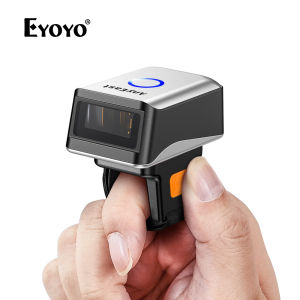
Eyoyo Wireless Bluetooth USB Scanner: A Comprehensive Guide
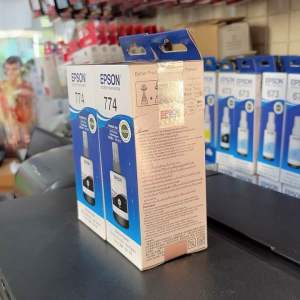
Genuine Pigment Ink 774 black (140ml)

Rotary Encoder - EL-AIA25-7NLB/1024-JRE