EXPOSE Portable Gaming Monitor for laptop 16.1 144Hz portable monitor screen for laptop extension 1080P HDR External Second Screen for Laptop PC PS5 Mac Xbox
EXPOSE Portable Gaming Monitor for laptop 16.1 144Hz portable monitor screen for laptop extension 1080P HDR External Second Screen for Laptop PC PS5 Mac Xbox
What is the EXPOSE Portable Gaming Monitor?
The EXPOSE Portable Gaming Monitor is a versatile, compact external display designed specifically for gamers and remote workers who require high-quality visuals and portability. This 16.1-inch 144Hz monitor supports 1080p resolution and 106% sRGB color accuracy, making it perfect for gaming, streaming, and productivity tasks.
Key Features & Specifications
- Display: 16.1-inch 144Hz IPS panel
- Resolution: 1920 x 1080 pixels (1080p)
- Color Accuracy: 106% sRGB
- HDR Support: Yes
- Connectivity: HDMI, USB-C, and 3.5mm audio jack
- Power Supply: 19V DC adapter
- Dimensions: 12.4 x 8.5 x 0.7 inches
- Weight: 2.2 lbs
How It Compares to Other Portable Monitors
When compared to other portable monitors on the market, the EXPOSE Portable Gaming Monitor stands out due to its high refresh rate, excellent color accuracy, and support for HDR content. Additionally, its compact size and lightweight design make it easy to carry around, making it ideal for gamers and remote workers who need a reliable second screen on-the-go.
How to Set Up Your EXPOSE Portable Gaming Monitor
Setting up your EXPOSE Portable Gaming Monitor is a straightforward process. Follow these steps to connect your monitor to your laptop or PC and configure the display settings:
Connecting to Your Laptop or PC
- Connect the HDMI cable from your EXPOSE Portable Gaming Monitor to your laptop or PC's HDMI port.
- If your device doesn't have an HDMI port, use the included USB-C cable to connect the monitor directly to your laptop or PC.
- Power on your EXPOSE Portable Gaming Monitor using the power button on the side of the monitor.
Configuring Display Settings
Once connected, you'll need to configure the display settings on your laptop or PC to ensure optimal performance. Here's how:
- On Windows, right-click on your desktop and select "Display settings" to adjust resolution, orientation, and scaling.
- On macOS, go to System Preferences > Displays to adjust resolution, orientation, and scaling.
- In the EXPOSE Portable Gaming Monitor's menu, navigate to the "Settings" tab to adjust brightness, contrast, and color temperature to your liking.
Maximizing Performance with the EXPOSE Portable Gaming Monitor
To get the most out of your EXPOSE Portable Gaming Monitor, consider the following tips:
Optimizing for Gaming
- Enable the monitor's Game Mode to reduce input lag and improve responsiveness.
- Adjust the monitor's refresh rate to match your preferred game's frame rate.
- Use the monitor's built-in audio output for immersive sound effects.
Enhancing Productivity
- Use the monitor's Split View feature to view two applications side-by-side for increased efficiency.
- Enable the monitor's Eye Care Mode to reduce eye strain during long work sessions.
- Use the monitor's built-in stand to adjust the viewing angle to your preference.
Who Should Buy the EXPOSE Portable Gaming Monitor?
The EXPOSE Portable Gaming Monitor is ideal for individuals who prioritize high-quality visuals and portability in their daily activities. Consider purchasing this monitor if you're a gamer who enjoys playing games on the go, a remote worker who needs a reliable second screen for productivity tasks, or anyone who wants to enhance their entertainment experience with a portable, high-resolution display.
Ideal for Gamers on the Go
Gamers who travel frequently will appreciate the EXPOSE Portable Gaming Monitor's compact size and lightweight design, which makes it easy to carry around. With a high refresh rate and excellent color accuracy, this monitor delivers a smooth and immersive gaming experience, no matter where you are.
Great for Remote Workers
Remote workers who need a reliable second screen for productivity tasks will love the EXPOSE Portable Gaming Monitor's versatility and ease of use. Its Split View feature allows you to view two applications side-by-side, increasing efficiency and reducing the need for constant window switching. Plus, its Eye Care Mode helps reduce eye strain during long work sessions, ensuring you stay focused and productive throughout the day.

Storm mall
You May Also Like
30V 10A Laboratory Power Supply 60V 5A Voltage Regulator with Three Data Stores OCP Short Circuit Warning Preset Voltage Current
![INFINITY SFF i5-11Gen desktop 8GB DDR4 512GB M.2 SSD windows 11 with INFINITY 24 " IPS LED Monitor full set PROMO [ brand new ]](https://img.lazcdn.com/g/ff/kf/S788627bafe1e4c5fb51b526fdb2d80e5T.jpg_300x300q80.jpg)
INFINITY SFF i5-11Gen desktop 8GB DDR4 512GB M.2 SSD windows 11 with INFINITY 24 " IPS LED Monitor full set PROMO [ brand new ]

8W Solar Panel Ventilation Fan without Solar Roof Ventilation Fan Weatherproof PC Shell For Sheds Greenhouses Cabins
JUMPEAK MX120 360mm Modular Wireless Splicing 120mm PC Case Cooling Fan ARGB Infinite Mirror Light Effect For Water Cooler Fan
10Pieces Church Fan with Double Sided Sublimations Blank for Printing for Special
Adjustable TPS61088 Power 5V/9V/12V Boost Module Thermal Management Stepping Up Adapter Electricity Regulator Module
Circuitrocks Water Pump Immersible and Water Tube
1700 Backplane CPU Cooler Holder Base Metal Backplate Adjustable Bracket for Intel Lga 1150/1511/1155/1156/1366/1200

HYUNDAI HLED-32BX100 Power Supply & HKC-PLO5 REV.1.0
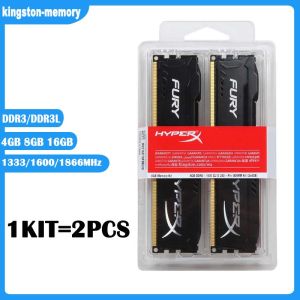
New KIT 4GB 8GB 16GB DDR3 RAM 1333MHz 1600MHz 1866mhz Desktop Memory DDR3L 1.35V 240 Pins DIMM HyperX FURY Gaming Memory-Black
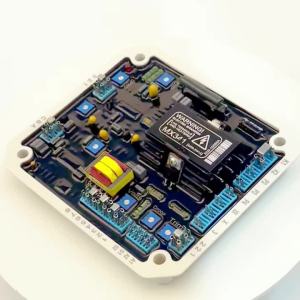
MX341 Automatic Regulator Avr