QBYteco Original Digital Persona U.are.U 4500 USB Biometric Fingerprint Scanner Fingerprint Reader URU4500 Made In Philippines
QBYteco Original Digital Persona U.are.U 4500 USB Biometric Fingerprint Scanner Fingerprint Reader URU4500 Made In Philippines
Introduction to the QBYteco Digital Persona U.are.U 4500
The QBYteco Digital Persona U.are.U 4500 USB Biometric Fingerprint Scanner is a high-quality fingerprint reader designed for businesses and individuals looking for reliable biometric authentication solutions. This model, known as the URU4500, is made in the Philippines and comes with CE certification, ensuring compliance with European safety standards.
Overview of the Fingerprint Scanner
The Digital Persona U.are.U 4500 is a compact, USB-powered fingerprint scanner that provides a convenient way to secure access to computers, networks, and other sensitive systems. With its sleek design and user-friendly interface, this fingerprint reader offers a seamless experience for users while maintaining a high level of security.
Key Features & Specifications
Here are some of the key features and specifications of the QBYteco Digital Persona U.are.U 4500 USB Biometric Fingerprint Scanner:
- Model Number: URU4500
- Brand Name: QBYteco
- Origin: Philippines
- Certification: CE
- Power Source: USB-powered
- Compatibility: Windows XP/Vista/7/8/10, Mac OS X, Linux
- Resolution: 500 dpi
- Image Size: 256 x 368 pixels
- Enrollment Time: Less than 1 second per finger
- Storage Capacity: Up to 1,000 fingerprints
- Authentication Time: Less than 1 second per finger
- Security Level: High, with AES-256 encryption
How to Install & Set Up the Fingerprint Scanner
Installing and setting up the QBYteco Digital Persona U.are.U 4500 USB Biometric Fingerprint Scanner is a straightforward process. Follow these steps to get started:
Step-by-Step Installation Guide
- Connect the scanner to your computer using the provided USB cable.
- Download and install the driver software from the QBYteco website.
- Launch the software and follow the on-screen instructions to configure the scanner settings.
- Enroll your fingerprints by following the prompts in the software.
- Test the scanner by attempting to authenticate using your enrolled fingerprints.
Configuring the Scanner with Your System
To integrate the QBYteco Digital Persona U.are.U 4500 with your system, you may need to adjust some settings. Consult the user manual or contact QBYteco support for assistance if needed.
Enhancing Security with the Fingerprint Scanner
Using biometric authentication, such as the QBYteco Digital Persona U.are.U 4500 USB Biometric Fingerprint Scanner, can significantly improve the security of your systems and data.
Benefits of Biometric Authentication
Some of the benefits of using biometric authentication include:
- Increased Security: Biometric authentication is more secure than traditional password-based methods because it relies on unique physical characteristics, making it nearly impossible to replicate.
- Convenience: Users can access their systems quickly and easily by simply placing their finger on the scanner, eliminating the need to remember complex passwords.
- Reduced Password Fatigue: With biometric authentication, users don't have to worry about forgetting or losing their passwords, reducing password fatigue and increasing productivity.
Integrating the Scanner into Your Security System
To integrate the QBYteco Digital Persona U.are.U 4500 into your security system, you may need to configure your system settings or install additional software. Consult the user manual or contact QBYteco support for assistance if needed.
Troubleshooting Common Issues
If you encounter any issues with the QBYteco Digital Persona U.are.U 4500 USB Biometric Fingerprint Scanner, here are some tips to help resolve them:
Resolving Connection Problems
If the scanner is not connecting to your computer, try the following steps:
- Ensure that the USB cable is securely connected to both the scanner and your computer.
- Check that the driver software is installed and up-to-date.
- Restart your computer and try connecting the scanner again.
Addressing Scanning Errors
If you encounter scanning errors, try the following steps:
- Clean the scanner lens and fingerprint surface using a soft, lint-free cloth.
- Ensure that your fingers are clean and dry before attempting to scan.
- Adjust the scanner settings in the software to optimize performance.
- If the issue persists, contact QBYteco support for further assistance.
By following these guidelines, you can ensure a smooth installation and setup process for the QBYteco Digital Persona U.are.U 4500 USB Biometric Fingerprint Scanner, enhancing the security of your systems and data while providing a convenient authentication experience for users." }

jun723968

Review

You May Also Like

eTONER Compatible TN-2150 Toner Cartridge for use in HL-2140 HL-2117W
PGI72 PGI-72 Color Compatible Printer Ink Cartridge for Canon PIXMA Pro-10 Pro 10 PRO-10S PRO 10S Printer\\n\\n Introduction to Tatrix PGI 72 Ink Cartridge\\n\\nThe Tatrix PGI 72 Ink Cartridge is a high-quality, compatible ink cartridge designed specifically for use with Canon PIXMA Pro-10S printers. This ink cartridge offers a cost-effective alternative to Canon's original ink cartridges while maintaining the same level of quality and performance.\\n\\n What is the Tatrix PGI 72 Ink Cartridge?\\n\\nThe Tatrix PGI 72 Ink Cartridge is a compatible ink cartridge designed to work seamlessly with Canon PIXMA Pro-10S printers. It is compatible with Canon's original ink cartridge model number PGI-72 and offers the same vibrant colors and print quality.\\n\\n How Does It Compare to Canon PIXMA Pro-10S Original Ink?\\n\\nWhile the Tatrix PGI 72 Ink Cartridge offers similar print quality and performance to Canon's original ink cartridges, it provides a more cost-effective solution for users who require frequent printing. The Tatrix PGI 72 Ink Cartridge is designed to work perfectly with Canon PIXMA Pro-10S printers, providing high-quality prints at a lower cost.\\n\\n Key Features of Tatrix PGI 72 Compatible Ink Cartridge\\n\\nThe Tatrix PGI 72 Ink Cartridge offers several key features that make it a great choice for users looking for a cost-effective, high-quality ink cartridge solution.\\n\\n Full Ink Cartridge with Chip for Perfect Compatibility\\n\\nThe Tatrix PGI 72 Ink Cartridge comes pre-filled with ink and includes a chip that ensures perfect compatibility with Canon PIXMA Pro-10S printers. This chip allows the printer to recognize the ink cartridge and print at its highest quality.\\n\\n Bulk Packaging for Cost-Effective Printing\\n\\nThe Tatrix PGI 72 Ink Cartridge is available in bulk packaging, making it an ideal solution for users who require frequent printing. By purchasing in bulk, users can save money on their printing costs while still maintaining high-quality prints.\\n\\n Dye-Based Ink for Vivid Colors\\n\\nThe Tatrix PGI 72 Ink Cartridge uses dye-based ink, which provides vivid colors and excellent print quality. This makes it a great choice for users who require high-quality prints for professional or personal use.\\n\\n How to Install Tatrix PGI 72 Compatible Ink Cartridge\\n\\nInstalling the Tatrix PGI 72 Ink Cartridge is easy and straightforward. Follow these steps to install the ink cartridge in your Canon PIXMA Pro-10S printer:\\n\\n Step-by-Step Guide to Installing Tatrix PGI 72\\n\\n1. Turn on your Canon PIXMA Pro-10S printer and open the front cover.\\n2. Remove the original ink cartridge from the printer.\\n3. Insert the Tatrix PGI 72 Ink Cartridge into the printer, making sure it is seated properly.\\n4. Close the front cover of the printer and press the \"Start\" button to begin the installation process.\\n\\n Troubleshooting Common Installation Issues\\n\\nIf you encounter any issues during the installation process, try the following troubleshooting tips:\\n\\n* Make sure the ink cartridge is seated properly in the printer.\\n* Check that the ink cartridge is compatible with your printer model.\\n* If the printer does not recognize the ink cartridge, try restarting the printer.\\n\\n Maximizing Printer Performance with Tatrix PGI 72\\n\\nTo ensure optimal performance from your Canon PIXMA Pro-10S printer, follow these tips:\\n\\n* Always use high-quality paper for printing.\\n* Clean the print head regularly to maintain optimal print quality.\\n* Follow the manufacturer's instructions for ink cartridge installation and maintenance.\\n\\nIn conclusion, the Tatrix PGI 72 Ink Cartridge is a great choice for users looking for a cost-effective, high-quality ink cartridge solution for their Canon PIXMA Pro-10S printer. With its full ink cartridge, bulk packaging, and dye-based ink, the Tatrix PGI 72 Ink Cartridge offers excellent value and performance.\"\n}
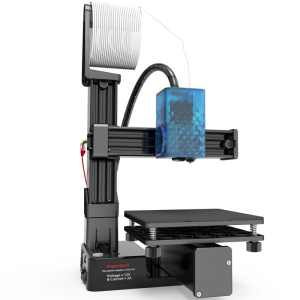
Beginner Friendly Entry Level TPU 1.75mm 3D Printer For Kids Students Detachable Platform Build Area

Epson L6550 L6580 L15160 T066G

24in x 30m Self Adhesive Waterproof Glossy Inkjet RC Photo Paper Sticker Roll for Pigment Printer
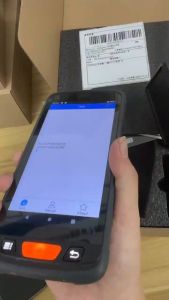
4G Android 11 POS PDA with Grips Barcode Scanner 1D 2D QR Code 5.5 Inch Handheld Terminal 4GB+64GB Running Date Collector Warehouse Inventory Express PDA

Tulco Stripper (Screen Printing Supply)

High Quality DTF Adhesive Powder Hot Melt Powder 1Kg For DTF Printer PET Film Laser Toners

DR 2355 Drum Kit for HL-L2320D / MFC-L2700D / L2700DW / L2740DW Brother Printers

Paper Pickup Roller Compatible for Epson L8050 L18050 L11050

100 % Genuine Canon Pixma Made in Japan PG-47 Black / CL-57 Tri-color FINE Cartridge For PIXMA E3170 E3177 E400 E410 E417 E460 E470 E477 E480. Canon Mf4700 Toner Cartridge - Lazada