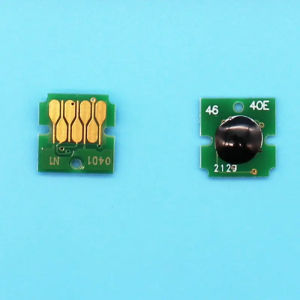
Waste Ink Maintenance Tank Chip Resetter T04D1 Reseting T6716 T3661 For Epson L6168 L6198 L6170 L6178 L6190 L6191 L6171 Resseter
Waste Ink Maintenance Tank Chip Resetter T04D1 Reseting T6716 T3661 For Epson L6168 L6198 L6170 L6178 L6190 L6191 L6171 Resseter
Introduction to Waste Ink Maintenance Tank Chip Resetters
Waste ink maintenance tank chip resetters play a crucial role in maintaining the efficiency and longevity of Epson printers like the L6168, L6170, L6190, and others. These resetters help reset the waste ink tank chips, allowing users to continue using their printer without having to replace the entire maintenance tank.
Understanding the Purpose of Waste Ink Chips
Waste ink chips are essential components of the printer's maintenance system. They monitor the amount of ink used during printing and cleaning processes. When the chip reaches its capacity, it triggers a warning message, indicating that the waste ink tank needs to be replaced. Resetting these chips allows users to reuse the maintenance tank, saving both time and money.
Identifying Compatible Printers and Models
The ifew waste ink maintenance tank chip resetter is compatible with various Epson printers, including the L6168, L6170, L6178, L6190, L6191, and L6171. It supports multiple chip models, such as T04D1, T04D0, T6716, T6715, and T3661.
Step-by-Step Guide to Resetting Waste Ink Maintenance Tank Chips
Resetting waste ink maintenance tank chips is a straightforward process that can be completed in just a few steps. Here's a step-by-step guide to help you reset the chips using the ifew waste ink chip resetter:
Preparing Your Tools and Equipment
Before you begin, gather the following tools and equipment:
- ifew waste ink chip resetter
- Epson printer (L6168, L6170, L6178, L6190, L6191, or L6171)
- Waste ink maintenance tank
Removing the Waste Ink Tank from Your Printer
Follow these steps to remove the waste ink tank from your printer:
- Turn off the printer and unplug it from the power source.
- Open the printer cover and locate the waste ink tank.
- Gently lift the waste ink tank out of the printer.
Using the T04D1 & T6716 Resetter to Reset the Chip
Now that you have removed the waste ink tank, follow these steps to reset the chip using the ifew waste ink chip resetter:
- Connect the resetter to a computer using a USB cable.
- Insert the waste ink tank into the resetter.
- Press the reset button on the resetter.
- Wait for the reset process to complete.
- Remove the waste ink tank from the resetter and reinsert it into the printer.
Troubleshooting Common Issues When Resetting Waste Ink Maintenance Tank Chips
Resetting waste ink maintenance tank chips can sometimes result in errors or connectivity issues. Here are some tips to help you troubleshoot these problems:
Addressing Error Messages During the Reset Process
If you encounter error messages during the reset process, make sure that:
- The waste ink tank is properly inserted into the resetter.
- The resetter is connected to a computer using a USB cable.
- The reset button is pressed firmly.
Resolving Connectivity Issues with the Resetter
If you experience connectivity issues with the resetter, try the following steps:
- Disconnect and reconnect the USB cable.
- Restart the computer and try again.
- Check if the resetter is compatible with your computer's operating system.
Best Practices for Maintaining Your Waste Ink Maintenance Tank Chips
To ensure the longevity and efficiency of your waste ink maintenance tank chips, follow these best practices:
Regularly Cleaning and Inspecting the Waste Ink Tank
Regular cleaning and inspection of the waste ink tank can help prevent clogs and other issues. Follow these steps to clean and inspect the waste ink tank:
- Remove the waste ink tank from the printer.
- Clean the tank with a soft, lint-free cloth.
- Inspect the tank for any signs of damage or wear.
Proper Storage and Handling of Resetters and Waste Ink Tanks
To maintain the quality of your waste ink chip resetter and waste ink tanks, store them in a cool, dry place away from direct sunlight. Handle the resetter and waste ink tanks carefully to avoid damaging the components.
In conclusion, resetting waste ink maintenance tank chips is a simple process that can help extend the life of your Epson printer. By following the steps outlined in this guide, you can easily reset the chips and continue printing without having to replace the entire maintenance tank." }

diye3856484
Review

You May Also Like
MC-G04 Maintenance Ink Tank Box & Canon MC-G02 Maintenance Parts for Canon G Series Printers

Pocket P2 Mini Thermal Label Printer Inkless Bluetooth Portable Label Sticker Machine 20-50mm Width Adhesive Printing

【TOP SALE】Canon ink PG 40 Black Ink Cartridge PIXMA MP450 All-in-One Printer/PIXMA iP1200 Bubble Jet Printer PIXMA iP1700 Bubble Jet Printer/PIXMA MP160 All-in-One Printer

FANTASY T MALL PeriPage A40 203DPI GIFTBOX Printer Portable Thermal Wireless Mini Printer USB Android Bluetooth Home Office A4 Paper Document Printing PDF
![[🇵🇭 Stock&COD] Portable Label Printer Bluetooth Thermal Mini Cat Print Photo Pocket Thermal Printer 58mm Printing Wireless Android IOS Printers](https://img.lazcdn.com/g/ff/kf/S460f1825d097454f98feeeb51bd512b5t.jpg_300x300q80.jpg)
[🇵🇭 Stock&COD] Portable Label Printer Bluetooth Thermal Mini Cat Print Photo Pocket Thermal Printer 58mm Printing Wireless Android IOS Printers
Encoder A860-2000 2020 2005-T301 321 341 351 New Original Genuine Product
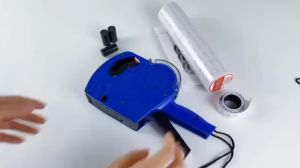
Cod (Free Ink Roll And Tag) 8 Digits Price Tag Price Labeller Crown Mx-5500 With Labels Introductory Package Price Tag Labeller
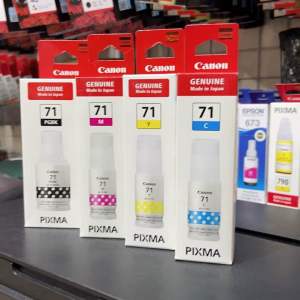
Genuine Original Ink 71 Black or 71 CMY for G1020, G2020, and G3020

EP Ink T664
3D Printer Accessories: Consumables & Material Detection
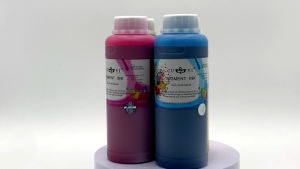
All U Want - Cuyi Pigment Ink For Inkjet Printer 500ML CMYK