HP 60XL Replacement Ink Cartridge for Deskjet Printers: A Comprehensive Guide
HP 60XL Replacement Ink Cartridge for Deskjet Printers: A Comprehensive Guide
Introduction
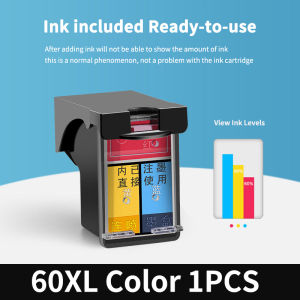
Ink cartridges are a crucial component of any printer, ensuring that documents and images are printed with vibrant colors and sharp clarity. The HP 60XL Replacement Ink Cartridge is a compatible alternative for various HP Deskjet printers, including the Deskjet 3790, 3787, 3785, 4535, 2135, 3635, 3835, 5275, 3775, 4675, DeskJet D2560, D2660, F2410, F2480, F4230, F4250, F4280, C4680, C4780, and HP Envy 100, 110, and 120 series.
Understanding HP 60XL Ink Cartridge Compatibility
It's essential to understand that different regions may use different ink cartridge models, even if the printer model remains the same. Therefore, it's crucial to check your original ink cartridge model number before placing an order for the HP 60XL replacement ink cartridge.
Identifying Your Printer Model and Cartridge Number
To identify your printer model and cartridge number, follow these steps:
- Check the printer's user manual or the manufacturer's website for information about compatible ink cartridges.
- Look at the original ink cartridge packaging or the cartridge itself for the model number.
- Contact HP support for assistance if needed.
Installation and Troubleshooting
Proper installation and troubleshooting techniques are vital to ensure smooth printing and avoid common printer errors.
How to Install HP 60XL Ink Cartridges
Follow these steps to install the HP 60XL replacement ink cartridge:
- Turn off the printer and open the top cover.
- Remove the old ink cartridge by gently pulling it out from its slot.
- Open the new ink cartridge package and remove the plastic tape covering the ink nozzles.
- Insert the new ink cartridge into its slot, then close the top cover and turn on the printer.
Resolving Common Printer Errors: E4, Not Recognized, and Blinking Indicator Light
Printer errors like E4, Not Recognized, and a blinking indicator light can be caused by incorrect installation or a dirty chip on the ink cartridge. Here are some solutions:
- Reinstall the ink cartridge, making sure it's properly seated in its slot.
- Clean the chip with an eraser or a clean cloth bound with alcohol.
FAQs and Additional Tips
Why Do Printers Show Error E4, Not Recognized, or Failure?
Printer errors like E4, Not Recognized, or Failure can occur due to incorrect installation or a dirty chip on the ink cartridge. To resolve these issues, reinstall the ink cartridge and clean the chip if necessary.
How to Clean the Chip on Your Ink Cartridge
To clean the chip on your ink cartridge, use an eraser or a clean cloth bound with alcohol. Gently rub the chip to remove any dirt or debris.
Additional Tips for Maintaining Your Printer and Ink Cartridges
To ensure optimal performance and longevity of your printer and ink cartridges, follow these tips:
- Store ink cartridges in a cool, dry place away from direct sunlight.
- Replace ink cartridges before they run out completely to avoid clogging.
- Clean the printer regularly to prevent dust buildup.
- Follow the manufacturer's instructions for proper maintenance and troubleshooting.

hicor ink cartridges
Review

You May Also Like
Silk Dual Color PLA Filament 3D Printer 1.75mm +/- 0.03mm Bicolor Filament Two Tone PLA 250G(0.55lbs) Black Gold

CANON NPG-88 TONER FOR IR ADV DX C3930i / C3326i / C3926i
URU4500 USB Fingerprint Reader: A Comprehensive Guide
A3 30CM DTF Printer with Powder Shaker Direct to PET Film Printing Machine Factory Direct for Garment Heat Transfer Printing with 2*Epson XP600 Print Heads Dtf Printers For Sale Dtf Prints - Lazada
Epson Original 003 Ink Black Cyan Magenta Yellow for L1110/L3110/L3116/L3150/L3156/L5190/L5196/L1210/L3210/L3216/L3250/L3256/L3260/L5290

85a CE285a Compatible Toner Cartridge (Brand New)
Canon CLI65 & CLI-42 Ink Cartridges: A Comprehensive Guide
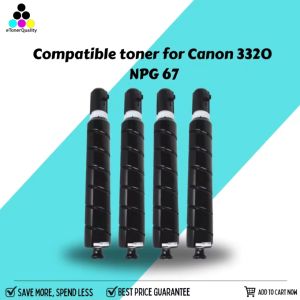
eTONER Compatible NPG-67 EXV49 GPR53 NPG-67 for Canon HIGH YIELD
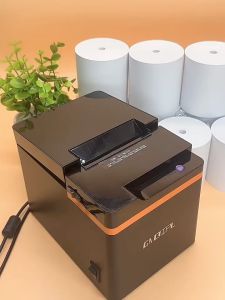
Coreless Thermal Paper: High-Quality Glossy Type & POS Cash Register Printer Solutions
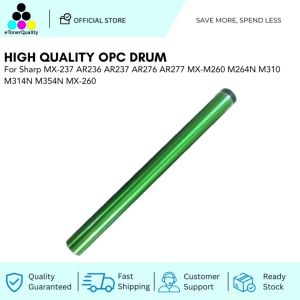
ETQ OPC Drum for Sharp MX-237 AR236 AR237 AR276 AR277 MX-M260 M264N M310 M314N M354N MX-260
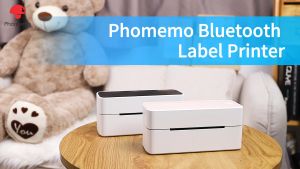
Phomemo 241BT USB/Bluetooth Thermal Printer For WaybillBarcodeA6 Shipping LableDIY StickerCompatible With Smartphone And PC