600Mbps Dual Band USB WiFi Bluetooth Adapter: A Comprehensive Guide
600Mbps Dual Band USB WiFi Bluetooth Adapter: A Comprehensive Guide
What is a USB WiFi Bluetooth Adapter?
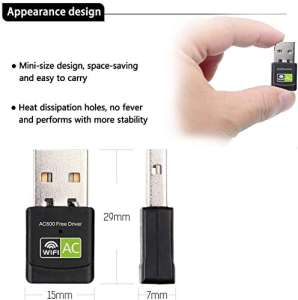
A USB WiFi Bluetooth Adapter, like the 600Mbps Dual Band adapter, is a small external device that allows your computer to connect to wireless networks and devices using both Wi-Fi and Bluetooth technologies. This adapter plugs into a USB port on your PC, laptop, or desktop, providing a simple way to add wireless capabilities to your system.
Key Features
- Dual Band Connectivity: Supports both 2.4GHz and 5GHz frequencies, allowing for faster data transfer rates and reduced interference.
- 600Mbps Speed: Provides fast Wi-Fi speeds for streaming, gaming, and browsing.
- Bluetooth Connectivity: Enables wireless connections to Bluetooth-enabled devices, such as keyboards, mice, and headphones.
- Compact Design: The mini WiFi dongle is small enough to fit in most USB ports, making it easy to carry around.
Benefits of Using a USB WiFi Bluetooth Adapter
Using a USB WiFi Bluetooth adapter offers several advantages:
- Enhanced Connectivity: Expand your computer's connectivity options by adding Wi-Fi and Bluetooth capabilities.
- Improved Performance: Enjoy faster data transfer rates and reduced interference with dual band connectivity.
- Increased Mobility: Easily move your adapter between devices, allowing you to stay connected wherever you go.
How to Choose the Right External WiFi Adapter
When selecting an external WiFi adapter, consider the following factors:
Considerations for Your Device Compatibility
- Operating System: Ensure the adapter is compatible with your computer's operating system (Windows, macOS, Linux).
- USB Port Availability: Check if your device has available USB ports to accommodate the adapter.
Factors to Consider When Selecting a Wireless Receiver
- Speed: Look for an adapter that offers fast Wi-Fi speeds, such as 600Mbps.
- Range: Consider the adapter's range to ensure it can connect to your wireless network from various locations.
- Compatibility: Verify that the adapter supports both 2.4GHz and 5GHz frequencies.
How to Install and Set Up Your Mini WiFi Dongle for PC/Laptop/Desktop
Follow these steps to install and set up your mini WiFi dongle:
Step-by-Step Installation Guide
- Plug in the Adapter: Insert the USB WiFi Bluetooth adapter into an available USB port on your computer.
- Install Drivers: If necessary, download and install the appropriate drivers for your operating system.
- Connect to a Network: Open your computer's network settings and select the available wireless network.
- Enter Network Credentials: Input your Wi-Fi password to connect to the network.
Troubleshooting Common Issues
If you encounter problems during installation or setup, try the following solutions:
- Check USB Port: Ensure the adapter is securely connected to a functioning USB port.
- Update Drivers: Check for and install any available driver updates.
- Restart Your Computer: Restart your computer to resolve any software conflicts.
Maximizing Performance with Your 2.4/5Ghz Wireless Receiver
To get the most out of your 2.4/5GHz wireless receiver, follow these tips:
Tips for Optimal Usage
- Position the Adapter: Place the adapter near the center of your computer to minimize signal interference.
- Keep the Adapter Updated: Regularly check for firmware updates to maintain optimal performance.
- Limit Interference: Keep the adapter away from other electronic devices that may cause interference.
Enhancing Security Measures
To protect your wireless connection, consider implementing these security measures:
- Use Strong Passwords: Choose strong, unique passwords for your Wi-Fi network.
- Enable Encryption: Enable WPA2 or WPA3 encryption to secure your wireless network.
- Disable Remote Management: Disable remote management features to prevent unauthorized access.

Sweethomestore
You May Also Like

Ajazz K620T RGB Bluetooth Wireless Mechanical Keyboard: A Comprehensive Guide
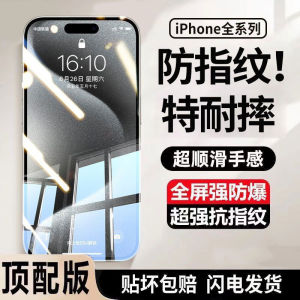
Apple 16Promax Tempered Glass Screen Protector Full Cover Privacy Filter Clear Anti Blue Light Shockproof for iPhone 16 15Promax 14Plus

SuperKalan Burner Cap: High-Quality Design & Accessories
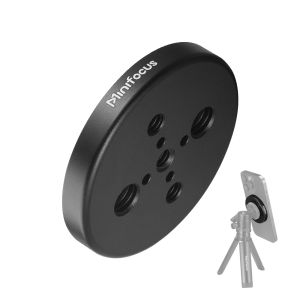
Magnetic Phone Holder for Magsafe to 1/4 & 3/8 Arri Holes Tripod Mount Adapter for iPhone Samsung Huawei Xiaomi Smartphone
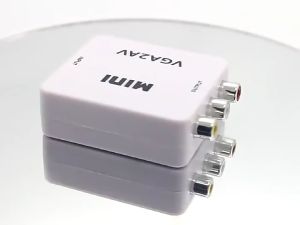
TG VGA To AV Video Converter AV RCA CVBS to VGA Video HDTV Adapter
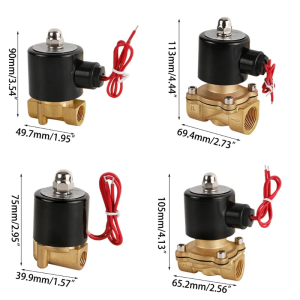
DN8/10/15/20/25 Quick Conntect Water Reverse Osmosis System Electric Water Oil Solenoid Valve 12/24/220V Normally Closed

OPBWQH Gift for Women Pendant Bell Hanging Cord Daisy Anti-Lost Flower Mobile Phone Accessories Mobile Phone Strap Cell Phone Lanyard Mobile Phone Lanyard
Short USB4 Cable 5Inch Flat Cord 40Gbps Speed 240W Power Delivery for Phones External SSD eGPU and More USB C Devices
Anti-Fall Phone Cases for Samsung Galaxy A Series: A Comprehensive Guide
Manual Small Coffee Mill Travel Friendly Coffee Grinder Manual Coffee Mill Plastic Texture for Camping and Indoor Use
DAIMANG | Luxury Transparent Shockproof Case For Samsung S25 Ultra Full Cover Mens And Womens Model Anti Yellowing New GalasyS25 Plus