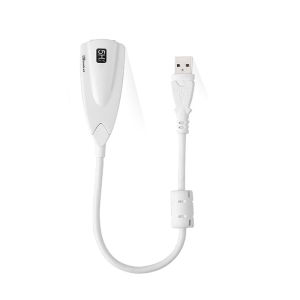
7.1 Channel Audio Sound USB To 3.5MM Headphone & Microphone Stereo External USB Sound Card Adapter For Laptop PC PS4/5
7.1 Channel Audio Sound USB To 3.5MM Headphone & Microphone Stereo External USB Sound Card Adapter For Laptop PC PS4/5
What is a 7.1 Channel Audio USB to 3.5MM Adapter?
A 7.1 channel audio USB to 3.5mm adapter is a device that allows users to connect their headphones and microphones to their laptop or gaming console via a USB port. This external sound card provides enhanced sound quality and compatibility with various devices, making it ideal for gamers, music enthusiasts, and professionals who require high-quality audio output.
Key Features
- Connects to 2.5" / 3.5" IDE hard drive or SATA hard disk
- Compliant with USB 1.1 and 2.0 standards
- USB 2.0 interface for 480 Mbps high-speed data transfer
- Drive 2CH speakers
- External sound card for laptop, compatible with PS4 & PS5
How Does It Work?
The adapter works by converting the digital audio signal from your computer or gaming console into an analog signal that can be sent to your headphones and microphone. This process involves the use of a USB port, which allows for easy connection and setup.
Benefits of Using a 7.1 Channel Audio USB Adapter
Using a 7.1 channel audio USB adapter offers several benefits, including enhanced sound quality, compatibility with various devices, and easy setup and installation.
Enhanced Sound Quality
One of the most significant advantages of using a 7.1 channel audio USB adapter is the improved sound quality it provides. By utilizing an external sound card, users can experience a more immersive audio experience, with clearer highs, deeper lows, and a wider soundstage.
Compatibility with Various Devices
Another benefit of using a 7.1 channel audio USB adapter is its compatibility with a wide range of devices. Whether you're using a laptop, desktop PC, or gaming console such as PS4 or PS5, this adapter will work seamlessly with your device, providing a consistent audio experience across all platforms.
Easy Setup and Installation
Setting up and installing a 7.1 channel audio USB adapter is a breeze. Simply plug the adapter into a USB port on your computer or gaming console, connect your headphones and microphone, and you're ready to go. No complicated software installations or driver updates are required.
How to Choose the Right Adapter
When selecting a 7.1 channel audio USB adapter, there are several key considerations to keep in mind, including compatibility, sound quality, and brand reputation.
Key Considerations
- Ensure the adapter is compatible with your device (laptop, desktop PC, PS4, PS5)
- Look for an adapter with high-quality sound output
- Research popular brands and models to find the best value for your needs
Popular Brands and Models
Some popular brands and models of 7.1 channel audio USB adapters include:
- Creative Sound BlasterX AE-5 Plus
- Logitech G560 Wireless Gaming Headset
- HyperX Cloud Flight S Wireless Gaming Headset
How to Connect Your Adapter to a Laptop or Gaming Console
Connecting your 7.1 channel audio USB adapter to your laptop or gaming console is a straightforward process. Here's how to do it:
Connecting to a Laptop
- Plug the USB end of the adapter into an available USB port on your laptop
- Connect your headphones and microphone to the appropriate ports on the adapter
- Adjust the volume and audio settings on your laptop to ensure optimal sound quality
Connecting to PS4 & PS5
- Plug the USB end of the adapter into an available USB port on your PS4 or PS5 console
- Connect your headphones and microphone to the appropriate ports on the adapter
- Adjust the audio settings on your console to ensure optimal sound quality
Troubleshooting Common Issues
If you're experiencing issues with your 7.1 channel audio USB adapter, here are some common problems and their solutions:
Sound Not Working
- Check that the adapter is properly connected to your device
- Ensure your headphones and microphone are connected to the correct ports on the adapter
- Adjust the volume and audio settings on your device to ensure optimal sound quality
Poor Sound Quality
- Check that the adapter is compatible with your device
- Try using different headphones and microphones to determine if the issue is with the adapter or your audio equipment
- Update your device's drivers and software to ensure optimal performance
Device Not Recognized
- Restart your device and try reconnecting the adapter
- Check that the adapter is properly connected to your device
- Update your device's drivers and software to ensure optimal performance
By following these guidelines, you can enjoy the benefits of a 7.1 channel audio USB adapter and enhance your audio experience on your laptop or gaming console. Whether you're a gamer, music enthusiast, or professional, this adapter offers a versatile solution for all your audio needs." }

Tech_Pulse
You May Also Like
MEAN WELL RPS-65 RPS-65-12 RPS-65-24 Reliable Green Medical Power Supply RPS 65 12V 24V
Original and new LCD screen display TFT7K0791FPC-A1-E TFT2P2221-V6-S-W-E LCD With touch screen creen replacement free shipping
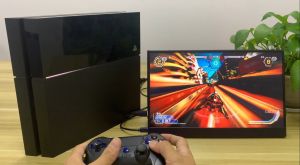
15.6 Inch Ultrathin Portable Monitor: A Comprehensive Guide
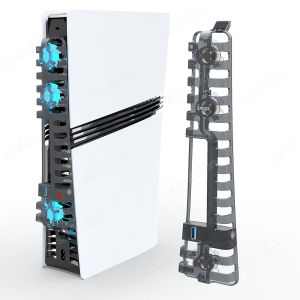
For PS5 Slim Accessories Cooling Fan with LED Light for Playstation 5 slim Disc and Digital Editions Cooling System Cooler for Ps5 Pro/Ps5 Slim
ESP32S3 LVGL WIFI Bluetooth-compatible Development Board LCD Display Screen Module Capacitive Touch Development
ELEXHUB Sumobot V3 1 KG Category- ESP32 High Torque Motor IR Sensors WiFi/Bluetooth STEM Robot
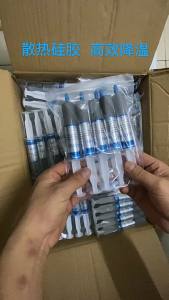
Thermal Grease Paste HY510 for CPU/GPU Heatsink ETC
Toshiba MQ01ABD100 2.5" 1TB 5400 RPM HDD Hard Disk
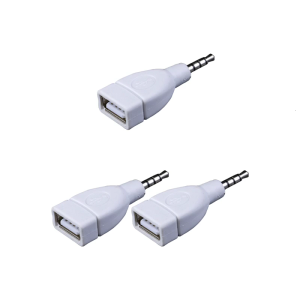
Sound Converters Adapter USB 2.0 Female to 3.5mm Male AUXs Sound Car Plug Jacks White
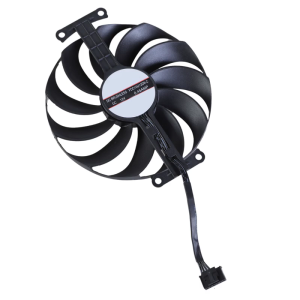
95mm/3.74inch FDC10U12D9-C VGA Fan Graphics Cooling Fan 6Pin 12V Coolers Fan for GTX1650 PHGTX1650-O4GD6-P
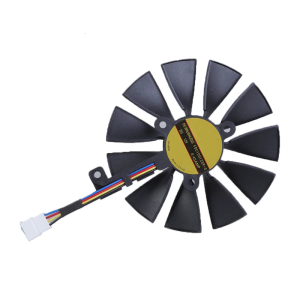
GPU Fan Efficient Cooling Fan 4/6/7Pin Connection For FDC10U12S9-C 2070 Provides Quiet and Effective Heat Dissipation