How to Replace Canon Pixma G1400-G4400 Printer Heads
How to Replace Canon Pixma G1400-G4400 Printer Heads
Understanding Canon Pixma G1400-G4400 Printer Heads
Overview of Canon Pixma G1400-G4400 Printer Heads
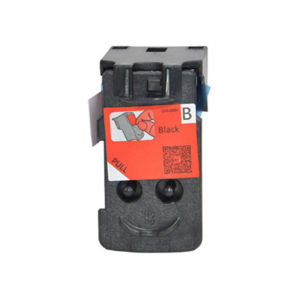
The Canon Pixma G1400-G4400 series of printers come equipped with high-quality printer heads designed to produce exceptional print quality. These printer heads are responsible for delivering ink onto the paper, allowing you to enjoy crisp and vibrant prints. The printer heads used in these models include the Canon CA91 and CA92 printer heads, which are compatible with the Canon Pixma G1400, G1410, G1411, G2400, G2410, G2411, G3400, G3410, G4400, and G4410 printers.
Key Differences Between Printer Heads
While the printer heads used in the Canon Pixma G1400-G4400 series are similar, there may be slight differences in their design and functionality. For instance, the Canon CA91 and CA92 printer heads have different color configurations, with the CA91 being designed for black-and-white printing and the CA92 for color printing. It's essential to choose the correct printer head for your specific printer model to ensure optimal performance.
Replacing Canon Pixma G1400-G4400 Printer Heads
Preparing for Replacement
Before replacing your Canon Pixma G1400-G4400 printer head, make sure you have the following items:
- A replacement Canon CA91 or CA92 printer head
- A clean, dry workspace
- A soft cloth or paper towel
Step-by-Step Guide to Replace Printer Heads
Follow these steps to replace your Canon Pixma G1400-G4400 printer head:
- Turn off your printer and unplug it from the power source.
- Open the printer cover and locate the old printer head.
- Gently lift the old printer head out of its slot.
- Remove the new printer head from its packaging and carefully slide it into the slot.
- Close the printer cover and reconnect the power source.
- Turn on your printer and follow the on-screen instructions to initialize the new printer head.
Troubleshooting Common Issues
If you encounter any issues during the replacement process, refer to the following troubleshooting tips:
- Ensure you have chosen the correct printer head for your specific printer model.
- Check that the printer head is properly seated in its slot.
- Verify that the printer is connected to a power source and turned on.
Maintaining Canon Pixma G1400-G4400 Printer Heads
Cleaning Printer Heads
To maintain optimal print quality, it's important to clean your Canon Pixma G1400-G4400 printer heads regularly. Follow these steps to clean your printer heads:
- Turn off your printer and unplug it from the power source.
- Open the printer cover and locate the printer head.
- Use a soft cloth or paper towel to gently wipe the surface of the printer head.
- Close the printer cover and reconnect the power source.
- Turn on your printer and run a cleaning cycle using the on-screen instructions.
Regular Maintenance Tips
In addition to cleaning your printer heads, here are some other maintenance tips to keep your Canon Pixma G1400-G4400 printer running smoothly:
- Replace ink cartridges as needed.
- Keep the printer in a cool, dry location away from direct sunlight.
- Regularly check for firmware updates and install them as needed.
Extending Printer Head Lifespan
To extend the lifespan of your Canon Pixma G1400-G4400 printer heads, follow these tips:
- Print regularly to keep the ink flowing.
- Store unused ink cartridges properly.
- Clean your printer heads regularly to prevent clogging.
By following these maintenance tips, you can ensure that your Canon Pixma G1400-G4400 printer heads continue to produce high-quality prints for years to come.
Conclusion
Replacing and maintaining your Canon Pixma G1400-G4400 printer heads is essential for ensuring optimal print quality. By following the steps outlined in this guide, you can easily replace your printer head and keep it running smoothly. Remember to clean your printer heads regularly and perform regular maintenance to extend their lifespan and keep your printer functioning at its best.

CMYK.Print
You May Also Like
6 in1 Multifunction Heat Press Machine: A Mini Printer for Small Business
Original Brother TN-263 TN263 CMYK Laser Toner Cartridge
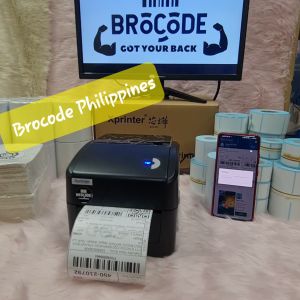
XPRINTER Waybill Printer: Specifications & Online Selling
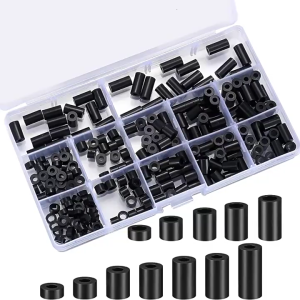
Heatbed Silicone Leveling Column 230Pcs 3D Printers Hot Bed Mounts Column Stable ToolHeat-Resistant Silicone Buffer
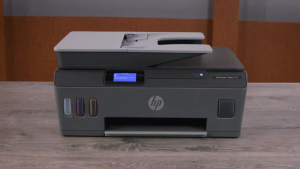
HP Original Ink GT53/51 Black GT52 CMY Set Of 4units Ink Bottle For GT5810 / GT5820 Tank 315 / 415 / 515
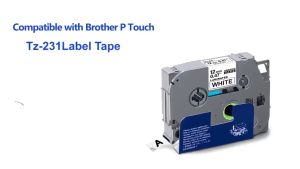
20 Color TZE231 Compatible Brother 12mm Tze231 Label Tape for P Touch printer Tze tapes Tze-231 tze 231 tz231 tze131 tze221 tze211 tz631 TZe231
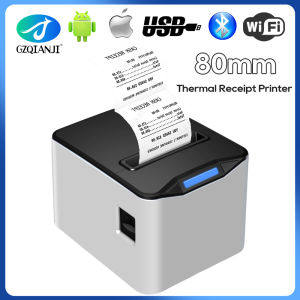
3inch Thermal Receipt Printer Restaurant Kitchen POS Printer USB Ethernet Bluetooth Wifi Cash Drawer Printer 80x80mm Paper Slot
HP ink 909 XL Original Ink Cartridge - Black (T6M21AA) HP OFFICEJET PRO 6960 6970
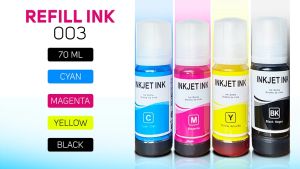
PSD - Refill Ink 003 For Epson L-Series 70ML EP L1210 L1250 L3210 L3216 L3250 L3256 L5290 L1110 L3110 L3116 L3150 L3156 L5190
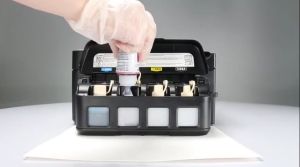
Epson 664 Ink Bottle 70mL Series for Printer L220 L210 L101 L111 L130 L313 L360 T664
Compatible ink Cartridge for Brother LC3211 LC3213 suit for DCP-J772DWDCP-J774DWMFC-J890DWMFC-J895DW etc