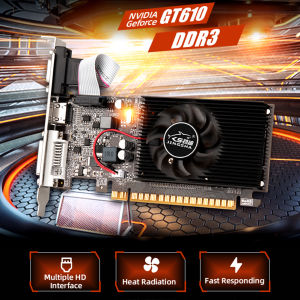
🔥4GB DDR3 Desktop PC Graphics Cards PCI-express2.0 16X Computer Graphics Cards HDMI-Compatible+VGA+DVI Low Noise for Laptop PC
🔥4GB DDR3 Desktop PC Graphics Cards PCI-express2.0 16X Computer Graphics Cards HDMI-Compatible+VGA+DVI Low Noise for Laptop PC
What Are PCI-express2.0 Graphics Cards?
Graphics cards, also known as GPUs (Graphics Processing Units), are essential components of modern computers, responsible for rendering graphics and video output. PCI-express2.0 graphics cards are specifically designed to provide faster data transfer rates and improved performance compared to their predecessors.
How Do They Work?
PCI-express2.0 graphics cards work by connecting to the motherboard via a PCIe slot, which allows them to communicate with other system components at high speeds. This connection enables the graphics card to handle complex graphical tasks, such as gaming, video editing, and 3D modeling, with ease.
Key Features & Benefits
- Faster Data Transfer Rates: PCI-express2.0 graphics cards offer improved performance due to their faster data transfer rates.
- Compatibility: These graphics cards are compatible with a wide range of motherboards and operating systems, making them a versatile choice for users.
- Enhanced Performance: With a 4GB DDR3 memory configuration, these graphics cards can handle demanding applications with ease, providing a smooth and enjoyable experience.
Choosing the Right Graphics Card
When selecting a graphics card, it's crucial to consider factors such as memory capacity, compatibility, and noise levels. In this section, we'll explore some popular options, including 4GB DDR3 graphics cards and VGA DVI graphics cards.
4GB DDR3 Graphics Cards: What You Need to Know
4GB DDR3 graphics cards are a popular choice for users who require a balance between performance and affordability. These cards offer sufficient memory capacity to handle most applications, including gaming and video editing, while maintaining a reasonable price point.
VGA DVI Graphics Cards: Compatibility & Performance
VGA DVI graphics cards are designed to provide compatibility with a wide range of monitors and displays. These cards support both analog (VGA) and digital (DVI) connections, making them a versatile choice for users who may have different types of monitors.
Low Noise Graphics Cards: Silent Computing
Low noise graphics cards are designed to minimize fan noise, providing a more pleasant computing experience. These cards are ideal for users who value silence and want to avoid the distractions caused by noisy fans.
Why Choose Low Noise Graphics Cards?
Low noise graphics cards offer several benefits, including:
- Improved Sound Quality: By minimizing fan noise, these cards allow users to enjoy their favorite audio content without interruptions.
- Enhanced Focus: A quieter computing environment can help users stay focused on their tasks, whether they're working, gaming, or streaming.
HDMI Compatible Graphics Cards: Enhancing Your Visual Experience
HDMI compatible graphics cards provide a convenient way to connect your computer to a wide range of displays, including TVs and monitors. These cards support high-definition video output, ensuring that you get the best possible visual experience.
How to Install Your New Graphics Card
Installing a new graphics card is a straightforward process that can be completed in just a few steps. In this section, we'll provide a step-by-step guide to help you install your new PCI-express2.0 graphics card.
Step-by-Step Guide
- Prepare Your Workspace: Before installing your new graphics card, make sure your workspace is clean and free from dust and debris.
- Power Off Your Computer: Turn off your computer and unplug it from the power source.
- Open Your Computer Case: Remove the side panel of your computer case to access the interior.
- Install the Graphics Card: Locate an available PCIe slot on your motherboard and insert the graphics card, securing it with screws.
- Connect Power Supply: Connect the power supply cables to the graphics card, if necessary.
- Reassemble Your Computer: Replace the side panel and reconnect the power cable.
- Power On Your Computer: Turn on your computer and install any necessary drivers.
Troubleshooting Common Issues
If you encounter any issues during the installation process, try the following steps:
- Check Connections: Make sure all connections are secure and properly seated.
- Install Drivers: Install the latest drivers for your graphics card to ensure optimal performance.
- Check Compatibility: Verify that your graphics card is compatible with your motherboard and operating system.

Celec
Review
You May Also Like
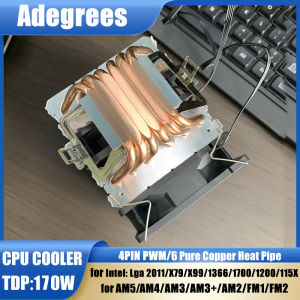
6 Heat Pipe CPU Air Cooler Dual Fan CPU Air-Cooling Radiator for LGA1700 1200 115X 2011 1366 X79 X99 AMD AM4 AM5 ventilador
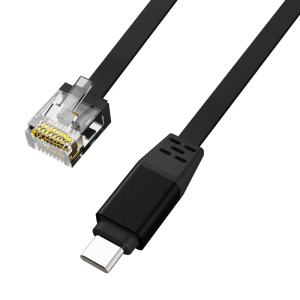
USB C to Ethernet RJ45 LAN Converter Fast Speed Internet Adapter Suitable For Laptop Tablet Smartphone Stable Connection

NVISION IN27FGP 27\" CURVED 165HZ PINK GAMING MONITOR
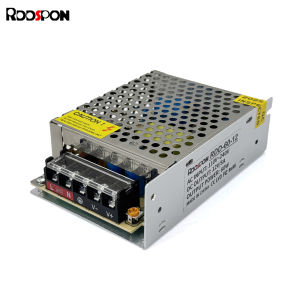
12V 5A Power Supply Adapter 60W 100W 250W Power Supply Transformer Switch AC 110V 220V To DC 12V for LED Strip Converter Adapter
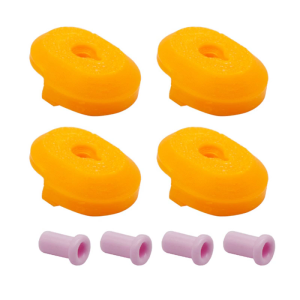
4Pcs 3D Printer Feed Throat Protector Inlet Ceramic Adapter Protector Replacement For X1 X1C P1P P1S 3D Printer
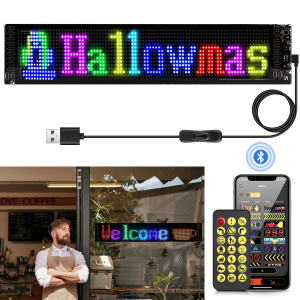
NEW Style Smart Matrix Pixel LED Display Panel Flexible Advertising Sign Screen With Bluetooth APP Control Customize Animation
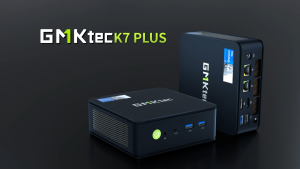
GMKtec NucBox K7 Plus Mini PC - Intel i7-13620H / 32GB DDR5 / 1TB M.2 / IrisXe / Wifi 6 + BT5.2 / Win 11 Pro / Black

Handheld Small Fan Cooling Fan Outdoor Fan 3 Adjustable Setting 1200mAh Rechargeable Fan for Travel and Outdoor Activity
![[COD] DongJin Power 12V9AH 12 VOLTS UPS VRLA Battery Sealed Lead Acid Battery](https://img.lazcdn.com/g/p/e479186f10636ff56e0fd8414765fa87.jpg_300x300q80.jpg)
[COD] DongJin Power 12V9AH 12 VOLTS UPS VRLA Battery Sealed Lead Acid Battery

10Pcs 3D Printer Accessories For Lab Engine Model Component Kit Split Chain Keychain Model Toy Gift 3D Printing Pendant
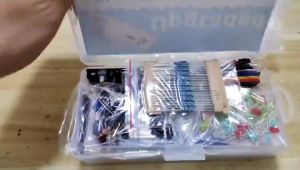
DIY Project Starter Kit For Arduino UNO R3 Kit Electronic DIY Kit Electronic Component Set With Box 830 Tie-points Breadboard