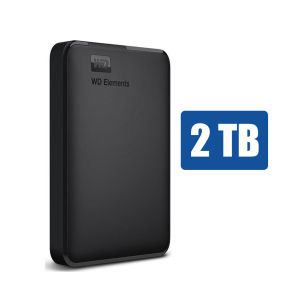
Western Digital 1TB & 2TB Portable External Hard Drives
Western Digital 1TB & 2TB Portable External Hard Drives
Introduction to Western Digital External Hard Drives
Western Digital offers a range of portable external hard drives designed to meet the needs of both desktop and laptop users. These drives provide large capacity storage options and are compatible with various operating systems, including Windows 7, 8, 8.1, 10, and MAC OS. The Western Digital Elements USB hard drive, in particular, offers a reliable storage solution with its 5400rpm speed and ExFAT formatting.
Key Features & Specifications
Western Digital external hard drives come in two capacity options: 1TB and 2TB. Both models support USB 3.0 and USB 2.0 interfaces, ensuring compatibility with a wide range of devices. The drives have a 5400rpm speed, making them suitable for both desktop and laptop use. Additionally, the default formatting is ExFAT, which is compatible with most devices, including PS4 and TV, although users should check their device compatibility before ordering.
Compatibility & Operating Systems
Western Digital external hard drives are compatible with Windows 7, 8, 8.1, 10, and MAC OS systems. They support USB 3.0 and USB 2.0 interfaces, ensuring compatibility with various devices. The default formatting is ExFAT, which is compatible with most devices, including PS4 and TV, although users should check their device compatibility before ordering.
How to Choose the Right External Hard Drive
When selecting an external hard drive, consider the capacity options and interface type that best suit your needs. The Western Digital Elements USB hard drive offers two large capacity options: 1TB and 2TB. Both models support USB 3.0 and USB 2.0 interfaces, ensuring compatibility with a wide range of devices. Users should choose the model that provides sufficient storage space for their files and applications.
Large Capacity Options: 1TB vs 2TB
The Western Digital Elements USB hard drive comes in two capacity options: 1TB and 2TB. Users should choose the model that provides sufficient storage space for their files and applications. The 1TB model offers ample storage for most users, while the 2TB model provides even more space for those with larger file collections.
USB 3.0 vs USB 2.0: Which Interface to Choose
The Western Digital Elements USB hard drive supports both USB 3.0 and USB 2.0 interfaces. Users should choose the interface that best suits their device compatibility and transfer speed requirements. USB 3.0 offers faster data transfer speeds compared to USB 2.0, making it ideal for users who require quick file transfers.
WD Elements USB Hard Drive: Performance & Reliability
The Western Digital Elements USB hard drive offers a reliable storage solution with its 5400rpm speed and ExFAT formatting. The default formatting is ExFAT, which is compatible with most devices, including PS4 and TV, although users should check their device compatibility before ordering. The drive is designed for both desktop and laptop use, providing a versatile storage option for various applications.
5400rpm Speed & ExFAT Formatting
The Western Digital Elements USB hard drive has a 5400rpm speed, making it suitable for both desktop and laptop use. The default formatting is ExFAT, which is compatible with most devices, including PS4 and TV, although users should check their device compatibility before ordering.
Portable Storage Solutions for Desktop & Laptop
The Western Digital Elements USB hard drive is designed for both desktop and laptop use, providing a versatile storage option for various applications. The drive's portable design makes it easy to carry around and transfer files between devices.
Tips for Using Western Digital External Hard Drives
To ensure optimal performance and reliability, users should follow these tips when using Western Digital external hard drives:
- Connect the drive to a USB port that supports the interface type (USB 3.0 or USB 2.0).
- Format the drive using the default ExFAT formatting, which is compatible with most devices.
- Regularly back up important files to prevent data loss.
- Troubleshoot common issues by checking the device compatibility, interface type, and formatting.
How to Connect & Format Your WD Hard Disk
To connect and format your Western Digital external hard drive, follow these steps:
- Connect the drive to a USB port that supports the interface type (USB 3.0 or USB 2.0).
- Format the drive using the default ExFAT formatting, which is compatible with most devices.
Troubleshooting Common Issues & FAQs
If you encounter any issues while using your Western Digital external hard drive, try the following troubleshooting steps:
- Check the device compatibility, interface type, and formatting.
- Make sure the drive is properly connected to a supported USB port.
- Format the drive using the default ExFAT formatting.
For more information, refer to the Western Digital support website or contact customer service.
Conclusion: Why Choose Western Digital for Your Storage Needs
Western Digital offers a range of portable external hard drives that provide large capacity storage options and are compatible with various operating systems. The Western Digital Elements USB hard drive, in particular, offers a reliable storage solution with its 5400rpm speed and ExFAT formatting. With two capacity options and support for USB 3.0 and USB 2.0 interfaces, the Western Digital Elements USB hard drive is a versatile storage option for both desktop and laptop users.

BOVE HDD
Review
You May Also Like
♥100%Original Product+Free Send adapter+card reader♥Cod / Gift /100% original authentic Xiaomi Redmi V30 PRO High Speed Memory Card SDXC / UHS-I U3 Class 10 2TB 1TB 512GB 256GB 128GB 64GB 32GB 16GB 8GB Micro SD Card
Multifunctional Large-Capacity Four-In-One Mobile Phone Expansion Flash Drive USB Pendrive U Disk 16GB 64GB 128GB 1TB
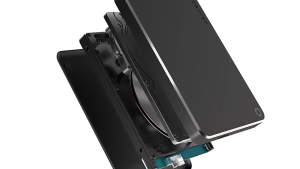
Local Ship Toshiba External Hard Drive USB 3.0 HDD Expansion Hard drive 1TB/2TB Portable Hard drive
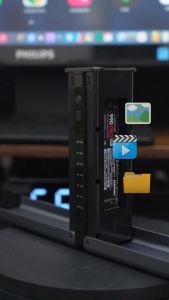
Acasis Dual Bay M.2 NVMe SSD Enclosure – Can Set raid1/raid0. 20Gbps USB-C Offline Cloning Dock 8TBx2 Tool-Free RAID 2230/2242/2260/2280 Support Built-in Cooling Fan for 4K Editing/Gaming/PC Build
![[Hilldora] Hot SDHC MMC CF Micro SD Memory Card Storage Carrying Pouch Case Holder Wallet](https://img.lazcdn.com/g/p/01a44990a76cec7e04fab7bc499d88f3.jpg_300x300q80.jpg)
[Hilldora] Hot SDHC MMC CF Micro SD Memory Card Storage Carrying Pouch Case Holder Wallet

AVIDUS Micro SD Card: High-Speed Memory Solutions for Your Devices
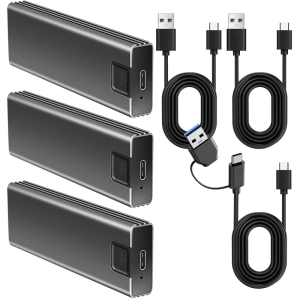
Portable M.2 NVMe Enclosure Aluminum Housing Type C Connectors Plugs Play Setups Supports USB 3.1 10Gbps
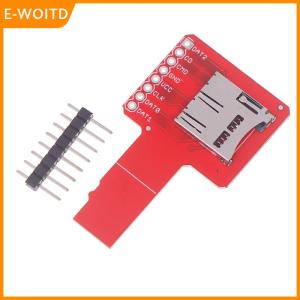
【E-WOITD】 Sniffe For TF Card Adapter Plate Universal 1pc MicroSD Sniffe TF Card Adapter Plate Compatible With ARDUINO
ORICO 2.5 Inch HDD Enclosure: A Tool-Free Super Speed Solution
4PCS Replacement Bottom Case Rubber Feet Foot Pad for Thinkpad X280 Laptop Case Cover
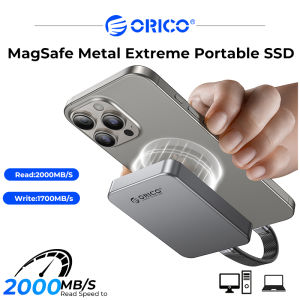
ORICO 2TB MagSafe External SSD: A High-Speed & Portable Solution