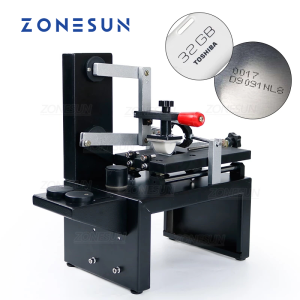
ZONESUN Desktop Manual Ink Pad Card Paper Box Production Date Expiry Date Printing Machine Printer
ZONESUN Desktop Manual Ink Pad Card Paper Box Production Date Expiry Date Printing Machine Printer
Introduction to ZONESUN Desktop Manual Ink Pad Printer
The ZONESUN Desktop Manual Ink Pad Printer is a high-quality, versatile device designed to meet the needs of businesses and individuals looking to print date labels, expiry dates, and other essential information on cards, paper boxes, and packaging materials. This compact and user-friendly printer is perfect for small-scale operations, as it allows for easy customization of date labels and expiry dates.
Key Features of the ZONESUN Printer
The ZONESUN Desktop Manual Ink Pad Printer offers several features that make it stand out in the market:
- Compact Design: The printer is designed to fit comfortably on a desktop, making it easy to store and transport.
- Manual Operation: The printer requires manual operation, allowing users to have more control over the printing process.
- Ink Pad for Card Production: The printer features an ink pad specifically designed for card production, ensuring clear and legible printing on various materials.
- Printing Machine with Date Labels: The printer can print date labels and expiry dates on packaging materials, ensuring compliance with industry standards.
Benefits of Using the ZONESUN Printer
Using the ZONESUN Desktop Manual Ink Pad Printer offers several benefits:
- Cost-Effective: The printer is an affordable solution for businesses looking to print date labels and expiry dates on their products.
- Customizable: Users can customize date labels and expiry dates according to their specific needs.
- Easy to Use: The printer is user-friendly, requiring minimal training to operate.
- High-Quality Printing: The printer produces clear and legible prints, ensuring that important information is easily readable.
How to Use the ZONESUN Printer
Using the ZONESUN Desktop Manual Ink Pad Printer is simple and straightforward:
Setting Up the ZONESUN Printer
To set up the printer, follow these steps:
- Unpack the printer and remove any protective packaging.
- Place the printer on a flat surface.
- Load the ink pad onto the printer.
- Adjust the settings according to your needs.
Loading Ink Pads for Card Production
To load ink pads for card production, follow these steps:
- Remove the old ink pad from the printer.
- Insert the new ink pad into the printer.
- Adjust the ink pad settings according to your needs.
Printing Date Labels with the ZONESUN Printer
To print date labels with the ZONESUN Printer, follow these steps:
- Load the ink pad onto the printer.
- Set the desired date label format.
- Print the date labels onto the desired material.
Applications of the ZONESUN Printer
The ZONESUN Desktop Manual Ink Pad Printer has several applications:
Printing Expiry Dates for Packaging
The printer can be used to print expiry dates on packaging materials, ensuring compliance with industry standards and regulations.
Printing on Paper Boxes
The printer can be used to print date labels and other essential information on paper boxes, making it easy to track production and expiration dates.
Customizing Date Labels for Various Needs
The printer allows users to customize date labels according to their specific needs, making it a versatile solution for businesses and individuals alike.
ZONESUN Printer Maintenance & Troubleshooting
Maintaining the ZONESUN Desktop Manual Ink Pad Printer is essential to ensure its longevity and optimal performance:
Cleaning the ZONESUN Printer
To clean the printer, follow these steps:
- Turn off the printer and unplug it from the power source.
- Remove any ink pads from the printer.
- Wipe the printer down with a clean, damp cloth.
- Allow the printer to dry completely before reassembling it.
Resolving Common Issues
If you encounter any issues with the printer, refer to the troubleshooting guide included in the manual. Common issues include:
- Ink Pad Not Printing: Ensure that the ink pad is properly loaded and adjusted.
- Date Label Format Incorrect: Check the settings and adjust accordingly.
Extending the Lifespan of the ZONESUN Printer
To extend the lifespan of the ZONESUN Printer, follow these tips:
- Regular Maintenance: Clean the printer regularly to ensure optimal performance.
- Proper Storage: Store the printer in a clean, dry environment when not in use.
- Use High-Quality Ink Pads: Use high-quality ink pads to ensure clear and legible printing.

ZONESUN
Review

You May Also Like
Book & Document Camera: 1300/1400 High-Definition Pixels Definition Professional Book Document Scanner Auto-Flatten
High-Quality HP 965 Ink Cartridge Alternatives for HP Officejet Pro Printers
Canon imageCLASS LBP6030 Printer
Epson L3210 L3250 L5290 L1210 L3216 L3256 L3260 Unlimited Resetter
Brandnew ink cartridge for smart tank 510/515/610/615 printer
20/100 sheets 3R/4R/5R/A4 Glossy Photo Paper for Inkjet Printer Bright Color Suitable for Photography Family Festivals
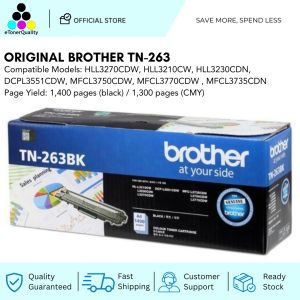
Original Brother TN-263 TN263 CMYK Laser Toner Cartridge
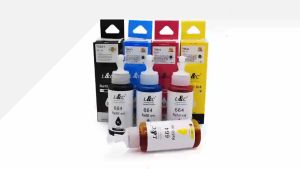
【PH Ready Stock】L&C 4PCS 664 T664 Dye Ink Refill Ink Compatible For Epson printer L120 L360 L1800 L300/L301/L360/L363/L455 Black Cyan Magenta Yellow 70ml Premium Ink

INKSCRIBED TN2560XL TN2560 Compatible Toner for Brother HL-L2460DW DCP-L2640DW Laser Printer
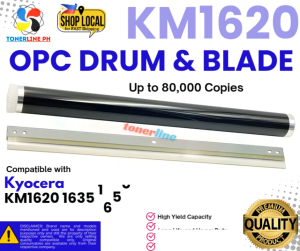
OPC Drum+ Blade for Use and Compatible With KM1620 KM1650 KM1635 KM2020 KM2035 KM2050
Canon Pixma PG810 CL811 Ink Cartridge & Refill Kit: A Comprehensive Guide