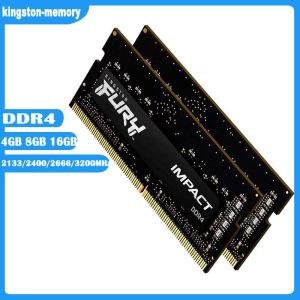
DDR4 RAM 4G 8G 16GB 2133 2400 2666 3200MHz Laptop Memory 1.2V SODIMM (KF426S15IB1/16-SP) Fury Impact Notebook Ram
DDR4 RAM 4G 8G 16GB 2133 2400 2666 3200MHz Laptop Memory 1.2V SODIMM (KF426S15IB1/16-SP) Fury Impact Notebook Ram
What is Kingston Fury Impact Notebook Ram?
Kingston Fury Impact Notebook RAM is a high-performance DDR4 memory module designed specifically for laptops. Available in 4GB, 8GB, and 16GB capacities, these modules operate at frequencies of 2133 MHz, 2400 MHz, 2666 MHz, and 3200 MHz, providing exceptional speed and reliability. The Fury Impact Notebook RAM features a low voltage of 1.2V and comes with a 260-pin SODIMM form factor, making it compatible with a wide range of laptop models.
Key Features of Kingston Fury Impact Notebook Ram
- High-performance DDR4 memory modules designed specifically for laptops
- Available in 4GB, 8GB, and 16GB capacities
- Operates at frequencies of 2133 MHz, 2400 MHz, 2666 MHz, and 3200 MHz
- Low voltage of 1.2V
- 260-pin SODIMM form factor for compatibility with a wide range of laptop models
How to Choose the Right Kingston Fury Impact Notebook Ram
When selecting the appropriate Kingston Fury Impact Notebook RAM for your laptop, consider the following factors:
- Capacity: Determine the amount of memory required for your specific needs. For general use, 8GB may suffice, while power users and gamers may benefit from 16GB or more.
- Frequency: Choose the frequency that best suits your laptop's specifications. Higher frequencies generally provide better performance, but ensure your system supports the chosen frequency.
- Compatibility: Verify that the selected module is compatible with your laptop's motherboard and SODIMM slot.
How to Install Kingston Fury Impact Notebook Ram?
Installing Kingston Fury Impact Notebook RAM is a straightforward process. Follow these steps to ensure a successful installation:
Preparing Your Laptop for Installation
Before installing the new RAM module, take the following precautions:
- Power off and unplug your laptop: Ensure your laptop is powered off and disconnected from any power sources.
- Ground yourself: To prevent static electricity damage, ground yourself by touching a grounded metal object or using an anti-static wrist strap.
- Locate the RAM slot: Identify the location of the SODIMM slot on your laptop's motherboard.
Step-by-Step Installation Guide
- Open the laptop's memory compartment by removing the appropriate screws or latch.
- Carefully insert the Kingston Fury Impact Notebook RAM module into the SODIMM slot, aligning the notches with the slot's guides.
- Press down firmly until the module clicks into place, securing it in the slot.
- Replace the memory compartment cover and reattach any screws or latches.
- Power on your laptop and enter the BIOS settings to verify the new RAM has been detected and configured correctly.
Troubleshooting Common Issues
If you encounter any issues during installation or after booting your laptop, consider the following troubleshooting steps:
- Ensure proper seating: Verify that the RAM module is securely seated in the SODIMM slot.
- Check compatibility: Confirm that the selected Kingston Fury Impact Notebook RAM is compatible with your laptop's specifications.
- Clear BIOS settings: Reset the BIOS settings to default values and attempt to boot again.
How to Maximize Performance with Kingston Fury Impact Notebook Ram?
To get the most out of your Kingston Fury Impact Notebook RAM, follow these tips:
Optimal Settings for 2133 MHz & 2400 MHz DDR4 RAM
For optimal performance, configure your laptop's BIOS settings to match the Kingston Fury Impact Notebook RAM's specifications:
- Memory Frequency: Set the memory frequency to match the module's rated speed (e.g., 2133 MHz or 2400 MHz).
- Memory Voltage: Adjust the memory voltage to the recommended value for your specific module (e.g., 1.2V).
Tips for Improving System Performance
To further enhance system performance, consider implementing the following strategies:
- Disable unnecessary startup programs: Reduce the number of programs that launch automatically during boot-up to free up system resources.
- Update drivers and firmware: Keep your laptop's drivers and firmware up-to-date to ensure optimal performance and compatibility.
- Regularly clean your system: Remove dust and debris from your laptop's internal components to maintain proper airflow and prevent overheating.
Benefits of Upgrading to Kingston Fury Impact Notebook Ram
Upgrading to Kingston Fury Impact Notebook RAM offers several advantages, including:
- Improved multitasking: Increased memory capacity allows for smoother multitasking and faster application switching.
- Enhanced gaming performance: Higher memory frequencies result in reduced lag and improved frame rates during gameplay.
- Faster boot times: More available memory leads to quicker system boot-up and application launch times. " }

kingston-memory
Review
You May Also Like
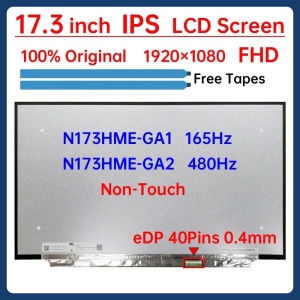
17.3 Inch Laptop LCD Screen N173HME GA1 N173HME-GA1 N173HME-GA2 Display Matrix Panel Replacement 1920x1080 eDP 40 Pins Non-Touch
![[COD] REMAI0 USB 2.0 To Jack External USB Sound Card 3D Audio Headset Microphone Earphone 7.1 Channel 5HV2 Adapter For Laptop](https://img.lazcdn.com/g/p/0d9089034192d99002de31c539e61e6d.jpg_300x300q80.jpg)
[COD] REMAI0 USB 2.0 To Jack External USB Sound Card 3D Audio Headset Microphone Earphone 7.1 Channel 5HV2 Adapter For Laptop
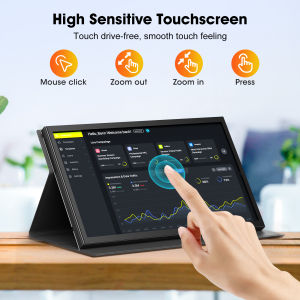
Eyoyo APROTII 10 inch Raspberry Pi Screen: A Comprehensive Guide

Inplay ICE TOWER V2 3-In-1 Fan Kit: A Comprehensive Guide
2Pcs PLD09210B12HH 85mm 4Pin Video Fan Easy Installation Replacement for GTX1660S Graphics Management Accessories

2025 Laptop Resolution: A Comprehensive Guide to the 12GB RAM 1TB SSD Windows 11 Gaming Laptop

Brand New Fanuc Fan A90L-0001-0576 2408VL-S5W-B79 with a Complete set of Brackets 24V 0.15A 60x60x20mm
12V 24V to 5V 3.3V 9V 12V Fixed/Adjustable Output Depressurize Adapter Module Regulator Board Power Supply Circuit Module
4 Channel Expansion Adapter Connector Five Way Feed Port Feed Pipe Adapter For X1C P1S P1P 3D Printer Accessories
TOSHIBA DYNABOOK B55/M LAPTOP

DARKFLASH DS900M with 650W POWERSUPPLY and 3X120 ARGB FAN WITH FREE HD ENCLOSURE