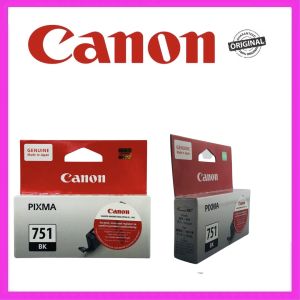
Canon Pixma PGI-750 and CLI-751 for Canon Pixma iP7270, iP8770, iX6770, iX6870, MG5470, MG5570, MG5670, MG6370, MG6470, MG6670, MG7170, MG7570, MX727, MX927
Canon Pixma PGI-750 and CLI-751 for Canon Pixma iP7270, iP8770, iX6770, iX6870, MG5470, MG5570, MG5670, MG6370, MG6470, MG6670, MG7170, MG7570, MX727, MX927
Introduction to Canon Pixma PGI-750 & CLI-751 Cartridges
Overview of Canon Pixma PGI-750 & CLI-751 Cartridges
Canon Pixma PGI-750 and CLI-751 cartridges are high-quality ink cartridges designed for use with specific Canon Pixma printers. These cartridges deliver exceptional print quality, vibrant colors, and sharp black text. They are compatible with various Canon Pixma models, including the iP7270, iP8770, iX6770, iX6870, MG5470, MG5570, MG5670, MG6370, MG6470, MG6670, MG7170, MG7570, MX727, and MX927 printers.
Which Printers Support These Cartridges?
Canon Pixma PGI-750 and CLI-751 ink cartridges are specifically designed for use with the following Canon Pixma printer models:
- Canon Pixma iP7270
- Canon Pixma iP8770
- Canon Pixma iX6770
- Canon Pixma iX6870
- Canon Pixma MG5470
- Canon Pixma MG5570
- Canon Pixma MG5670
- Canon Pixma MG6370
- Canon Pixma MG6470
- Canon Pixma MG6670
- Canon Pixma MG7170
- Canon Pixma MG7570
- Canon Pixma MX727
- Canon Pixma MX927
How to Install Canon Pixma PGI-750 & CLI-751 Cartridges
Step-by-Step Installation Process
Installing Canon Pixma PGI-750 and CLI-751 ink cartridges is a straightforward process. Follow these steps to install the cartridges in your Canon Pixma printer:
- Turn on your Canon Pixma printer and open the ink cartridge access door.
- Remove the protective tape from the new ink cartridges.
- Insert the new ink cartridges into their respective slots, making sure they are securely seated.
- Close the ink cartridge access door and allow the printer to initialize the new ink cartridges.
Troubleshooting Common Issues
If you encounter any issues during the installation process, refer to the troubleshooting guide below:
- If the ink cartridge access door does not open, check if the printer is turned on and try pressing the door release button again.
- If the ink cartridges do not seat properly, ensure they are inserted correctly and try reinserting them.
- If the printer does not recognize the new ink cartridges, try restarting the printer and reinstalling the cartridges.
Maximizing Printer Performance with Canon Pixma PGI-750 & CLI-751 Cartridges
Tips for Optimizing Print Quality
To maximize the print quality of your Canon Pixma printer, consider the following tips:
- Always use genuine Canon Pixma ink cartridges for optimal print quality.
- Clean the print head regularly to prevent clogging and ensure consistent print quality.
- Adjust print settings according to the type of document you are printing.
Extending the Life of Your Printer
To extend the life of your Canon Pixma printer, follow these maintenance tips:
- Regularly clean the printer exterior to prevent dust buildup.
- Store ink cartridges properly when not in use to prevent drying out.
- Follow the manufacturer's guidelines for regular maintenance and servicing.
Conclusion
Recap of Key Points
Canon Pixma PGI-750 and CLI-751 ink cartridges are compatible with specific Canon Pixma printer models, including the iP7270, iP8770, iX6770, iX6870, MG5470, MG5570, MG5670, MG6370, MG6470, MG6670, MG7170, MG7570, MX727, and MX927 printers. Installing these cartridges is a simple process, and troubleshooting common issues is straightforward. To maximize print quality and extend the life of your printer, follow the tips outlined in this guide.
Final Thoughts
By using genuine Canon Pixma PGI-750 and CLI-751 ink cartridges and following proper maintenance practices, you can enjoy high-quality prints from your Canon Pixma printer for years to come.

Tinta Atp
Review

You May Also Like
Kyocera 100% Original CNMG CNMG120408PS CNMG120404MU CNMG120404HQ CNMG120404MQ PR1125 Turning Inserts

Niimbot B18 Thermal Transfer Label Printer Mini Bluetooth Label Maker Cable Jewelry Horticulture Wireless Label Machine for Android/IOS Phone Included Label Paper and Carbon Ribbon
Brother BT-5000C/M/Y BT-D60BK Set of Original Brother Refill Bottle Dye Inks Compatible for DCP-T310 DCP-T510W DCP-T710W MFC-T810W and MFC-T910W T420 T520W T720W(100% Original)(No Box)
250g 500g 1Kg Two Color PLA Silk Blue purplered 3D Printer Filament 1.75mm Dual Color silk black red 3D Printing Material 250gx4
16*36mm/32*36mm Band Sealer Ink Roller Coding Machine Ink Roll Band Sealer Machine Ink Roller
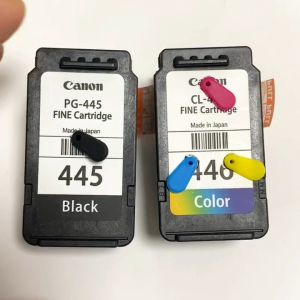
Canon 445 446 ink cartridge PG445 CL446 MG2440 MG2540S MG2640 MG2940 TS3140 Printers

【PH Ready Stock】L&C Refill Ink For Canon 790 890 Dye Ink GI790 GI890 For Canon Printers Pixma G1010 G2010 G3010 G4010 MG2570S PG810 E3370 IP2770 MG2500 4 Colors
For EPSON L1800 P400 P640 P600 R1800 R1900 R2000 R2400 4800 R3000 R3880 F2000 F2100 F2200 4720 Printer DTF ink For Direct Transfer Film for PET Film Textile Pigment Ink
Japan High-Blackness Toner for Toshiba E-Studio 45 Toner Powder E-Studio 230 232 233 280 282 283 1kg 500g

Soonpos Portable Mini Wireless Thermal Pocket Printer 80mm Pos Receipt Printer With Leather Case Compatible with Loyverse Salesplay Kyte UTAK POS App
3D Printing Pen DIY Drawing Pen 3M PLA Filament Crafting Doodle Drawing Arts Printer Tools Childrens Toys Magic Pen Drawing DIY Drawing