


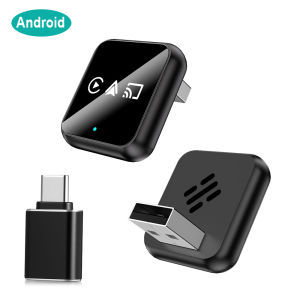
4-in-1 Wireless CarPlay Adapter Wired to Wireless Convert AirPlay Mirror Link Bluetooth Plug & Play Factory Wired CarPlay Cars
4-in-1 Wireless CarPlay Adapter User ManualProduct FeaturesThis adapter converts factory-installed wired CarPlay to support Wireless CarPlay, Wireless Android Auto, AirPlay and Miracast screen mirroring.Usage PrerequisitesThis unit works exclusively with factory-stock vehicle infotainment systems that natively support wired CarPlay.To confirm vehicle compatibility: check your vehicle owner’s manual, consult your car dealer, or verify that the factory infotainment app displays the CarPlay logo.Supported Mobile DevicesiPhone: iOS 6 or laterAndroid phone: Android 11 or later (built-in wireless screen-casting capability required for Miracast)Initial Vehicle Setup1.Start your vehicle.2.Plug the wireless CarPlay adapter into your car’s data-transfer USB-A / USB-C port (use the port originally used for wired CarPlay, not charging only ports).3.Wait approximately 15 seconds. On some vehicles, manually select the CarPlay icon shown on the car display. The adapter’s function pop-up screen will appear.Wireless CarPlay / Android Auto Connection1.Ensure the adapter is powered up and running.2.Tap the CP / AA icon on the adapter home screen.3.Enable Bluetooth and Wi-Fi on your smartphone.4.Locate the adapter’s Bluetooth name (SmatBox-xxxx) on your phone’s Bluetooth list and complete pairing.5.After Bluetooth pairing finishes, the adapter will automatically authenticate and establish Wireless CarPlay or Wireless Android Auto.Bluetooth pairing triggers the connection; the actual media / data stream runs over Wi-Fi.AirPlay (iPhone Screen Mirroring) Setup1.Confirm the adapter is connected and powered.2.Select the Wireless Screen Mirroring / AirPlay option on the adapter UI.3.On your iPhone WiFi list, connect to the adapter’s WiFi network: SmatBox-xxxx. The default WiFi password is 88888888.4.Open iOS Control Centre or Settings to access Screen Mirroring.5.Select SmatBox-xxxx from the available device list. Your iPhone screen will cast to the car display.Recommendation: Update your iPhone to the latest iOS version; iOS 18 or newer is suggested for best AirPlay performance.Miracast (Android Wireless Screen Mirroring / Mirror-Link)1.Turn on WiFi on your Android handset.2.Select Wireless Screen Mirroring / Mirror-Link on the adapter’s main screen.3.Open your Android phone’s quick-settings panel or system Settings to launch the wireless casting function.4.Find the adapter device name (SmatBox-xxxx) inside your cast-device list.5.Tap the device name to connect; your Android screen will mirror to the car head-unit.Switching from CarPlay to AirPlay Mirroring1.While running Wireless CarPlay, tap the car-brand logo icon on screen to return to the adapter’s main menu.2.Select the AirPlay icon. You may begin mirroring directly — no extra WiFi reconfiguration is required.Switching from Android Auto to Miracast Mirror-Link1.While running Wireless Android Auto, tap the car logo icon to go back to the adapter’s home page.2.Choose the Mirror-Link icon. Pair with your Android phone’s built-in screen cast feature to activate mirroring.Main Launch Interface OverviewThe adapter’s home screen provides four function shortcuts:CarPlayAndroid AutoAirPlayMirror-LinkImportant Notices:1.Streaming-media applications are available via this adapter. Use video-streaming functions only when your vehicle is stationary.2.The end user is fully responsible for complying with local traffic and media-copyright laws. The seller accepts zero liability for misuse of this product.3.Some DRM-protected copyrighted video content cannot be mirrored due to copy-protection restrictions. We apologise for this limitation.OTA Firmware UpgradePerform an OTA firmware update to resolve unstable connections, drop-outs or functional bugs.General OTA Upgrade Steps:1.Turn on WiFi on your mobile phone.2.Join the adapter’s WiFi network: SmartBox-xxxx, password: 88888888.3.Launch your mobile web browser.4.Navigate to the local web address: 192.168.1.101.5.You will enter the OTA system configuration web panel.6.Scroll down the page and tap Update. Wait for the adapter to complete firmware flashing. The upgrade process finishes once loading completes.Android-Specific WiFi Direct Upgrade Procedure1.Open WiFi settings on your Android device. Tap the 3-dot menu in the top right corner, choose WiFi Direct. Select the matching SmartBox-xxxx adapter unit and establish the direct connection.2.Open your phone browser and visit 192.168.1.101 to load the OTA upgrade webpage. Click the Update button at the bottom of the page.⚠️ Critical Warning: Do NOT unplug the adapter or cut power during the firmware-update cycle. Interrupting power may brick the hardware.

Global Merch Park
Review

You May Also Like
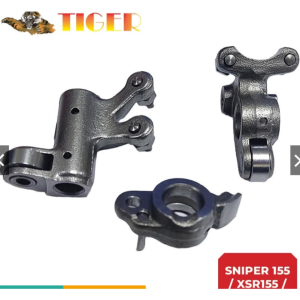
TIGER ROCKER ARM SNIPER155/XSR155/WR155 SET

Univesal Leather Motorcycle Seat Cover Waterproof Dust Protector Anti Scratch Easy Clean Motor Seat Cushion Cover

Exedy Clutch Disc for TOYOTA VIOS 1.3 03-21 2NZ 1NR 200X140X21X24.1 TYD-008 / DT-123 (1 PC)

HNJ 855 helmet motorcycle full face helmet for motorcycle Single Visor Helmet Men and women
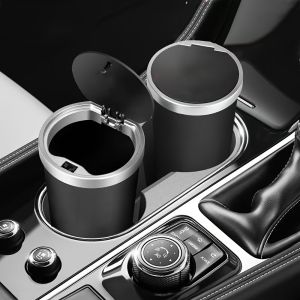
Compact Leakproof Mini Car Trash Can with Easy-Press Pop-Up Lid Durable Odor-Blocking Waterproof ABS Bin for Cup Holders Storage

Honda Civic LED Headlight/2005-2010 Model 8Th Generation/Head Light/Head Lamp/Front Light Assembly
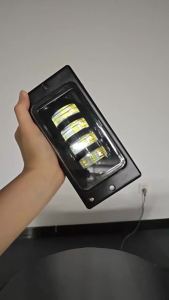
12v Square Led Headlight Daytime Running Light Turn Signal Lada Fog Lamp DRL Headlamp Assembly Car Accessories For Lada Offroad

QR025CHA Automatic Transmission Neutral Safety Switch For Chery 1504220BA Car Accessories

Digital Air Pump – Multifunctional Intelligent Pressure Detection Compact at Madaling Dalhin para sa Car & Bike Use!

TRC Racing Power Pipe Yamaha NMAX v1 Muffler Exhaust with Removable Silencer LTO Approved 1729
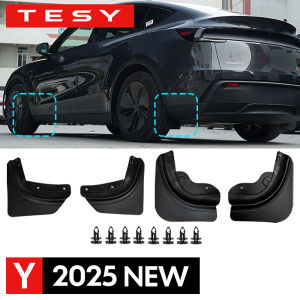
Tesla Model Y Juniper 2025/2026 Mud Flaps Splash Guards No Drill Fender Guards 4PCS