


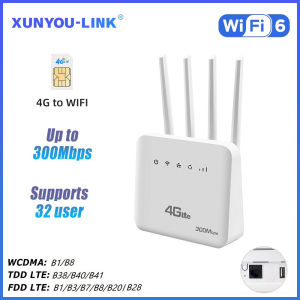
XUNYOU-LINK | XUNYOU-LINK 4G LTE WiFi Router WiFi 6 SIM Card Modem 300Mbps High Speed Support 32 Device Insert The Card Routers Mobile Hotspot
Easy SIM Card InsertionConveniently insert SIM cards into this modem router to access mobile network coverage, ideal for on-the-go use.High-Speed 4G LTE WiFi RouterExperience seamless connectivity with the XUNYOU-LINK 4G LTE WiFi Router, offering a high-speed 300Mbps transmission rate for efficient data transfer.Certified ReliabilityTrust in the CE certification, ensuring compliance and reliability of the XUNYOU-LINK WiFi router.Broad Frequency RangeEnjoy versatile connectivity with support for both 2.4G and 5G Wi-Fi frequencies, catering to diverse device needs.Built-In FirewallRest assured with built-in firewall protection, providing an extra layer of security for your online activities.XUNYOU-LINK 4G LTE WiFi Router WiFi 6 SIM Card Modem 300Mbps High Speed Support 32 Device Insert The Card Routers Mobile HotspotProduct features:4G to WIFI, 4G to LANSupports LAN portsDL 300Mbps,UL 150MbpsSupports IPV4/IPV62.4G, WIFI speed: 300MbpsUp to 10 devices can be accessedSSID broadcast function, supporting hidden WIFIPort filtering, port mapping, watchdogSupports locking frequency bandsSupport FOTA remote upgrade functionSupports TCP/UDP/PPP/HTTP/NITZ/NDIS/NTP/HTTPS/PING/PAP/CHAPSupporting frequency bandsFDD LTE: B1/B3/B7/B8/B20TDD LTE:B38/B40/B41WCDMA:B1/B5/B8What can you gain1Mobile WiFi router1Power adapter(EU1Network cable(1M)1English manual1*SIM card holderFAQ:Q: What is the router’s maximum speed?A: The router’s maximum theoretical wireless WiFi speed is 300 Mbps.FDD-LTE (DL/UL): 150 Mbps / 50 MbpsHSPA+ (DL/UL): 21 Mbps / 5.76 MbpsNote:The router’s speed parameters are laboratory-tested theoretical values. Actual network speeds are not fixed and may vary every second. Internet distribution via the SIM card depends on environmental factors (e.g., signal strength, interference), causing significant speed differences. For real-time speed data, check the web management interface homepage.Q: How to set up internet quickly?A:Confirm SIM card validity (band compatibility & active data plan).Insert the SIM into the router's slot (ensure correct orientation).Connect the power supply and wait for system recognition (~1-2 minutes).Connect to the router's WiFi and enter the password (found on the router's bottom label).Verification method:Use a WiFi-connected device to log in to the router's web management interface.Check the status icon in the top-right corner:Red "X" = Network error. Red SIM icon = SIM not recognized. All blue = Normal operation.Note: The device MUST be connected to the router's WiFi to access the web interface. 90% of issues can be self-diagnosed via the interface. After configuration changes, reboot the router and reconnect to WiFi.Q: Is it compatible with any SIM card?A:The router supports full-frequency coverage in Europe/Asia/Africa and works with standard SIM cards from all carriers.Does NOT support contract-bound SIM cards (locked to specific devices or inactive).Verify band compatibility between the router and SIM card using the global frequency chart.Tip: Use mainstream SIM cards from large carriers to minimize manual configuration (some regional carriers update bands frequently).Q: What if I forgot the username and password? (How to reset the router?)A: If you forget your username/password or encounter errors preventing access to the web management interface, press and hold the reset button on the device for 10 seconds (while powered on). Release the button to restore the router to factory default settings.Q: Can’t find the router’s Wi-Fi signal?A:*Connect a computer to the LAN port via network cable.*Log in to the router’s management interface, navigate to Advanced Settings -> WLAN Settings -> WLAN Basic Setup, and ensure the WLAN function is enabled.*If no computer is available, reset the router (see previous question).Q: Router lights are on with data transmission, but the speed is slow?A:Network speed varies due to peak-hour congestion or signal interference in crowded areas.Optimize speed by:Placing the router near a window or in a strong signal area.Avoiding obstacles or interference sources (e.g., microwaves, refrigerators, thick walls).Reducing distance between devices and the router.Q: Can I modify the IMEI number?A: Support modifying IMEI numbers,1. Log in to the router backend (WEBUI)2. Enter in the browser address bar http://192.168.1.1/sid.html Press enter, enter the IMEI number to be changed, click SET to change, and if the change is successful, it will prompt OK.

Prime Supply_Play Life
Review

You May Also Like

Kayou | Natural Rubber Mouse Pad Pokemon Eevee Big Computer Gamer Kawaii Gaming Accessories Mousepad Keyboard Desk Mat Carpet Table Pad
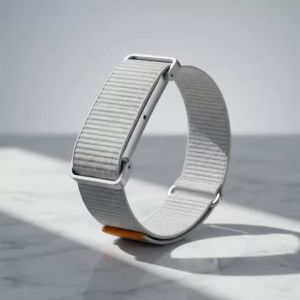
Soft Nylon Band for Google Fitbit Air Breathable Sports Wristband Replacement Strap for Fitbit Air Smart Accessories Metal Case
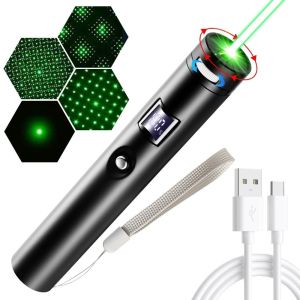
FOUNDTWO Portable Green Pointer Digital Display USB Rechargeable Demonstration Pen High-quality Bright Animation Mini Flashlight Teaching Demonstration

Singer Cool C-Cardi B Phone Case For IPhone 17 16 15 14 13 12 11 Pro Max Plus Mini Case Clear Jelly Shockproof Soft Cover
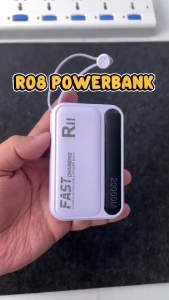
CS: RII KC98 Power Bank 20000mAh | High Capacity Portable Fast Charger

Highflo 3-Stage Direct-to-Faucet Water Purifier System with Easy Installation High-Quality Filtration for Drinking Water White
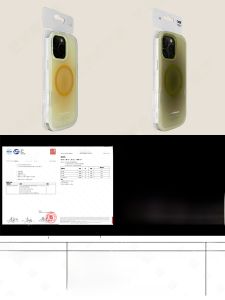
MENGKE.CASE | Mint Green Gradient Magnetic Anti-Drop Phone Case
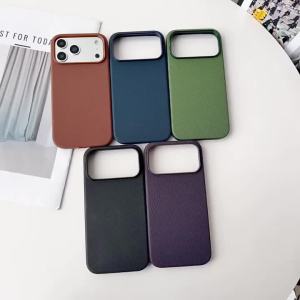
Tech Fabric Woven Magnetic Case For iPhone 18 Pro Max 17 Air 16 15 14 13 12 Pro Max Plus For Magsafe Wireless Charge Phone Cover

Bandai | Mechanical Warrior Gundam Mouse Pad Gamer Large Computer Notebook Mousepad Carpet Gaming Accessories KeyboardRubb er Desk Mat
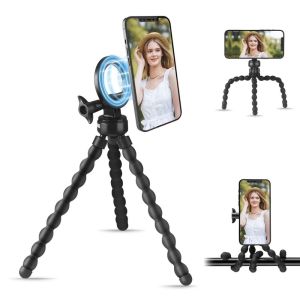
MUNCHX 360° Rotation Octopus ic Tripod Flexible Adjustable Phone Holder Portable Hands-Free Cell Phone Stand for Magsafe for Photography
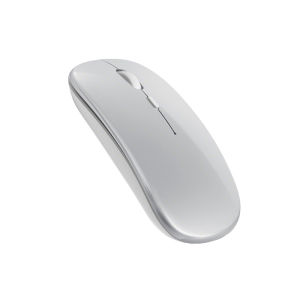
EPOOSUO | Wireless Bluetooth Silent Mouse for Apple Laptop and Tablet