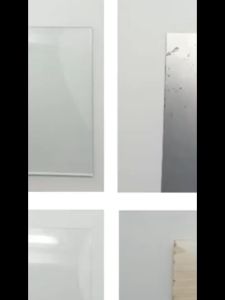



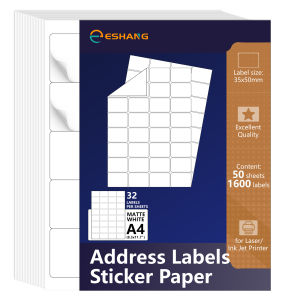
50 Sheets 1600 Labels 32 UP Labels 35x50mm Mailing Labels Shipping Address Labels for Laser/Inkjet Printers Matte White Sticker
Key Features Explained:Quantity: 50 sheets, totaling 1,600 individual labels.Layout: 32 UP. This means "32 labels per sheet." They are arranged in a grid pattern (e.g., 4 labels across by 8 labels down) on an A4-sized sheet.Label Size: 35 x 50 mm. This is a very common size for shipping/address labels, slightly smaller than a standard business card.Finish: Matte White. A non-glossy, flat white surface that is easy to write on with a pen or marker and reduces glare. It provides a professional, clean look.Compatibility: Designed for both Laser and Inkjet Printers. This is a key advantage, as it offers flexibility regardless of the printer technology you own.Adhesive: The back of each label has a permanent, pressure-sensitive adhesive. Once applied, they are difficult to remove without tearing.Core Use Case: Mailing & Shipping Address Labels. Their size and format are perfectly suited for creating batches of address labels for packages and envelopes.How to Use Them:Software Setup: This is the most important step. You must set up a custom label template in your word processor (like Microsoft Word, Google Docs, or a design program like Adobe Illustrator).The sheet size is A4 (210 x 297 mm).The label dimensions are 35 x 50 mm.You need to find the specific template layout for 32 labels per A4 sheet. Many programs have built-in templates for common label sizes like this one. You can also often find the template code (e.g., an Avery equivalent code) from the product's packaging or listing to make setup easier.Design: Type your addresses or other information into each label cell on the digital template. You can format fonts, add logos, or use sequential numbering.Print: Load the label sheets into your printer's standard paper tray. It's highly recommended to do a test print on a regular piece of paper first. Hold the test print behind a sheet of labels to see if the alignment is perfect before printing on the actual sticker sheets.Peel and Apply: Once printed, simply peel each individual label from its backing sheet and apply it to your clean, dry surface.Important Considerations:Template is Crucial: Using the correct template ensures your text is aligned perfectly within each label. Incorrect templates will result in misaligned prints.Printer Compatibility: While compatible with both printer types, always ensure your printer can handle the slightly thicker paper stock of label sheets. Use the manual feed tray if available for best results.Ink Drying: Allow inkjet prints a few moments to dry completely before handling to prevent smudging.Permanent Adhesive: These are designed for permanent application. Be sure of your placement before sticking them down.

GlobalTechMart
Review

You May Also Like

22meters 80mm Satin Ribbons Christmas Halloween Wedding Birthday Party Gift Box Wrapping DIY Handmade Crafts Fabric Wired Ribbon
![[COD] WHPHous Ship within 24 hours High Quality 2.3mm 5mm Electric Replacement Pencil Refill Rubber Eraser](https://img.lazcdn.com/g/p/7c03504b2cb8eead63f2759fb64116e4.jpg_300x300q80.jpg)
[COD] WHPHous Ship within 24 hours High Quality 2.3mm 5mm Electric Replacement Pencil Refill Rubber Eraser
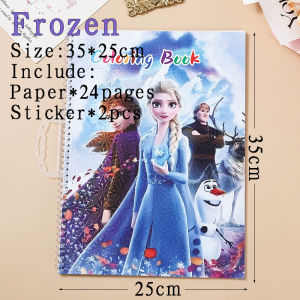
Cute Cartoon Coloring book for kids coloring book coloring set for kids Children Coloring Book Gift
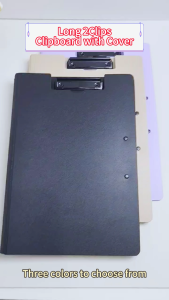
Long Clipboard with Cover Double Clips Pink File Folder Yellow Paper Organizer Purple School Supplies 35×24.5cm
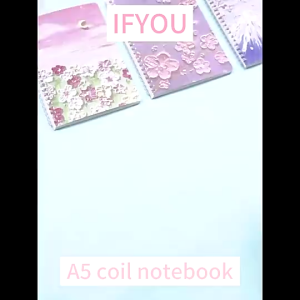
4pcs A5 Paper Notepad Coils Notebook Creative Diary Art Stationery Book Student School Supplies
FMP W25A F4 Long Wire Binding Machine for School & Office
5PCS Pink green Black Bubble Mailer Plastic Padded Envelope self adhesive Shipping Bag Packaging
Quali-Products - QUAFF Scented Paper 180gsm A4 size White for Invitations | Calling Card (20sheets/pack)
DIY Miniature Scene Large Decals for Girls Educational Toy Gift
50PCS INS Style Small Fresh Tulip Flower Sticker Waterproof Decoration Laptop Water Cup Cartoon Flower Sticker
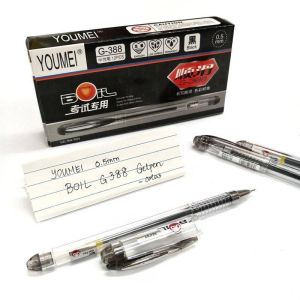
12pcs Sign Pens 0.5mm G-388 Boil Gel Ink Pen Large Capacity Office Signature Pen