


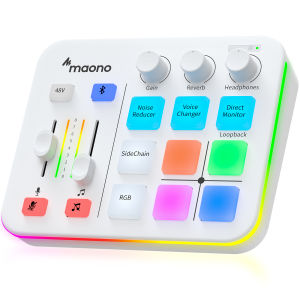
MAONO G1 NEO Gaming Audio Mixer Custom Sound Effects RGB Streaming with XLR Microphone Audio Interface for Game Voice Podcast
MAONO G1 NEO Gaming Audio MixerCustom Sound Effects RGB Streaming with XLR Microphone Audio Interface,for Game Voice,Podcast Essential Kit for Streaming Setup: MAONOCASTER G1 NEO is the essential gear for gamers and up-and-coming streamers diving into the world of gaming streaming. This gaming mixer not only delivers outstanding sound performance but also integrates customized sound effects and captivating RGB lighting to immerse you in gaming or streaming. Its compact design and user-friendly interface provide an enjoyable and easier gaming experience, making it easier for you to achieve victory. Customize Your Sound Effect: Utilize custom sound pads to create your voice tag, quickly increase popularity, unleash potential, and expand your audience reach. You can even use the reverb and sidechain features to sing a song to your teammates, and they will be amazed by your singing. Customize Your Sound Effect: The voice change feature allows you to bring a whole new dimension to your gaming streams, you can become the female, male, baby, or robot, creating an engaging and entertaining experience for your viewers. Enhance Your Voice: Just one-click noise reduction ensures clear audio for your teammates whether strategizing with them or interacting with viewers during live streams. Great Compatibility: Widely compatible with phones, computers, and tablets. Record with ease using most software, such as OBS Studio, Discord, Twitch, YouTube, Facebook, Streamlabs, Streamyard, and Zoom. Stunning RGB: Achieve 11 different color variations by customizing buttons and body light strips with RGB solid colors, gradients, and rainbow RGB effects, perfectly complementing the aesthetics of your game room. Easily immerse yourself in the gaming atmosphere even as you load your game, enhancing the immersive experience during live streams. Enhance Your Voice: Build in Pro-preamp and 48V phantom power to fully unleash the potential of your XLR microphone, allowing you to quickly and easily achieve the high-quality audio typically associated with streaming setups. Enhance Your Voice:The perfect coordination of gain and volume can allow your teammates to hear a sufficiently loud sound. Make Streaming Easy: With Bluetooth accompaniment input, you can create livelier and more engaging live streams. Make Streaming Easy: Enjoy the ease of one-click mute and Loopback for added freedom during game streaming. Make Streaming Easy: One-click direct monitor activation, effortlessly achieving real-time audio; specially designed power switches make your usage more convenient. Make Streaming Easy: Intuitive and user-friendly interface to keep focus on gaming or content creation without any unnecessary distractions. Package List and Customer Service: 1* gaming audio mixer1* USB A-C cable1* 3.5mm TRRS audio cable1* user manual. We provide a 12-month warranty. For a better user experience, please read the user manual before setting up. Instructions:Maonocaster G1 Neo Usage Tutorial How To Start A Streaming?G1 Neo FAQs1.How to fix the issue of LED flashing on audio interface buttons such as "Side Chain"/"Noise Reducer"/"Voice Changer"/"Direct MonitorPlease click on the link below to find the file named "G1 NEO Firmware Update" and download it. Then connect the G1 NEO to the computer and use this file to update the firmware. G1 NEO Firmware Update.zipIf the problem persists, please take a video showing your situation and send it to us. Our support team will assist you as soon as possible.--------------------------------------------------------------------------------------------------------------------------------------------2.When you live stream, the audience can't hear the music, but you can hear it through headphones1. Please check if the "loopback" button is on;2. Please check if your live streaming device is connected correctly. For details, please refer to the answers to the three questions in this section that describe the connection method.——How to connect to the computer——How to connect Android phones, iPhone 15 and above, and USB-C ports iPads——How to connect an iPhone with a lighting port3. Please use the local recorder/voice memo of the live streaming device to record and check if the music can be recorded successfully;4. If the music is successfully recorded by the recorder, it means that the problem lies in the settings of the live streaming platform. Please check the settings of the live streaming platform;5. If the music is not successfully recorded by the recorder, please try to change the cable connecting G1 NEO and the live streaming device.--------------------------------------------------------------------------------------------------------------------------------------------3.How to connect to the computer1. Please use the included USB cable to connect G1 NEO to your computer. Please note that the USB-C port with the computer/mobile phone logo on G1 NEO is connected, not the DC-5V port2. After the connection is completed, please check the sound settings of the computer. The default input and output are "Maonoaster G1 NEO" (right-click the speaker on the right side of the desktop to open the sound settings)--------------------------------------------------------------------------------------------------------------------------------------------4.How to connect Android phones, iPhone 15 and above, and USB-C ports iPads1. Please connect an external power supply to the DC-5V port of G1 NEO;2. Please use the included USB cable to connect G1 NEO to your Android phone. Please note that you should connect to the USB-C port on G1 NEO with the computer/phone logo, not the DC-5V port.--------------------------------------------------------------------------------------------------------------------------------------------5.How to connect an iPhone with a lighting port1. Please connect the external power supply to the DC-5V port of G1 NEO;2. Please use the included USB cable to connect to another USB-C port of G1 NEO;3. Please use an official Apple USB-A to lightning adapter to connect G1 NEO to your iPhone--------------------------------------------------------------------------------------------------------------------------------------------6.How to use the various knobs, buttons, and faders on an audio interface48V: Provides 48V phantom power for driving XLR condenser microphones. There is no need to turn on this button when using a dynamic microphone;Bluetooth: Turn on or off the Bluetooth function of the audio interfaceMicrophone: Adjust the microphone input volumeMusic: Adjust the accompaniment input volumeMicrophone Mute: Turn on to mute the microphone, turn off to reactivate the microphoneMusic Mute: Turn on to mute the accompaniment, turn off to reactivate the accompanimentGain: Adjust the microphone gainReverb: Adjust the reverberation. The more you turn it to the right, the deeper the reverberationHeadphones: Adjust the sound monitored through the headphonesNoise Reducer: Noise reduction button, there are first-level noise reduction and second-level noise reductionVoice Changer: Interesting sound change adjustment, there are five levels: default, female, male, baby, and robotDirect Monitor (loopback): Short press to turn on or off microphone monitoring, long press to turn on or off loopbackLoopback: Turn on to output the sound input to the audio interface from your computer to your computer. After turning it off, the sound on your computer can be input to the audio interface, but it will no longer be outputSide Chain: Turn on to highlight the human voice and reduce background music during live broadcasts, turn off to restore musicSound Pad: Customize sound effect buttons, each button can add 20s of your favorite soundRGB: Adjust the color of the 4 sound pads and the light strip on the side of the audio interface, a total of 12 modes--------------------------------------------------------------------------------------------------------------------------------------------7.Why is there no sound even though the microphone has been successfully connected to the G1 NEO?1. Please check the compatibility of your microphone. USB microphones and 3.5mm microphones are not compatible with G1 NEO;2. Please check whether you have turned on the 48V button. XLR condenser microphones require 48V phantom power to drive;3. Please check whether the microphone volume fader is adjusted to the appropriate position;4. Please check whether the "Gain" knob is turned up to a large enough level;5. Please check whether the headset is connected to the G1 NEO headset jack. Inserting a headset will disable the XLR port.--------------------------------------------------------------------------------------------------------------------------------------------8.To solve the problem of current noise in the audio interface1. Please do not hold the microphone by hand, please fix the microphone on the stand.2. Check the connection status of the cable and the microphone interface is firmly connected.3. Do not use a hub! First change the computer USB port connected by the audio interface, if it is a desktop computer, please connect to the USB port on the back of the host.4. The noise of the audio interface itself or the environmental noise in normal use, the solution is to use it in a quieter environment.5. The microphone gain is too high or the environment is noisy, causing the ambient noise picked up by the microphone to exceed the audio interface's noise reduction threshold. The solution is to reduce the microphone gain.6. The interface of the computer device you are using is old or poorly grounded, or the power circuit connected to it is old, causing leakage and continuous current noise. Please try another computer device in a different environment or switch to a mobile phone for testing.7. Electronic devices with strong radiated signals in the vicinity of the microphone, for example: wireless routers/video lamps, will produce interference noise. Please use the microphone in a different environment, for example: if the current location is the living room, please use it in the bedroom instead.8. The noise caused by software incompatibility, please change to use the computer recorder for recording, and close third-party software to avoid software conflicts or noise caused by effects.9. If you use it on a mobile device, Apple devices must use MFI-certified cables, and other brands should use original cables as much as possible.10. If none of the above solves the problem, please record audio and take photos or videos of the audio cable connection. Send them to us so we can assess your problem--------------------------------------------------------------------------------------------------------------------------------------------9.How to use the "Direct Monitor" and "Loopback" compound buttons1. Short press this compound button to turn monitoring on or off, long press this compound button to turn loopback on or off.2. You can determine the monitoring and loopback status by the color of the LED indicator on the compound button.--------------------------------------------------------------------------------------------------------------------------------------------10.Can't hear sound through headphones1. Please adjust the "Headphones" knob to increase the sound of the headphones;2. Please adjust the "Microphone" fader and the "Gain" knob to increase the sound of the microphone;3. Please adjust the "Music" fader to increase the sound of the background music;4. Please turn on the "Direct Monitor" button;5. If you use an XLR condenser microphone, please turn on the "48V" button;6. Please turn on the volume switch of the accompaniment device.--------------------------------------------------------------------------------------------------------------------------------------------11.Cannot boot1. The G1 NEO audio interface does not contain a battery, please connect the audio interface to a power source. If you are using a computer, directly connect the computer to the USB-C port with the computer/mobile phone logo; if you are using a mobile phone, please add an additional power source to the DC-5V port of the audio interface;2. Press and hold the power button for three seconds to turn on the device.--------------------------------------------------------------------------------------------------------------------------------------------12.Voice cracked1. Adjust the microphone volume fader to 75%;2. Adjust the "Headphones" knob to 75%;3. Adjust the "Gain" knob on the audio interface little by little according to your hearing until you are satisfied with the sound quality. At this time, the "Gain" knob position is the best position for the microphone you are currently using. Once it is set to the best position, there is no need to adjust the "GAIN" knob unless you change to a new microphone.--------------------------------------------------------------------------------------------------------------------------------------------13.How to record sound effects, how long is the time to record sound effects?The 4 sound pads on the G1 NEO can record 20s of sound effects.The product does not have custom sound effects input when it leaves the factory, and users need to input them before they can use them.Recording method: When the G1 NEO is turned on, connect a microphone, an external audio speaker accompaniment input device, or a Bluetooth device, and short-press any custom button. The light flashes slowly, indicating that it is in the recording state. The G1 NEO will record through the sound effects of the above channels. Record the appropriate length of audio according to actual needs, short-press to stop recording, or wait until the light goes out and then press the button to record the longest sound allowed.How to erase the recorded sound effects: Long press any custom sound effect button, and the light flashes quickly to indicate that the sound effect erasure stage has begun. When the light stops flashing, it means that the sound effect has been erased.--------------------------------------------------------------------------------------------------------------------------------------------14.How to input accompaniment via Bluetooth1. Please press and hold the Bluetooth button for 2 seconds to turn on the Bluetooth function of G1 NEO;2. At this time, the blue indicator light on the Bluetooth button flashes, and Bluetooth is working normally and waiting to be connected;3. Turn on the Bluetooth of the music device and actively search for G1 NEO to complete the pairing connection. After the connection, the blue indicator light of the Bluetooth button is on;4. Press and hold the Bluetooth button for more than 2 seconds, the Bluetooth button light will turn off from being on, and all Bluetooth pairings will be automatically turned off.--------------------------------------------------------------------------------------------------------------------------------------------15.Can I connect my USB microphone to the Maonocaster G1 NEO?No, the Maonocaster G1 NEO does not support the connection of USB microphones.--------------------------------------------------------------------------------------------------------------------------------------------16.Can I use Bluetooth headphones with the Maonocaster G1 NEO?No, the G1 NEO is not a USB host device and will therefore not allow the connection of Bluetooth headphones.--------------------------------------------------------------------------------------------------------------------------------------------17.How to use the headsetPlug the headset directly into the 3.5mm jack with the headset symbol on the audio interface.Please note that the audio interface only supports CTIA standard 3.5mm TRRS plug headsets.--------------------------------------------------------------------------------------------------------------------------------------------18.Is it necessary to use an additional gainer when using a dynamic microphoneMaonocaster G1 NEO has built-in gain to provide sufficient gain for all microphone types, including low output dynamic microphones. The GAIN knob on the panel can be adjusted to the right position when in use to get the right effect.--------------------------------------------------------------------------------------------------------------------------------------------19.Why does the headset work properly when I plug both a headset and a microphone into the G1 NEO, but the microphone does not work?Plugging in a headset will disable the XLR port.--------------------------------------------------------------------------------------------------------------------------------------------20.Side chain function not working?It doesn't work on a voice call, it works on podcast or live streaming.--------------------------------------------------------------------------------------------------------------------------------------------21.What is the maximum impedance of professional headphones supported by the G1 NEO?Maonocaster G1 NEO is able to support professional headphone devices with a maximum impedance of 80 ohms.--------------------------------------------------------------------------------------------------------------------------------------------22.How do I use my IPhone for live streaming?1.Please connect the external power supply to the DC-5V port of G1 NEO;2.Please use an official Apple USB-C to lightning adapter to connect G1 NEO to your iPhone;3.Please press and hold for 2 seconds to turn on the “Loopback” of the G1 NEO, the RGB light is dark blue.------------------------------------------------------------------------------------------------------------------------23.Does the G1 NEO work with wireless lavalier mics?No, the Maonocaster G1 NEO does not support the connection of a wireless lavalier microphone.------------------------------------------------------------------------------------------------------------------------24.Can the G1 NEO invite guests over the phone to record podcasts using the Bluetooth feature?No. When you connect your cell phone to the G1 NEO via Bluetooth only, you cannot hear your guests, but they can hear you. This is because Bluetooth can only be used as an input and not an output.------------------------------------------------------------------------------------------------------------------------

U Enjoyment
Review

You May Also Like
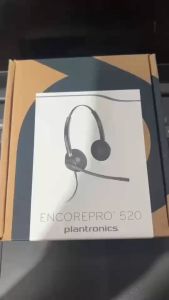
Poly EncorePro HW 520 Stereo Noise Cancelling QD Headset
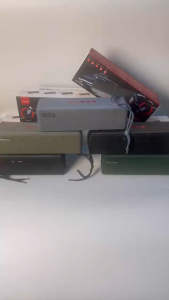
Yoobao M13 Unique Design Portable Wireless Bluetooth V5.3 Multi Function Speaker HiFi Sound Quality with Strap
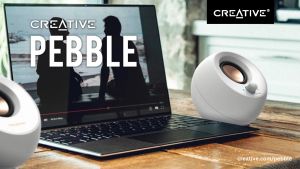
Creative Pebble (MF1680) 2.0 USB-Powered Desktop Speakers White Black with Far-Field Drivers and Passive Radiators for Pcs and Laptops
Bts.Shop KTS-2411 Heavy bass dual 6.5-inch Bluetooth speaker with microphone and color-changing lights
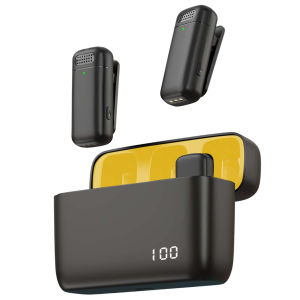
Wireless Collar Microphone with Digital Display Noise Reduction for Karaoke and Stage Events Rechargeable Charging Case
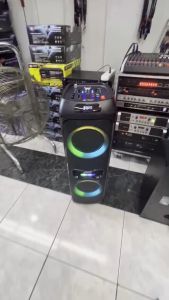
Joson U.P Professional Audio Speaker Dual 8 inches woofer (Original)
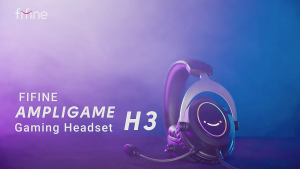
FIFINE AMPLIGAME H3 High-Quality RGB Gaming Headset with Detachable Mic 3.5mm TRRS Volume/Mute Control for PS4/5 Xbox Nintendo Switch - Comfortable Elegant Design
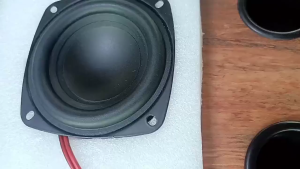
5.25 inch 4Ohms 50W Bass 5.25 inch Subwoofer Speaker 5.25 inch Midrange Speaker Car Speaker
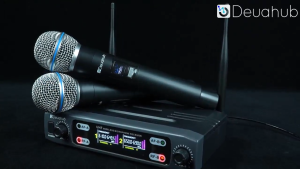
Deuahub K-168 Wireless Microphone 2 handheld UHF FM 80M receiving distance
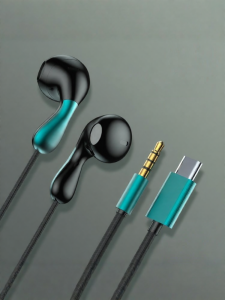
WOMINGTE | Drip Design Wired In-ear High Quality Audio Type-C Connector Gaming K-Song Headphones
T&G Tg486 TWS Portable Bluetooth V5.4 Fabric with LED Light Speaker 30W Power Loud Bass with Handle