


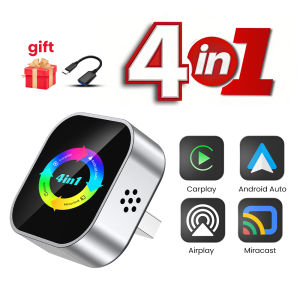
4-in-1 Wired to Wireless CarPlay Android Auto AirPlay Mirror Link Stable Bluetooth Adapter For Audi Benz Toyota VW Nissan Volvo
🔥 4-in-1 Wired to Wireless Converter: CarPlay/Android Auto/AirPlay/Mirror Link | Auto-Reconnect & Stable WiFi | Plug & Play for iOS/Android▶ Purchase Notice⚠️ Critical Compatibility Requirements:✅ Your car MUST have original wired CarPlay /Android Auto(check via car’s official website or infotainment system settings).❌ Not compatible with: BMW/Tesla/Subaru/Mitsubishi.❌ Nissan models are NOT recommended (poor compatibility – contact us for specific Nissan model checks).▶ Product Features✅ Wireless CarPlay: Cut the cable clutter! Seamless wireless connection + auto-reconnect every time you start the car – no more plugging/unplugging.✅ Android Auto Support: Full smartphone integration (navigation, voice control, music) – turn your car’s infotainment into a smart hub.✅ AirPlay & Miracast: Wireless screen mirroring for iPhone/Android – stream movies, maps, games directly to your car’s display (multi-scene use).▶ For Phones📱 Mobile compatibility:▪️ IPhone (for CarPlay): iPhone 6+/iOS 10+; (For AirPlay): iOS 18+▪️ Android (suitable for Android cars): Android 11+/phone supports wireless Android cars▪️ Huawei phones (EMUI system): Huawei devices have their own mobile operating system - EMUI. Android Auto Wireless does not support EMUI, please do not use it▶ How to connect Carplay/Android Auto?📲 Quick Connection Guide (30s Setup):Step 1: Plug the adapter into your car’s wired CarPlay USB port.Step 2: On the adapter’s interface, click the [CP/AA] icon.Step 3: Turn on Bluetooth + WiFi on your phone.Step 4: Search for the adapter’s Bluetooth name (e.g., “SmartBox-xxxx”) and pair.Step 5: Auto-recognizes and connects to CarPlay/Android Auto – done!▶ For Airplay/Miracast🖥️ Wireless Screen Mirroring:▪️ AirPlay (iPhone): iOS 18+ required | Sync apps, movies, navigation to car display – ideal for long drives.▪️ Miracast (Android): Android 11+ required | Cast phone screen in real-time – no lag for maps/games.▶ How to connect Mirror link?🖇️ Mirror Link Setup:Step 1: Turn on WiFi on your phone.Step 2: Open wireless screen mirroring (find it in: Drop-down menu → Settings → Display → Wireless Projection).Step 3: Select the adapter’s device name (e.g., “SmartBox-xxxx”) from the list.Step 4: Connected instantly – start casting!▶ OTA upgrade🔧 OTA Upgrade (Fix Issues & Get New Features):Why upgrade? Resolve connection failures/disconnections, add new functions.Step 1: Turn on your phone’s WiFi.Step 2: Connect to WiFi: Name → “SmartBox-xxxx” | Password → “12345678”Step 3: Open phone browser, enter URL: 192.168.1.101 (correct punctuation!)Step 4: Enter OTA page → Click “Upgrade” and wait 2-3 minutes.📌 Important Reminders:▪️ Copyright Notice: Due to copyright protection, some copyrighted apps/videos may not be supported – this is a standard industry limitation, thank you for your understanding.▪️ Keep the adapter away from high temperature (e.g., car dashboard in direct sunlight) to ensure stability.▪️ If connection fails, try OTA upgrade first or contact our support team.▶ After-sales Guarantee🛡️ After-sales Support:Wireless carplay adapter✅24/7 customer service✅30 day free return policy✅24 month warranty period💌FOTAIf the original car has wired Carplay, why can't it be connected?1. Please use your phone to delete the original car's Bluetooth device name2. Restore the factory device(Because the device is a single Bluetooth, if the original car's Bluetooth is already connected to the phone, the phone cannot connect to the device's Bluetooth)The adapter light remains on after the car is turned off.Since all power is not cut off immediately when the car is turned off, the light of the adapter will not go out immediately, but it will take a while. Please rest assured that its power consumption is extremely low and will not drain the battery.Can the phone use other network wifi when using wireless Carplay adapter?When enjoying the wireless Carplay adapter function, the phone's WiFi will be occupied by the adapter, so you can't use other Internet at the same time, you can only use the phone SIM card to surf the InternetAbout OTA upgradeIn order to bring you a better experience, this product supports OTA online upgrade function. When the wireless converter box cannot be used normally or there are performance problems after the mobile phone upgrades the system, it is recommended to upgrade the wireless converter box firmware to the latest version. If the wireless converter box works normally, it is usually not recommended to upgrade the firmware.

Prime Supply_Play Life
Review

You May Also Like

MITSUBISHI LANCER L-300 IDLER ARM BUSHING MB-005833 / 005883
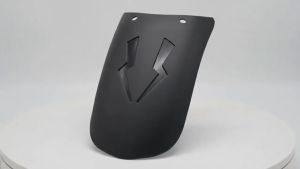
Universal Motorcycle Fender Extension Mudguard Mud Guard Extention Replacement Parts Fit All Types
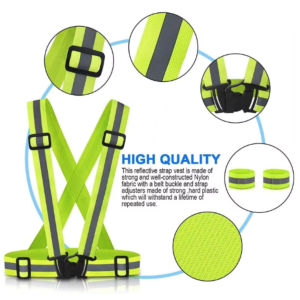
High-Visibility Safety Garter Vest for Night Riding & Construction - Reflective & Protective
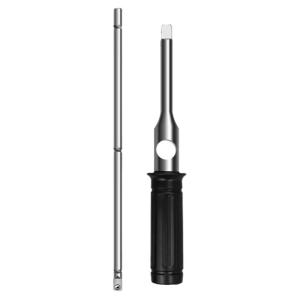
HUANGXIAOCHAO | Effortless Tire Removal Socket Set with Extended Cross

CLICK 125 V4 DECALS (2026 VARNISHED DESIGN) STICKER KITS BY STICKABOSS
For BMW R1250GS R1200GS Adventure GS1200 ADV R 1200 1250 GS LC GSA 2013-2022 2023 Lifting Handle Mould Lifting Lever Assist Bar

YE-066 2022-2023 RAIZE REAR BUMPER LIGHT
TKSTAR TK905c 4G 20000mAh GPS Tracker Car Magnetic GPS Locator Real Time Anti Theft Geofence For Car Vehicle Free APP
Koby CVT Cleaner (600mL) - Orignal Product

Side Door Rearview Mirror Decoration Cover Trim Protector for Jeep Cherokee 2014-2023 Compass 2017-2023 Car Exterior Accessories
Frienda 2 Set DC 12V 24V 36V 48V 60V 72V 84V Golf Cart Battery Meter with Alarm Front Setting and Switch Key Battery Capacity Voltage Indicator Gauge Acid and Lithium Ion Indicator(Blue)