


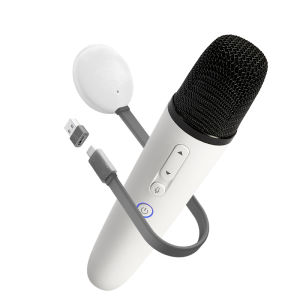
Jaecoo Official factory Car Microphone Karaoke Microphone for Jaecoo J5 J7 J8 and Omoda O5 O7E5 factory shipping
Questions and Answers: Question 1: Which Jaecoo car models does the microphone support? Answer1: We are the original manufacturer of CarMic microphones. and our mic supports Jaecoo(J5 J7 J8 and O7) and Omoda 5 and Omoda 7,Karaoke functionality requires updating your car’s firmware to the latest version. Once the "KTV Assistant or Karaoke Mixer" App appears on your car’s screen , your cars will support Karaoke, and our microphone will work perfectly with it. Question 2: How and where can I update the firmware for my Jaecoo J7 to enable Karaoke? Answer2: Starting from 2025, all new Jaecoo J7 vehicles will come pre-equipped with the Karaoke feature. For existing models without this function, you can update the firmware via the following methods: OTA Update: Connect your car to a stable network, then navigate to the car’s system settings > firmware update and follow the on-screen instructions to complete the update. Dealer Assistance: If your car does not support OTA updates, please visit your local Jaecoo authorized dealership and request a manual firmware update. nce the "KTV Assistant & Karaoke Mixer" app appears on your car’s screen, the update is successful, and our microphone will work perfectly with your Jaecoo J7. Important Notice: If your Jaecoo car does not have the "Karaoke Mixer" function and its firmware cannot be updated to support it, please do not purchase this microphone. Please note that we will not accept returns or process refunds for this specific reason. Thank you for your understanding. Question 3: Can I buy this mic for other cars? like Hyundai Honda Mazda? Answer: No, Our Mic only support BYD and Jaecoo/Omoda with karaoke mixer app Pre-installed. Other cars not support and pls don't buy. Question 4: Which karaoke apps are supported? Answer: Once the microphone receiver is inserted into your Jaecoo vehicle, all music and karaoke apps pre-installed on your car’s will work perfect. Additionally, music apps can also function as karaoke tools through the Karaoke Mixer: our product features a "Vocal Elimination" function, allowing you to adjust the backing vocal level. This transforms regular music apps into karaoke apps effortlessly.Alternatively, you can connect your phone to the car via Bluetooth and use your phone’s karaoke apps with the microphone. Question 5: The microphone has no sound—what should I do? Answer: If your car has the latest firmware (with the "KTV Assistant OR Karaoke Mixer" app), your microphone has enough power, and the volume has been turned up, but there is still no sound, please try re-pairing the UHF code by following the steps below: Method for Pairing Single Microphone Step 1 Long-press the Volume Key and Power Key at the same time until it starts blinking. (microphone close to the receiver within half a mete, there should be no obstructions between them) Step 2 Insert the receiver and check that it blinks. Step 3 When the receiver light is flashing, press the "Power Key" and "Voice Key" at the same time to exit the pairing mode. At this time, the microphone indicator light stays on, and the receiver indicator light stays on to indicate that the pairing is complete. Method for Pairing Dual Microphones Two Microphones Pairing 1. For Microphone 1: Long-press the Volume + Key and Power Key at the same time until it starts blinking. 2. For Microphone 2: Long-press the Volume - Key and Power Key at the same time until it starts blinking. (Pls noted one mic is volume UP and another mic is Volume DOWN) 3. Insert the receiver and check that it blinks. we have to see both mics and receiver all blinkings, then do last step. 4. Last step: For both microphones, press the Power Key and sound effect Key to exit the pairing process. Done. (exit repairing for both mic =press power button and sound effect button)

U Enjoying
Review

You May Also Like
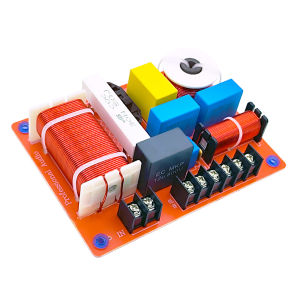
【HRFS】 500W High-Low Frequency Crossover Module 3 Ways Stage Speaker Crossover for Home Theater Speaker Upgrade
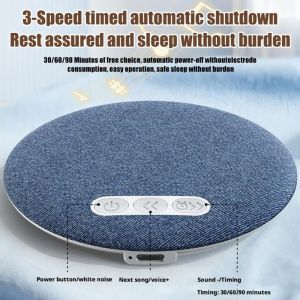
MUQZI Sleep Aid Under Pillow Bluetooth Speaker HiFi Stereo Sound Bluetooth 6.0 White Noise Machine Multifunctional Built-in White Noise Bedroom Pillow Speaker Personal Relaxation
EarAcoustic Audio x zkaaai Cipher Dynamic Driver USB Type C DSP IEM Aluminum Wired Earphone with Mic
TIMACK | Choice M91 OWS Ear clip Wireless Earphones Low Latency HD Call Bluetooth Headphones HiFi Music Sport Fashion Earbuds
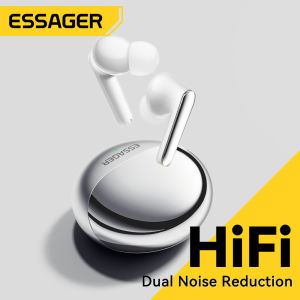
Essager Bluetooth V5.3 TWS Wireless Earphones BT Hi-Fi Stereo Headphones ANC+ENC Dual Noise Reduction In-Ear Headphones with Mic Charging Case Stereo Sound In-Ear Smart Touch Headset Transmission Distance 8-10M
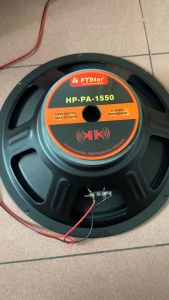
The d15 FTstar HP-PA-1550 subwoofer 15inches 2000Watts speaker HPPA1550 professional HI-FI subwoofer
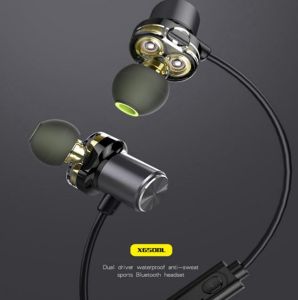
AWEI X650BL Dual Driver Wireless Bluetooth HiFi Earphone Super Bass Sound
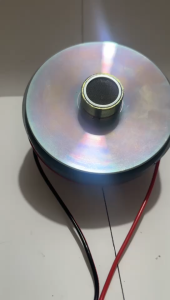
FT STAR GT-55BT 1200W RMS 8ohms Titanium Compression Driver Unit 51MM Coil For Horn Tweeter With Capacitor

Bose L1 Pro8 Portable Line Array System
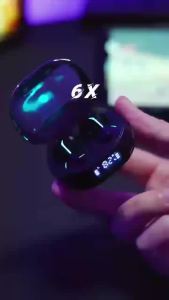
Lenovo | New Lenovo TG101 Wireless Bluetooth Earphone Business Music Bluetooth Headphone HD Call with Mic 30H Battery Life Gaming Headset
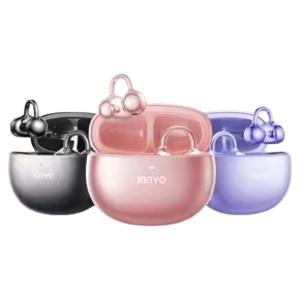
kinyo | Real-time AI Translation Wireless Smart Voice Clip-on Bluetooth Headphones