


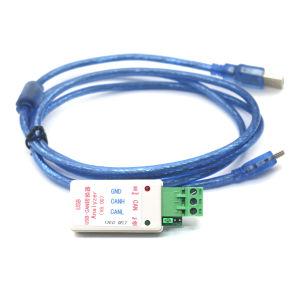
USB To CAN / RS232 TO CAN Serial Port Converter Adapter 232 CAN Bus Transfer Send / Receive DATA Communication Analysis
USB to CAN Bus Converter Adapter serial port TO CAN / RS232 232 TO CAN communicate analysis With TVS surge protectionDriver Download http://115.28.16.44:81/file/6536.rar 1. Inside the hardware, TVS surge protection is added.2. With 120 ohm match resistance.3. Included data cable with magnetic ring shieldingSoftware:1. Basic function -- communication support CAN2.0A (standard frame) and CAN2.0B (extended frame)2. Basic function -- CAN communication baud rate range (5K~1M), CAN baud rate can be customized.3. Basic function --CAN Send and receive data display with time show, the receive data can be displayed sequentially or refreshed.4. Basic function -- sending data can be sent in single frame or multiple frames, can be sent manually, can be sent on a regular basis, and can be sent in a loop, which is more convenient for debugging.5. Enhancement function - the receiving data can also be automatically answered. When we want to receive the received ID, we can automatically reply the data that is set to send ID.6. Enhancement function - you can manually view the CAN bus state.7. Enhancement function - you can directly set the desired ID, not by setting the filter ID or masking ID, and directly entering the ID you want to receive, can be configured directly.8. Enhancement function -- there are four working modes to choose from (normal mode is mainly used for direct communication with CAN devices.The loopback mode CAN be used for the self-test of the converter,In this mode, the converter will automatically send and receive, the data can be also sent to CAN bus.Silent mode CAN be used to monitor CAN bus data without affecting CAN bus communication, loopback silent mode is usually used for thermal test CAN converter9. Enhancement function - send and receive data can be saved as TXT text format or Excel format.10. Enhancement function -- the baud rate of the virtual COM port can also be modified, and the default communication baud rate is over 1M, so don't worry about conversion efficiency.11. Advanced function -- so the configuration is automatically saved and can be used directly next time.12. Advanced function -- secondary development is very simple, just processing a single receive and send command.13. Advanced function - enhanced transparent transport function.14. Advanced function -- the software interface can be switched in English and Chinese.Specifications:Type: USB - CAN7Applicable scope: all kinds of CAN bus transmission equipmentSupport system: XP and above systems, supportWiN7/WIN8 32-bit / 64-bit )Adapter size: 7 x 2.7 x 1.6cm/2.76 x1.06 x 0.63inchCable: 1mWeight: 82gPackage Contents100% Brand New1 x Converter Adapter1x 1M mini USB Cable1. Install the Driver. The driver is in the Driver/driver for USBCAN(CHS40) folder. After seeing the installation program, click the right mouse button and choose to run the program as administrator2. One end of the data line finds the converter and plugs it into the USB port of the computer. At this time, the computer system will recognize a COM port number of the converter, which can be viewed from the device manager, that is, the port-COM port number(If you unplug the USB port at this time, the port number of the device manager will not be seen, and then plug it into the USB port, the port will appear again)3. Select the upper computer software, click the right mouse button, choose to run the program as an administrator, and select the port corresponding to the converter in the device manager, Com bps 2000000 (this is because the baud rate of the internal port of the converter is set to 2000000bps by default).Then click to open it (the internal baud rate of the converter can be judged by the transceiver indicator when the converter is powered on. The factory default is that the transceiver indicator flashes once at the same time, indicating that the internal baud rate of the converter is 2000000); If it does not blink once at the same time, it indicates the internal baud rate of the converterOther baud rates can be restored to the factory DEFAULT (short connect the default two holes next to the terminal, and then power on the converter), or according to the number of times that the transceiver indicator flashes at the same time when it is just powered on:Blink once at the same time - the baud rate of the internal port of the converter is 2000000, and the baud rate of the corresponding software port of the upper computer is 2000000Blink twice at the same time - the baud rate of the internal port of the converter is 1228800, and the baud rate of the corresponding software port of the upper computer is 1228800Blink three times at the same time: the baud rate of the internal port of the converter is 115200, and the baud rate of the corresponding software port of the upper computer is 115200Blink 4 times at the same time - the baud rate of the internal port of the converter is 38400, and the baud rate of the corresponding software port of the upper computer is 38400Flash 5 times at the same time - the baud rate of the internal port of the converter is 19200, and the baud rate of the corresponding software port of the upper computer is 19200Flash 6 times at the same time - the baud rate of the internal port of the converter is 9600, and the baud rate of the corresponding software port of the upper computer is 96004. Perform CAN configuration. If Normal Mode is used, select Normal Mode and CAN frame type and CAN baud rate are the same as CAN frame type and CAN baud rate of the customer device. Then click Set and Start button to issue configuration command to send and receive data normally;If the customer plans to test CAN, select Loop back + silent mode in CAN Mode, and then click the "Set and start" button to Send the configuration command, the converter can automatically receive itself. At this time, click "Send a single frame" to send something to the converter. The converter will reply to something;Note that in Normal communication, you still need to select Normal Mode, and then click Set and Start button to issue configuration command. Loop back + silent mode is a test mode only

Prime Supply_Play Life
You May Also Like
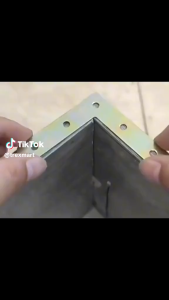
Heavy Duty Stainless Steel Corner Bracket for Furniture Repair and Joint ConnectionScrew not included

BH807/ BH824 Bronze color Handle

【Fast Shipment】TRAFFIC POST / FLEXIBLE TRAFFIC POST/ REFLECTOR TRAFFIC POST/ FOR PARKING TRAFFIC POST / TRAFFIC SIGN POST / WARNING POST Cone Barrier Post Traffic and Crown Control Management Warning Pole Flexible Traffic Elastic
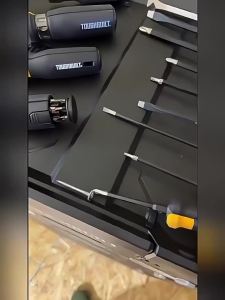
High Torque Crosshead Screwdriver

Airbrush Cleaning Pot Glass Air Brush Holder Clean Paint Jar Bottle Spray Gun Wash Tools

Insulation Tape Amtape Sponge Tape Pipes Insulation Cotton Tape Heat Insulation Fireproof Waterproof Self-adhesive Tape
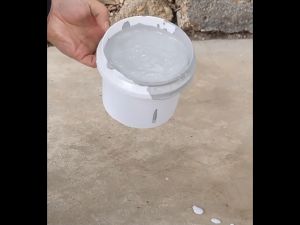
🔥BUY 1 TAKE 1🔥 🔥2000g With 2Pcs Brush🔥💥Solve The Water Leakage Problem Once And For All💥Water Proof Glue Waterproof Glue Sealant Repair Repair RoofWall CracksLeaksSwimming PoolsFish Ponds(Grey/Transparent/White/Black/Blue)

Mechanical seal 26mm SHS B47XS50X10 | Shaft seal for water pump

C.N. 4 In 1 Circlip Pliers Internal External Curved Straight Pliers Retaining Clips Snap Ring

DELIXI Electric | One-piece Woodworking Mini Claw Hammer
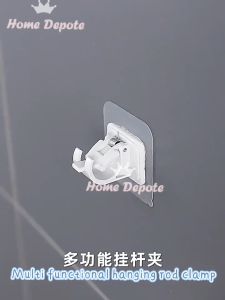
【Local delivery】1PCS Nail-Free Hooks Curtain Rod Holder Clamp Hooks Rod Bracket Holder Adjustable Adhesive Wall Curtain Fixed Clip Hanging Rack