


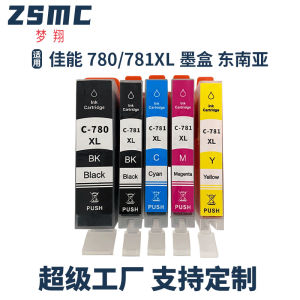
(HD1) Compatible with Canon PGI780XL CLI781 TR8570 TS707 TS8370 TS6370 Printer Ink Cartridge
Brand: Mengxiang Compatible with Canon CANON PGI-780PGBK CLI-781 ink cartridges Compatible ink cartridge models: PGI780XL BK CLI781XL BK CLI-781XLC CLI-781XLM CLI-781XLY CLI-781XLPB Ink cartridge Ink cartridge Compatible with inkjet printer models: CANON PIXMA TR8570/TS9170/TS8170 PIXMA TS707/TS8270 Shelf life:2Year Packaging method: Vacuum bag packaging or neutral color packaging ProvideOEMOEM processing, large quantities offer discounted prices.Manufactures a full range of compatible ink cartridges and printer consumables After-sales service: The products manufactured by our factory are compatible consumables. If there are quality issues, returns and exchanges will be accepted, and the return shipping costs will be borne by our company. Applicable regions: Asia-Pacific region Hong Kong, Macao, and Taiwan
Before purchasing, please check your printer model and confirm the compatible ink cartridge model
Ink Cartridge Instructions:
- Storage of ink cartridges
Place the ink cartridge in a room temperature environment, avoiding sunlight, strong light, and heat sources.The storage temperature for printer ink is -20℃~+40℃When the ambient temperature is below -20℃or 35℃The above may affect the chemical stability of the ink.
Before installing and using the ink cartridge, do not tear open the outer packaging or the air hole seal of the cartridge.
After the ink cartridge is unpacked, it should be installed into the printer as soon as possible, otherwise it may cause the cartridge to leak ink or fail to produce color.
To achieve good printing results, pleaseYouUse up the ink cartridge within six months after installation
- Replace the ink cartridge
When the ink indicator light turns on, it indicates that the ink has run out, and the ink cartridge needs to be replaced.After inserting the ink cartridge into the printer, do not remove and reinsert it before confirming the need for replacement, otherwise air will enter the nozzle and affect the printing quality.At the same time, the ink level displayed on the computer may also have errors.Inkjet printers should generally be turned on and used within one week, otherwise the ink remaining at the nozzle will solidify due to the paper and dust in the air.Therefore, when using an inkjet printer, it should be noted that if the printer has not been used for a long time, the nozzle should be cleaned until it functions properly before starting to print
- Install the ink cartridge
(1) When the red ink level indicator light starts flashing or remains constantly on, please replace the ink cartridge immediately to avoid some faults caused by the printer's electronic memory.Before installing the new ink cartridge, be sure to remove the seal from the air vent (the yellow sticker) and ensure that each air vent is completely unobstructed. Then, install it into the printer, secure the protective clip, and press the cleaning button until the ink filling process is complete.
(2) After installing a new ink cartridge, a nozzle test must be performed first. If the test shows that the print pattern is broken or a certain color cannot be printed, the print head must be cleaned again until it functions normally; otherwise, the print pattern will have serious color gaps or color deviations.
(3) When any one ink cartridge is out of ink or not installed, the printer will not function even if the other cartridges have ink.
(4) Once the new ink cartridge is installed, the cutting part can be removed before replacement.
(5) Unless you need to replace the ink cartridge, do not open the ink cartridge protective clip under normal circumstances, otherwise the cartridge may become unusable
- Method of cleaning and self-testing the print head
(1) Use the application toolbar in the printer software to perform nozzle detection and print head cleaning through the computer.
(2) Press and hold the printer's self-cleaning button for 3 seconds to clean the print head. For self-testing, first turn off the printer and then simultaneously press and hold the paper feed button and power button for 3 seconds.
(3) Of the two methods mentioned above, the first method is more effective.Every time a new ink cartridge is installed, it is generally necessary to clean the printer head 2-3 times.
(4) After each print head cleaning, a nozzle test must be performed.Do not be lazy, otherwise it will affect the detection of printing quality and result in ink waste!
(5) If multiple cleanings still do not improve the situation, do not remove the ink cartridge. It is recommended to leave it in the machine for a few hours, which may also help improve the situation.
(6)Cleaning the print head will consume ink, so only clean the print head when there is a problem with print quality.
- Determine whether the printer ink cartridge has ink
Generally, before the printer ink cartridge runs out of ink, there are some signs, which typically include the following:
1. Print quality has deteriorated, for example: black ink has become lighter; color content has developed color discrepancies; or there are blank areas in the print area (meaning that ink can no longer be sprayed)
2. Each time I print, the first few sheets of paper are fine, but after printing 0.05kg sheets, the text becomes noticeably lighter or even disappears, leaving the paper blank.After leaving it for a while and then printing again, the same situation occurs, but the handwriting becomes increasingly faint until the text on the first page is also very faint or even blank.
3. When the printer performs an offline self-test, it cannot load paper at all, but instead the ink cartridge indicator light flashes.
Generally, if the printer shows no signs of paper loading at all, such as the sound of paper loading or the movement attempting to roll the paper, and the "Paper Input/Cartridge" indicator light is flashing, and sometimes the cartridge automatically moves to the middle position, then it is a problem with the cartridge. If the issue persists after reinstalling the cartridge, then the cartridge needs to be replaced.
-
Precautions for using ink cartridges
-
Do not turn the ink cartridge upside down for a long time before using it in the machine, and avoid exposure to strong light or high-temperature environments;
2) When the ink level indicator light starts flashing during printing, it indicates that the ink is running low. At this point, you can still continue printing for several more pages until the indicator light stops flashing and the printing stops. At this time, you should immediately replace the ink cartridge
3) The ink cartridge should be used immediately after being unpacked (to prevent air from entering the ink nozzle);
4) After installing a new ink cartridge, the print head should be cleaned 2-3 times until the self-test pattern meets the requirements (this is because although the cartridge undergoes vacuum treatment during production, there may still be a small amount of air in the sponge, which can cause a small amount of air to rise to the ink outlet during long-distance transportation, affecting the printing quality)
5)When the ink cartridge is not used up,YouDo not remove it, to avoid ink waste or the printer's miscalculation of ink levels.
6) There are many factors that affect print quality, besides the quality of the ink cartridge, there are also media selection, the clarity of the original image, and the output resolution during printing, etc., so that users can make the correct judgment when the printer's quality deteriorates
7) The printer should be used regularly, and even if it is not printing, it should be powered on at least once a week;
8) Do not put your hands into the printer or touch the ink cartridges while printing;
9) Do not use ink cartridges that have expired.
Instructions for Returns and Exchanges Due to Quality Issues: The products manufactured by our factory are compatible consumables. If there are quality issues with the products, they can be returned or exchanged, and the return shipping costs are coveredFeeIt is borne by our company.
- After unpacking, if you find that there is air inside the aluminum foil or white transparent bag, this phenomenon may occurCompatible withCanonThis is considered normal in the series of ink cartridge products.If inCompatible withEpsonThis phenomenon occurs in the ink cartridge series, most likely due to a leak in the packaging bag during transportation. This issue does not affect the storage or printing quality of the ink cartridge, so please use it with confidence.
- If after unpacking you find that the ink cartridge is leaking ink, this is an abnormal phenomenon, you can..48Contact customer service within hours.We will process your return upon receiptPoleQuickly handle defective products.
- If there are any printing quality issues with the ink cartridge during use, please contact the customer service, and we will definitely give you a satisfactory response. The quality pass rate of our products is99.9%Please feel free to use it. 4.The tossing of the ink cartridge during loading and unloading and the jolts during long-distance transportation may cause air bubbles to form in the cartridge cavity. You can hold the ink cartridge with the ink outlet facing down and shake it forcefully a few times to release the air from the outlet, ensuring smooth ink output.
- The following situations will not be accepted for return or exchange: ink cartridges with damaged or missing chips, ink cartridges that have been refilled or modified, ink cartridges that have exceeded their shelf life, or ink cartridges where the remaining ink weight is less than 30% of the filled ink volume

CoreDigital
Review

You May Also Like
(HD1) Applicable to Hp C4096A hp2100 2000 2100M 2100TN 2200DN Ink Cartridge hp96a Toner Cartridge
YILONG Wireless Tattoo Transfer Stencil Printer Machine Papers ATS886L
Brother Original Dye Ink Set BTD60BK BT5000 for DCP-T220 T310 T420W T510W T710W T820DW MFC-T810W T920DW T4500DW HL-T4000DW 100ml/50ml

(HD1) Suitable for Epson ERC38B Ribbon ERC34 M188D TM-U220 U230 U210 M188 Ribbon Holder
Brother BTD60Bk BT5000 BT6000 Genuine Ink Bottle BT6000bk BTD60
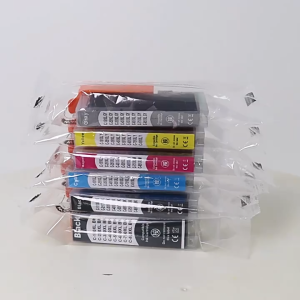
6PK Full Set 750XL 751XL BK C M Y GY for Canon High Yield Print Ink Cartridge PGI-750XL PGI750 PGI-750 750 XL PGI750XL PGBK CLI-751XL CLI-751 CLI751 751 CLI751XL Black Cyan Magenta Yellow Gray ( Grey ) Inkjet for iP8770 MG6370 MG7170 MG7570 Printer
(HD1) Suitable for Epson 138 T1381 TX320F TX235 TX420W TX430W Printer Ink Cartridge

PLA Filament 3D Printer Filament Bundle Multicolor 1.75mm +/- 0.03mm PLA Filament 250g Spool 4 Rolls Glow in the Dark
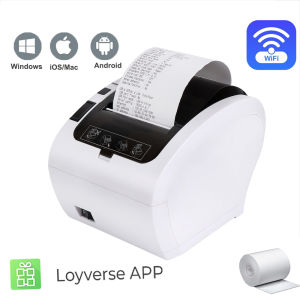
Soonpos 80mm Thermal Receipt Printer 300mm/s Auto Cutter USB+Serial+LAN+WiFi Kitchen POS Printer Wall Mount Buzzer Alarm ESC/POS Restaurant Cashier Printer
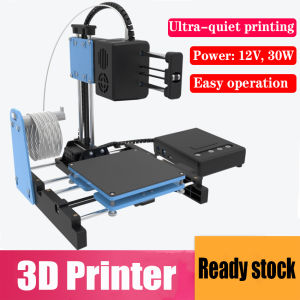
3D Printer Home Desktop Small Mini Three-Dimensional 3D Printer
CHUANGCHAO Ender-3 V3 SE 3D Printer with CR Touch Auto Leveling 220*220*250mm Printing Size and Sprite Direct