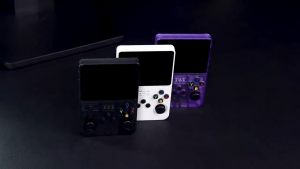
64GB Game Stick Plus 2025 Upgrade Model M8/M9 Pro Mini Game Console
64GB Game Stick Plus 2025 Upgrade Model M8/M9 Pro Mini Game Console
Introduction to the 64GB Game Stick Plus
The 64GB Game Stick Plus is a revolutionary mini game console that brings retro gaming back to life. With its sleek design and powerful performance, this wireless retro game stick offers an unparalleled gaming experience. In this article, we will delve into the features, setup, customization, and maintenance of this amazing gaming console.
Overview of the 64GB Game Stick Plus
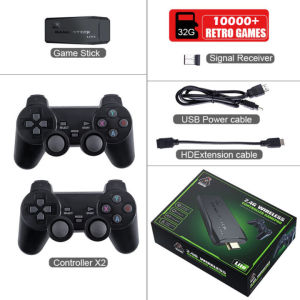
The 64GB Game Stick Plus is an upgraded version of the popular mini game console. This model comes equipped with 64GB of internal storage, allowing you to store a vast library of games. It supports HDMI TV connection, making it easy to plug and play on any modern television. Additionally, it comes with double gamepads for multiplayer fun.
Key Features of the 64GB Game Stick Plus
- 64GB Internal Storage: Store a large collection of games on this mini game console.
- HDMI TV Connection: Connect to any modern television for an immersive gaming experience.
- Double Gamepads: Enjoy multiplayer gaming with two wireless controllers.
- Wireless Retro Game Stick: Play classic games without the hassle of wires.
Getting Started with the 64GB Game Stick Plus
Now that you have an overview of the 64GB Game Stick Plus, let's dive into how to set it up and get started.
Setting Up Your Wireless Retro Game Stick
To set up your wireless retro game stick, follow these simple steps:
- Unbox your 64GB Game Stick Plus and locate the HDMI cable and power adapter.
- Connect the HDMI cable to the mini game console and your television.
- Plug in the power adapter and turn on your TV.
- Follow the on-screen instructions to complete the setup process.
Connecting Your Mini Game Console to Your TV
Connecting your mini game console to your TV is straightforward. Here's how:
- Locate the HDMI port on your television and connect the HDMI cable from the mini game console.
- Power on both the mini game console and your TV.
- Set your TV input source to the correct HDMI port.
- Enjoy your games!
Using Double Gamepads for Multiplayer Fun
The 64GB Game Stick Plus comes with two wireless controllers, making multiplayer gaming a breeze. Follow these steps to connect them:
- Press the power button on each gamepad to turn them on.
- On the mini game console, navigate to the controller settings menu.
- Select "Add Controller" and follow the on-screen instructions to pair the gamepads.
Exploring the 64GB Game Stick Plus
Now that you have set up your mini game console, let's explore its features and capabilities.
Playing Games on the 64GB Game Stick Plus
Playing games on the 64GB Game Stick Plus is easy and intuitive. Here's how:
- From the home screen, select the game you want to play.
- Press the A button to launch the game.
- Follow the in-game instructions to control your character and progress through levels.
Customizing Your Gaming Experience
The 64GB Game Stick Plus offers customization options to enhance your gaming experience. Here are some ways to personalize your console:
- Change Controller Settings: Adjust button mappings, vibration intensity, and more.
- Update Firmware: Keep your mini game console up-to-date with the latest firmware updates.
- Install Themes: Change the look and feel of your home screen with custom themes.
Expanding Your Library with Additional Games
The 64GB Game Stick Plus allows you to expand your game library by downloading new titles. Here's how:
- Connect your mini game console to the internet using Wi-Fi.
- Navigate to the online store within the console.
- Browse and download games to your heart's content.
Maintaining and Troubleshooting the 64GB Game Stick Plus
To ensure your mini game console runs smoothly, it's essential to maintain and troubleshoot any issues that may arise.
Keeping Your Mini Game Console Running Smoothly
To keep your mini game console running smoothly, follow these tips:
- Update Firmware Regularly: Keep your console up-to-date with the latest firmware updates.
- Clear Cache: Free up storage space by clearing the cache regularly.
- Keep Clean: Dust can accumulate inside your console, so clean it periodically.
Solving Common Issues with the Wireless Retro Game Stick
If you encounter any issues with your wireless retro game stick, try these troubleshooting steps:
- Reset the Console: If your console becomes unresponsive, reset it by holding down the power button for 10 seconds.
- Check Connections: Ensure all cables are securely connected.
- Update Firmware: If issues persist, update the firmware to the latest version.
Contacting Customer Support for Further Assistance
If you need further assistance with your mini game console, don't hesitate to contact customer support. They can help you troubleshoot issues and provide guidance on how to get the most out of your gaming experience.
In conclusion, the 64GB Game Stick Plus is a fantastic mini game console that offers a nostalgic gaming experience. With its powerful performance, easy setup, and customizable features, it's the perfect choice for retro gaming enthusiasts. Happy gaming!" }

THE SU
You May Also Like

VR Box II 2.0: A Comprehensive Guide to Your Portable VR Device
Preloved Nintendo NES 3D World Runner Game
HUNDAI Design For Meta Quest 2/Oculus Quest 2 Elite Strap Adjustable Head Strap
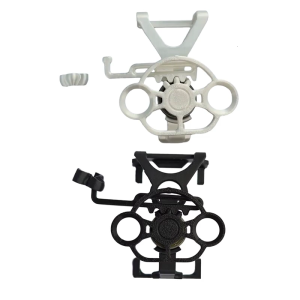
Racing Game Wheel Controller for 360 Mini Steering Wheel Controller Replacement Game Racing Wheel Gaming Accessory
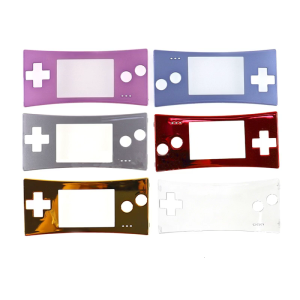
Replacement for Game Boy Micro for GBM Front Faceplate Cover for Case Upper Panel Housing for Shell Repair Spare Part
R36S Handheld Game Console Gameboy Playstation Video Retro Games Open Source Linux System 3.5 Inch IPS Screen
Racing Game Steering Wheel: Enhance Your Gamepad Gaming Experience
Customize Rate Army in the Field Basketball Jersey Design Source File
Adorable Silicone Switch2 Joystick Caps NS2 Game Console Accessories Heightened Cute Tooth Key Button Caps Official Standard Package
PlayStation 5 Towa & The Child of the Sacred Tree (ASI)
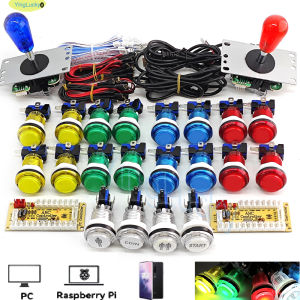
2 Player DIY Arcade Game Kit for PC Raspberry Pi with LED Push Buttons American Style Joystick USB Encoder Cables Mame Jamma