Full HD USB Webcam: A Comprehensive Guide
What is a Full HD USB Webcam?
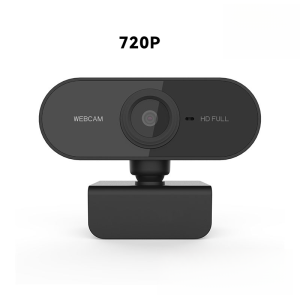
A Full HD USB webcam is a video capture device that connects to a computer via a USB port. These webcams provide high-definition video quality, making them ideal for video calls, online meetings, and streaming.
Key Features of Full HD USB Webcams
- High-resolution video quality (1920 x 1080 pixels)
- Easy installation and setup
- Wide-angle lens for capturing a larger field of view
- Built-in microphone for clear audio during video calls
- Compatible with Windows and Mac operating systems
How to Choose the Right Full HD USB Webcam
When selecting a Full HD USB webcam, consider the following factors:
- Resolution: Look for a webcam with a resolution of at least 1920 x 1080 pixels (Full HD) for the best video quality.
- Field of View: Choose a webcam with a wide-angle lens to capture more of your surroundings during video calls.
- Audio Quality: Select a webcam with a built-in microphone or consider purchasing a separate microphone for improved audio quality.
- Compatibility: Ensure the webcam is compatible with your computer's operating system and has the necessary drivers installed.
How to Use a Full HD USB Webcam for Video Calls
Using a Full HD USB webcam for video calls is simple and straightforward. Follow these steps to get started:
- Connect the webcam to your computer: Plug the USB cable into the webcam and the other end into an available USB port on your computer.
- Install any necessary drivers: If prompted, install the webcam drivers by following the on-screen instructions.
- Launch your video call software: Open the video call application (e.g., Zoom, Skype, Google Meet) and start a new call or join an existing one.
- Select the webcam as your video source: In the video call settings, choose the Full HD USB webcam as your video source.
Setting Up Your Webcam for Optimal Performance
To ensure the best possible video quality during calls, consider the following tips:
- Position the webcam at eye level and centered in front of you.
- Use good lighting to avoid shadows and glare.
- Adjust the webcam settings to optimize video quality, such as brightness, contrast, and saturation.
How to Adjust Video Call Settings for Best Results
Customize your video call settings to enhance the overall experience:
- Resolution: Set the video resolution to match your Full HD USB webcam's capabilities (e.g., 1920 x 1080 pixels).
- Frame Rate: Choose a frame rate that balances video quality and network bandwidth requirements.
- Audio Settings: Adjust audio settings to minimize background noise and improve audio clarity.
Microphone for Video Calls: Enhancing Audio Quality
A good microphone is essential for clear audio during video calls. Consider the following options:
- Built-in Microphone: Many Full HD USB webcams come with built-in microphones. Check the specifications to ensure it meets your needs.
- External Microphone: For improved audio quality, consider purchasing a separate microphone that connects to your computer via USB.
Choosing the Right Microphone for Your Needs
When selecting a microphone, consider the following factors:
- Type: Choose between a USB microphone or a microphone that connects to your computer via a 3.5mm audio jack.
- Sensitivity: Look for a microphone with a high sensitivity rating for better sound pickup.
- Noise Reduction: Select a microphone with noise reduction features to minimize background noise during calls.
How to Connect and Use a Microphone with Your Webcam
Connecting a microphone to your computer is simple:
- USB Microphone: Plug the USB cable into the microphone and the other end into an available USB port on your computer.
- Audio Jack Microphone: Connect the microphone to your computer using a 3.5mm audio jack.
In your video call software, select the microphone as your audio source to begin using it during calls.
Compact USB Webcams: The Perfect Choice for Home Laptop Users
Compact USB webcams are ideal for home laptop users who want a portable and easy-to-use video capture device. These webcams offer the same high-quality video and audio capabilities as larger Full HD USB webcams, but in a smaller form factor.
Why Choose a Compact USB Webcam?
Compact USB webcams offer several advantages for home laptop users:
- Portability: Easily transport the webcam between devices and locations.
- Ease of Use: Simple plug-and-play installation with no additional drivers required.
- Affordability: Compact webcams often come at a lower price point compared to larger Full HD USB webcams.
How to Install and Set Up a Compact USB Webcam
Installing and setting up a compact USB webcam is straightforward:
- Connect the webcam to your laptop: Plug the USB cable into the webcam and the other end into an available USB port on your laptop.
- Launch your video call software: Open the video call application (e.g., Zoom, Skype, Google Meet) and start a new call or join an existing one.
- Select the webcam as your video source: In the video call settings, choose the compact USB webcam as your video source.
2K/1080P/720P Video Call: Understanding Resolution Options
Video calls can be conducted at various resolutions, including 2K, 1080P, and 720P. Each resolution offers a different level of detail and clarity, depending on your needs.
What is the Difference Between 2K, 1080P, and 720P Resolutions?
- 2K Resolution: 2K resolution provides a higher level of detail than 1080P, with a resolution of 2560 x 1440 pixels.
- 1080P Resolution: 1080P resolution offers high-definition video quality, with a resolution of 1920 x 1080 pixels.
- 720P Resolution: 720P resolution provides standard definition video quality, with a resolution of 1280 x 720 pixels.
How to Choose the Right Resolution for Your Needs
Selecting the appropriate resolution depends on your specific needs:
- Video Quality: Higher resolutions provide better video quality, but may require more network bandwidth.
- Network Bandwidth: Lower resolutions may be more suitable for users with limited network bandwidth.
- Device Compatibility: Ensure your device supports the desired resolution before making a selection.

DOLALA Store
Review

You May Also Like

Full Screen Melerdi Huawei Mate60 Pro+ Cute Cartoon Silicone Phone Case with Sandflow Stand Full Protection Anti-Fall Bracelet

Narsta For PS5 Slim Game Console Cooling Stand Vertical Stand With Headset Holder Game Slots Compatible For PS5 Slim Console Accessories

Need Air Vent Deflector Adjustable Angles Air Conditioner Exhaust Fan 1Pc

Anime Cartoon Soft Shell Protective Case for Sony WF1000XM5 LinkBuds S Bluetooth Earphones Compatible with WF1000XM4 XM5 LS900N

YALILAI Titanium Case with Fluororubber Strap for Apple Watch 45mm/44mm Luxury Richard RM Mod Kit for Apple Watch SE Series 9/8/7/6/5/4

Tempered Film Suitable for Canon R5 R6 R8 R50 Sony ZV1 E10 ZV1-1F A7C A7s3 Nikon Z5 Z6 Z6 II Z7 Z72 Fuji XT200 Gfx100s/50s2

Desktop Lazy Phone Holder: A Comprehensive Guide

RedmiNote10Pro Fast Charger 67W Mini USB-C Phone Charging Head Line Extended Data Cable 2M Super Flash Charge Adapter

OKKFINE 2PCS Stainless Steel Sewing Rolled Hemmer Foot 3mm-10mm DIY Crafts Sewing Machine Presser Foot Easy to Disassemble Durable Sewing Accessories Home

Case for Samsung Galaxy Z Fold6 Fold 6 Z Fold5 Fold 5 Z Fold4 Diamond-encrusted Smiley Face Flower Bracket Folding Screen Back Cover Fine-hole Camera Protection Drop-proof Shockproof Protective Case

Creative Rainbow Rabbit Phone Case for iQOO Neo8: Anti-Fall & Personalized Design