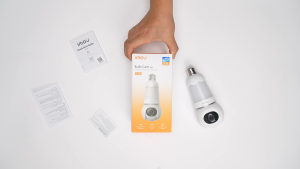
Three Lens V380 Pro PTZ IP Camera: A Comprehensive Guide
Three Lens V380 Pro PTZ IP Camera: A Comprehensive Guide
Introduction to the V380 Pro PTZ IP Camera
The V380 Pro PTZ IP Camera is a top-of-the-line security camera designed to provide comprehensive surveillance solutions for residential and commercial properties. With its three lenses, it offers an unparalleled viewing experience, and the PTZ (Pan-Tilt-Zoom) feature allows for precise control over the camera's movements. In this guide, we will delve into the key features, specifications, and unique aspects of the V380 Pro PTZ IP Camera.
Key Features & Specifications
- Three lenses for optimal coverage
- Pan-Tilt-Zoom (PTZ) feature for precise control
- IP66 waterproof rating for outdoor use
- Night Vision CCTV Camera technology for clear visibility in low-light conditions
- Auto Tracking Wireless Camera capabilities for automatic monitoring
- Two Way Audio Security Camera functionality for audio communication
- Outdoor Security Camera designed for all weather conditions
What Makes It Unique
The V380 Pro PTZ IP Camera stands out in the market due to its advanced features and capabilities. With three lenses, it provides a wide field of view, enabling you to monitor large areas effectively. The PTZ feature allows you to pan, tilt, and zoom the camera to focus on specific areas of interest. Moreover, the camera's waterproof design makes it suitable for outdoor use, even in harsh weather conditions.
Setting Up Your V380 Pro PTZ IP Camera
Setting up the V380 Pro PTZ IP Camera is a straightforward process. In this section, we will guide you through the installation steps, connecting the camera to power and network, and configuring two-way audio.
Installing the Camera
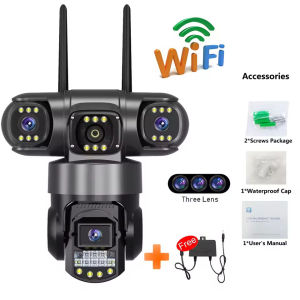
- Unpack the box and remove the V380 Pro PTZ IP Camera, user manual, power supply, screws bag, and corner connectors.
- Mount the camera on a wall or ceiling using the provided screws and corner connectors.
- Connect the power supply to the camera and plug it into a nearby electrical outlet.
Connecting to Power & Network
- Connect the Ethernet cable to the camera and the router/modem.
- Open a web browser and enter the camera's IP address (found in the user manual).
- Follow the on-screen instructions to configure the camera settings.
Configuring Two-Way Audio
- Connect the two-way audio module to the camera.
- Open the camera's web interface and navigate to the audio settings.
- Configure the audio settings according to your preferences.
Maximizing Security with the V380 Pro PTZ IP Camera
To ensure maximum security, it is crucial to utilize the features and capabilities of the V380 Pro PTZ IP Camera effectively. In this section, we will explore how to use night vision technology, auto tracking wireless camera capabilities, and best practices for outdoor security cameras.
Utilizing Night Vision Technology
The V380 Pro PTZ IP Camera comes equipped with night vision technology, which allows it to capture clear images even in low-light conditions. To enable night vision, simply navigate to the camera's web interface and adjust the night vision settings according to your requirements.
Auto Tracking Wireless Camera Capabilities
The auto tracking wireless camera feature enables the V380 Pro PTZ IP Camera to automatically monitor and track moving objects within its field of view. This feature is particularly useful for detecting intruders or suspicious activity. To enable auto tracking, navigate to the camera's web interface and adjust the settings accordingly.
Outdoor Security Camera Best Practices
To ensure optimal performance and longevity of your V380 Pro PTZ IP Camera, follow these best practices:
- Install the camera in a location that provides a clear view of the area you want to monitor.
- Secure the camera to prevent tampering or theft.
- Regularly clean the camera lenses to maintain optimal image quality.
- Update the camera firmware to ensure the latest security patches and features.
Troubleshooting Common Issues
Despite the V380 Pro PTZ IP Camera's robust design, some users may encounter connectivity problems, audio and video quality concerns, or camera movement and control issues. In this section, we will address these common issues and provide solutions.
Connectivity Problems
If you are experiencing connectivity problems, try the following solutions:
- Ensure that the camera is properly connected to the power supply and network.
- Restart the camera and router/modem.
- Check the camera's IP address and network settings.
Audio & Video Quality Concerns
If you are experiencing audio and video quality concerns, try the following solutions:
- Adjust the camera's settings to optimize audio and video quality.
- Check the camera's firmware for updates.
- Clean the camera lenses to remove any dirt or debris.
Camera Movement & Control Issues
If you are experiencing camera movement and control issues, try the following solutions:
- Adjust the camera's settings to optimize movement and control.
- Check the camera's firmware for updates.
- Restart the camera and router/modem.
Frequently Asked Questions
Is the SD Card Included?
No, the SD card is optional and not included in the package. However, you can purchase one separately if needed.
What is the Warranty Period?
The V380 Pro PTZ IP Camera comes with a 1-year warranty period. For more information, please refer to the user manual.
Can I Use This Camera Indoors?
Yes, the V380 Pro PTZ IP Camera can be used indoors as well. However, its waterproof design makes it more suitable for outdoor use.

Clobal RaeIme
Review
You May Also Like
EKLEVA 2K Handheld Sports Pocket Camera 1440P QHD Display 270° Rotatable WIFI Control Video Recorder WIFI Control Motion Camera
V380 PRO 8MP 4K Dual Lens Solar Surveillance Camera Support 4G SIM Card 8X Zoom PTZ IP Cam Alexa Rechargeable PIR Human Motion Detection Outdoor Waterproof Wireless CCTV Home Security Cameras
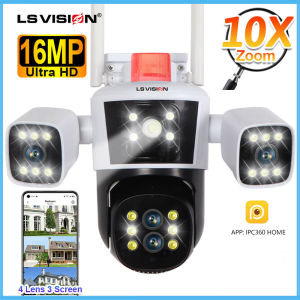
LS VISION 8K Three Lens WIFI CCTV Camera: A Comprehensive Guide
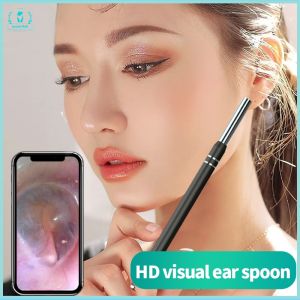
Ear Cleaning Endoscope & HD Ear Camera: A Comprehensive Guide
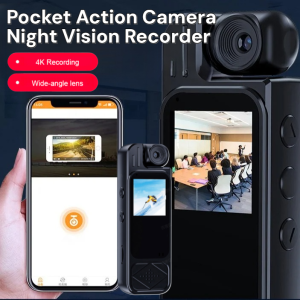
Mini Body Camera Sports Recorder HD 1080P Clip-on Rotatable With Infrared Night Vision
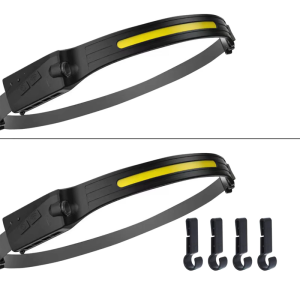
Strong Light Headlamps Rechargeable Head Flashlights Emergencies Head Torches for Nighttimes and Home Repairs
5mm C-CS Mount Lens Adapter Circle Extension Tube Available for CCTV Security Camera Metal C to CS Adapter Circle
【New】DJI A18 Max Air 3S - Camera Drones | 1" CMOS Sensor | New Air Aesthetic | Next-Gen Smart RTH | Medium Tele & Wide-Angle Dual Primary Cameras | Omnidirectional Obstacle Sensing*
Icsee Bulb Camera 5MP IP CCTV: A Comprehensive Guide
360-degree panoramic all-round safety monitoring camera wireless home protection IP monitoring camera
80x80 Long Range Binoculars HD Night Vision Military Telescope Outdoor & Travel Use