HY300 Projector Full HD 720P Smart Compatible with 4K 8000 Lumens Android 11 Video Home Cinema
HY300 Projector Full HD 720P Smart Compatible with 4K 8000 Lumens Android 11 Video Home Cinema
Introduction to HY300 Projector
The HY300 projector is a top-of-the-line device that delivers exceptional picture quality and performance, making it perfect for home cinema enthusiasts. With its 720P Smart capabilities, 4K compatibility, and 8000 lumens brightness, this Android 11 projector offers a wide range of features to cater to diverse needs.
Key Features
The HY300 projector boasts several impressive features that make it stand out from other projectors in the market:
- Resolution: Full HD 720P resolution, with support for 4K compatible video streaming
- Brightness: 8000 lumens brightness ensures a bright and clear picture even in well-lit rooms
- Operating System: Android 11 OS, providing a seamless and user-friendly experience
- Connectivity: Multiple connectivity options, including HDMI, USB, and Wi-Fi, allow easy integration with various devices
Compatibility & Connectivity
The HY300 projector is compatible with a wide range of devices, making it easy to connect and enjoy your favorite movies, TV shows, and games. With its Android 11 operating system, the projector supports a variety of apps and streaming services, ensuring endless entertainment possibilities. The multiple connectivity options, including HDMI, USB, and Wi-Fi, ensure smooth and hassle-free integration with your existing setup.
Setting Up Your HY300 Projector
Setting up the HY300 projector is a straightforward process that can be completed in just a few simple steps.
Unboxing & Initial Setup
To get started, carefully unbox the projector and ensure all components are present. Follow the manufacturer's instructions to connect the power supply and any necessary cables. Once powered on, the projector will guide you through the initial setup process, including connecting to Wi-Fi and selecting your preferred language settings.
Connecting Devices
Connecting devices to the HY300 projector is easy thanks to its multiple connectivity options. Simply connect your preferred device using the appropriate cable or wireless connection, and enjoy seamless entertainment. The projector supports a wide range of devices, including smartphones, tablets, laptops, gaming consoles, and more.
Using HY300 Projector for Optimal Performance
To get the most out of your HY300 projector, it's important to understand how to adjust picture quality, sound settings, and enhance the overall user experience.
Adjusting Picture Quality
The HY300 projector offers a variety of picture quality settings to suit different preferences and environments. These include brightness, contrast, color temperature, and sharpness adjustments. Experiment with these settings to find the perfect balance for your viewing experience.
Sound Settings
The HY300 projector features built-in speakers, but for a more immersive audio experience, consider connecting external speakers or a soundbar. The projector supports various audio formats, ensuring compatibility with a wide range of devices.
Enhancing User Experience
To maximize the user experience, explore the various apps and streaming services available on the Android 11 operating system. Customize your settings to suit your preferences, and take advantage of the projector's built-in features, such as screen mirroring and remote control functionality.
Troubleshooting Common Issues
If you encounter any issues with your HY300 projector, refer to the troubleshooting guide below for quick solutions.
Connectivity Problems
If you're experiencing connectivity problems, check the following:
- Ensure all cables are securely connected
- Restart both the projector and connected devices
- Verify Wi-Fi settings and connection
Picture Quality Concerns
If you're experiencing picture quality issues, try the following:
- Adjust picture quality settings to find the perfect balance
- Clean the projector lens to ensure optimal clarity
- Ensure proper distance and angle between the projector and screen
Sound Issues
If you're experiencing sound issues, check the following:
- Verify audio settings and connections
- Check for any obstructions or interference affecting sound quality
- Consider connecting external speakers or a soundbar for improved audio performance

remote2020
Review

You May Also Like

ACE 50\" Smart Google TV DN4: A High-Quality Entertainment Display
Quiet Remote Control Multicolor LED Projection Clock with 180 Degrees Rotating Adjustable Brightness for Living Room
Vision Q96E450 4K Ultra HD 5G Smart Projector with Android 10 1GB RAM 8GB ROM HDMI Bluetooth Portable Mini LCD LED Projector for Home Entertainment
【2 Year Warranty】Xiaomi TV A 32 Inch 2026 Smart TV HD Google TV Dolby Audio DTS-X Premium Metal Television
Reliable Replacement Remotes Control for PJD6353S & PJD5134 Projectors Remotes with Full Functionality Wear-resistant
4K Video Capture USB+Type C to HDTV Video Recorder for Game Camcorder Camera Recording Live Streaming
ZDSSY HY260Max Portable Projector 4K 420ANSI Dual WiFi 6 Auto Focus Android 11 Projector TV Support Full HD 1080P Home Outdoor Cinema
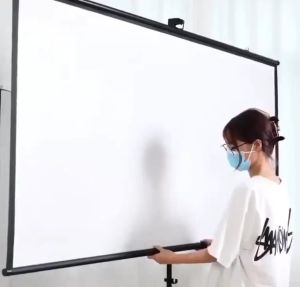
Fiberglass Tripod 16:9 HD Projector Screen: A Comprehensive Guide
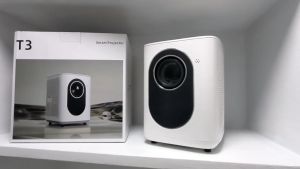
AUN 11500 Lumens & 4K Ultra HD Projector: Wall Mount & Wireless Android Features
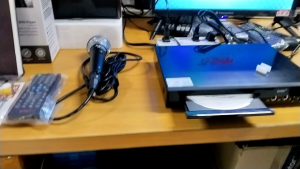
The Platinum Junior Lite KS-5 DVD Karaoke (Black) with Free Wired Mic - VOLUME 29 UPDATED CD
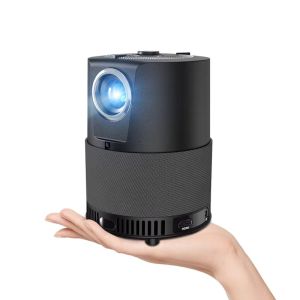
A3 Portable Mini Movie Projector Laser Beamer Android 9 2+16 GB 300 ANSI Allwinner 7500 Lumens Dual BT5.0 Home Theater Cinema Bluetooth Projector