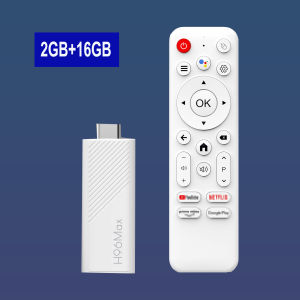
H96 MAX Android TV Stick Allwinner H313 with 2.4G Wifi 5G Wifi6 Dual Brand 8GB 16GB 4K 3D HDR Goole Voice Remote DC 5V 2A
H96 MAX Android TV Stick Allwinner H313 with 2.4G Wifi 5G Wifi6 Dual Brand 8GB 16GB 4K 3D HDR Goole Voice Remote DC 5V 2A
The H96 MAX Android TV Stick is a versatile device designed to bring streaming entertainment to your television. Equipped with the powerful Allwinner H313 processor, this compact device supports both 2.4G and 5G Wi-Fi6 connectivity, making it a top choice for users seeking high-speed streaming capabilities.
What is the H96 MAX Android TV Stick?
The H96 MAX Android TV Stick is a sleek, portable media player that transforms any TV into a smart TV. It comes with 8GB or 16GB storage options, allowing users to enjoy a wide range of streaming services, games, and applications directly from their television. Compatible with Google Voice Remote, this device offers a seamless user experience.
Key Features & Specifications
- Processor: Allwinner H313
- Storage: 8GB or 16GB
- Wi-Fi: 2.4G & 5G Wi-Fi6
- Resolution Support: 4K UHD & 3D HDR
- Remote Control: Google Voice Remote
Compatibility with Google Voice Remote
The H96 MAX Android TV Stick supports the Google Voice Remote, enabling users to control their device with voice commands. This feature allows for hands-free navigation through menus, searching for content, and controlling playback, making it a convenient addition to any smart TV setup.
How to Set Up Your H96 MAX Android TV Stick
Setting up the H96 MAX Android TV Stick is a straightforward process. Follow these steps to get started:
- Connect the device to your TV using the included HDMI cable.
- Power the device using the provided DC 5V 2A power adapter.
- Connect to Wi-Fi by selecting either 2.4G or 5G Wi-Fi6 networks.
- Install desired apps and streaming services from the Google Play Store.
Connecting to Wi-Fi: 2.4G & 5G Wifi6
To connect your H96 MAX Android TV Stick to Wi-Fi, navigate to the device's settings menu and select the Wi-Fi option. From there, choose either 2.4G or 5G Wi-Fi6 networks depending on your preference and available signal strength.
Installing Apps & Streaming Services
With access to the Google Play Store, users can install a wide range of apps and streaming services directly onto their H96 MAX Android TV Stick. Popular options include Netflix, Amazon Prime Video, Hulu, YouTube, and more.
Maximizing Your H96 MAX Android TV Stick Experience
To get the most out of your H96 MAX Android TV Stick, consider enabling 4K & 3D HDR support and customizing settings for optimal performance.
Enabling 4K & 3D HDR Support
To enable 4K & 3D HDR support, navigate to the device's settings menu and select the display or video options. From there, adjust the resolution and HDR settings to match your TV's capabilities.
Customizing Settings for Optimal Performance
To ensure the best possible performance, users can customize various settings within the device's menu. This includes adjusting the display resolution, audio output, and system preferences.
Troubleshooting Common Issues
If you encounter connectivity problems or app installation/update errors, refer to the following troubleshooting tips:
Connectivity Problems
- Ensure your Wi-Fi network is functioning properly.
- Try connecting to a different Wi-Fi network or using an Ethernet cable.
- Reset the device's network settings.
App Installation & Update Errors
- Check for available software updates.
- Clear the app cache and data.
- Uninstall and reinstall problematic apps.
By following these steps, users can enjoy a seamless and enjoyable experience with their H96 MAX Android TV Stick.

GlobalLifestyle
Review

You May Also Like
A10 Smart Projector Portable Auto Focus WiFi Bluetooth Android HD 4K
YG300 Mini Portable LED Projector: A High-Quality Home Entertainment Solution
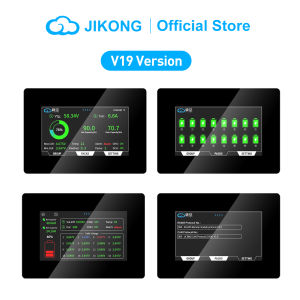
JIKONG JKBMS V19 4.3 INCH LCD Smart Touch Screen Display UART
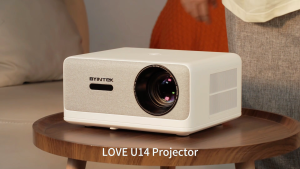
BYINTEK LOVE U14 1250 ANSI Full HD 1080P Projector Auto Focus 4K Support WiFi 6 Bluetooth Smart Home Cinema for Movies and Gaming
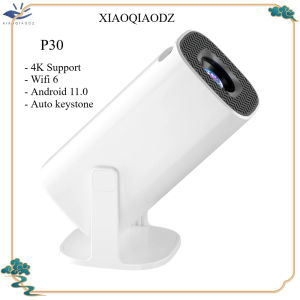
XIAOQIAODZ 4K Projector Home Theater HP330 Wifi BT Portable LED Mini 8K 1080P Native Smart Android Video Game Pocket Cinema
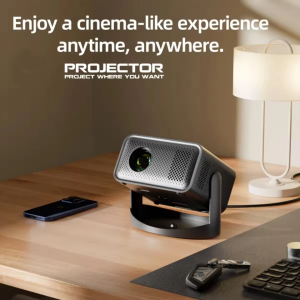
KaiAqua 650ANSI HT23 4K Native Portable Projector 1080P Auto Focus Keystone Correction Android 11 BT5.2 WIFI6 360° Home Cinema
![[COD] SHPYHT SPORTS 12PCS Valentines Day Red Bows For Wreath Rustic Bows For Winter Red Bow Christmas Gilt Edged Tree Bows For Wedding Decor](https://img.lazcdn.com/g/p/c03a0d23505e2b39975dfbbf6ec78f96.jpg_300x300q80.jpg)
[COD] SHPYHT SPORTS 12PCS Valentines Day Red Bows For Wreath Rustic Bows For Winter Red Bow Christmas Gilt Edged Tree Bows For Wedding Decor
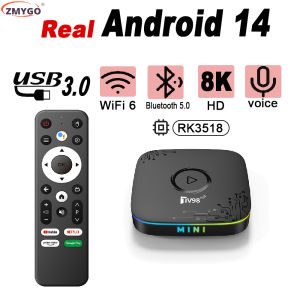
Android 14 TV Box 4K 8K RK3518 Quad Core Dual WiFi 6 Bluetooth 5 Voice Remote 2GB 16GB Real Androidtv Smart TV Set Top Box 2025
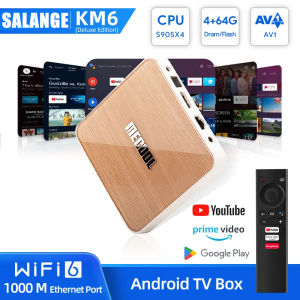
Salange Mecool KM6 TV Box: A Comprehensive Guide
Karaoke Projector 1080P Portable Projector HD for Home and Office Use 5G WIFI With bluetooth
Expose 50/43/32 Inch Smart TV Android 12 Ultra-Thin Frameless Television HD TV Blu-ray TV LCD TV Monitoring Screen