Xiaomi Dual Lens CCTV Camera: A Comprehensive Guide
Xiaomi Dual Lens CCTV Camera: A Comprehensive Guide
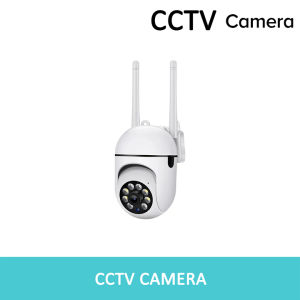
The Xiaomi Dual Lens CCTV Camera is a high-quality Mini IP Security Camera that offers a range of advanced features, including Auto Tracking Outdoor Camera capabilities, Two-Way Audio Wireless Camera communication, and Night Vision Surveillance Camera functionality. In this guide, we will explore its key features, installation process, connectivity options, and troubleshooting tips.
What is the Xiaomi Dual Lens CCTV Camera?
The Xiaomi Dual Lens CCTV Camera is a compact, waterproof security camera that provides real-time monitoring of your home or office. It comes with a Power Adapter and User Manual, making it easy to set up and use.
Key Features
- Dual Lenses: The camera features two lenses, providing a wide-angle view and clear image quality.
- Two-Way Audio: With built-in speakers and microphone, you can communicate with anyone in the monitored area.
- Auto Tracking: The camera automatically tracks moving objects, ensuring no movement goes unnoticed.
- Night Vision: Equipped with infrared LEDs, the camera offers excellent visibility even in low-light conditions.
- Weatherproof Design: The camera is designed to withstand harsh weather conditions, making it ideal for outdoor use.
Comparison with Other Security Cameras
Compared to other security cameras, the Xiaomi Dual Lens CCTV Camera offers a unique combination of features, including dual lenses, two-way audio, and auto tracking. Its compact size and weatherproof design make it suitable for both indoor and outdoor use.
How to Install the Xiaomi Dual Lens CCTV Camera
Installing the Xiaomi Dual Lens CCTV Camera is a straightforward process that can be completed in just a few steps.
Required Equipment
- WiFi IP Camera: The main device for monitoring your home or office.
- Power Adapter: Provides power to the camera.
- User Manual: Contains installation instructions and troubleshooting tips.
Step-by-Step Installation Process
- Mount the camera in a suitable location, ensuring it has a clear view of the area you want to monitor.
- Connect the Power Adapter to the camera and plug it into a nearby power outlet.
- Follow the instructions in the User Manual to connect the camera to your WiFi network.
How to Connect the Xiaomi Dual Lens CCTV Camera to Your Phone
Connecting the Xiaomi Dual Lens CCTV Camera to your phone is easy and allows you to access live video feeds and control the camera remotely.
Connecting via WiFi
- Download the official app for the Xiaomi Dual Lens CCTV Camera from the App Store or Google Play.
- Open the app and follow the on-screen instructions to connect your phone to the camera.
Setting Up Two-Way Audio
Once connected, you can enable two-way audio communication by following these steps:
- Open the app and navigate to the camera settings.
- Enable the two-way audio feature.
Maximizing the Features of the Xiaomi Dual Lens CCTV Camera
To get the most out of your Xiaomi Dual Lens CCTV Camera, it's important to understand its advanced features and how to use them effectively.
Auto Tracking Functionality
The auto tracking feature allows the camera to automatically track moving objects within its field of view. This feature is particularly useful for monitoring large areas or detecting potential intruders.
Night Vision Surveillance Capabilities
The camera's night vision feature enables it to capture clear images even in low-light conditions. This makes it ideal for monitoring your property at night or in poorly lit areas.
Troubleshooting Common Issues with the Xiaomi Dual Lens CCTV Camera
If you encounter any issues with your Xiaomi Dual Lens CCTV Camera, refer to the following troubleshooting tips:
Connectivity Problems
If you're having trouble connecting the camera to your WiFi network, try the following steps:
- Restart the camera and your router.
- Check that the WiFi network name and password are correct.
- Move the camera closer to the router to improve signal strength.
Audio Issues
If you're experiencing audio problems, try the following steps:
- Check that the two-way audio feature is enabled in the camera settings.
- Restart the camera and app.
- Adjust the microphone and speaker settings in the app to improve audio quality.

Beautiful watch
You May Also Like
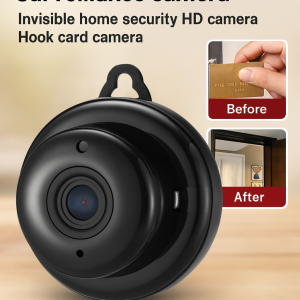
Home Invisible Wireless Surveillance Camera Plugless HD Upgrade
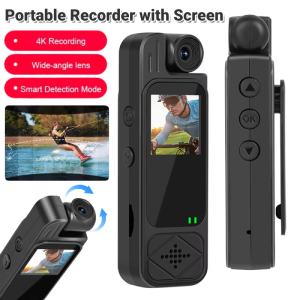
Portable Recorder with Screen Miniature Camcorder Body HD Camera Night Vision DV Video 180° Rotatable Lens Mini Camera
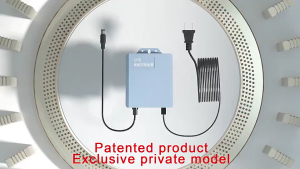
V380 PRO 12V 1.5A Uninterruptible Power UPS Monitoring Power Outage Endurance Power Supply for Router and Monitoring Outdoor CCTV Built-in Battery IP Camera Power Cord
SIRUI Night Walker 16mm 24mm 35mm 55mm 75mm T1.2 S35 Cine Lens Series
3.5X/2.5X Magnification Binocular Dental Loupe Surgery Surgical Magnifier with Headlight LED Light Medical Operation Loupe Lamp
Professional HD Telescope & Long Range Binoculars: 10-380X100 High Magnification Zoom
Reolink P334 4K 8MP PoE IP Dome CCTV Security Camera Ultra HD Color Night Vision Detection
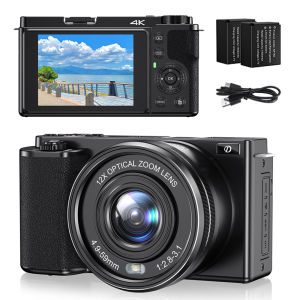
Komery 12X Optical Zoom SLR DSLR Camera 4K 64MP HD Digital Cameras For Photography Auto Focus WiFi Video Vlog Webcam Camcorder
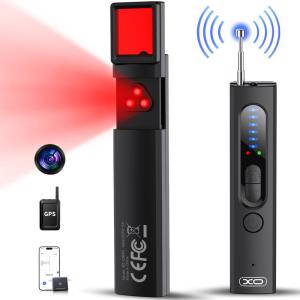
Hidden Camera Detectors Portable RF Signal Camera Detector Privacy Protector GPS Tracker Detector Find Wireless Eavesdropping Devices In Car Indoor Home Hotel Bathroom Travel Office
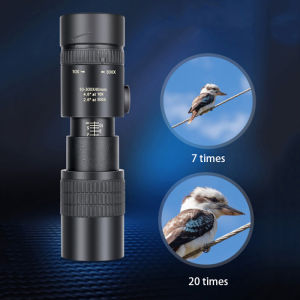
10-300X Zoom Powerful Binoculars Long Range Professional Monocular Telescope HD 4K BAK4-Prisms Portable for Camping

4K/1080P Wireless Mini Pet Collar Camera with 32G Card Video Recording