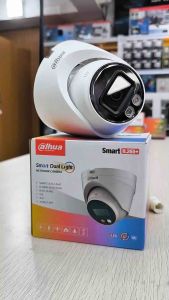
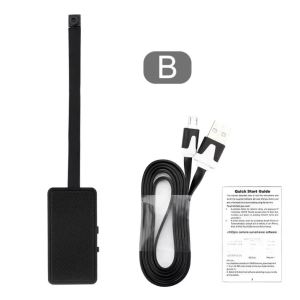
DIY HD1080P Wifi Mini Camera: Portable & Remote Viewing
DIY HD1080P Wifi Mini Camera: Portable & Remote Viewing
What is a Loop Recording Camcorder?
A loop recording camcorder is a portable device that records video in a continuous loop, overwriting old footage with new footage once the storage capacity is reached. This feature allows users to capture ongoing events without worrying about running out of storage space. Loop recording camcorders are particularly useful for security purposes, such as monitoring homes, offices, or other locations where constant surveillance is necessary.
Why Choose a Portable Mini Camcorder?
Portable mini camcorders, like the HD1080P Wifi camera, offer several advantages over traditional camcorders. They are lightweight, compact, and easy to carry, making them ideal for various applications, including personal use, small business security, and travel. In addition, these devices often come equipped with advanced features, such as high-definition recording, wireless connectivity, and remote viewing capabilities.
Advantages of HD1080P Wifi Camera
The HD1080P Wifi camera offers numerous benefits, including:
- High-definition video quality, providing clear and detailed images
- Wireless connectivity, allowing users to stream footage to their smartphones, tablets, or computers
- Remote viewing capabilities, enabling users to monitor their surroundings from anywhere in the world
- Loop recording functionality, ensuring continuous surveillance without the need for manual intervention
How to Set Up Remote Viewing Camcorder
Setting up a remote viewing camcorder involves connecting the device to a Wi-Fi network and configuring its settings. Here's a step-by-step guide:
Connecting to Wi-Fi Network
- Power on the camera and access its settings menu
- Select the Wi-Fi network you wish to connect to
- Enter the password if required
- Save the settings and wait for the camera to connect to the network
Configuring P2P Wireless Webcam
- Download and install the manufacturer's app on your smartphone or computer
- Log in to the app using your account credentials
- Add the camera to your account by scanning the QR code or entering the device ID
- Configure the camera settings, such as motion detection, privacy zones, and alert notifications
Tips for Using Your New Device
To get the most out of your HD1080P Wifi camera, consider the following tips:
Best Practices for Loop Recording
- Set the loop recording duration according to your needs, balancing storage capacity and desired retention time
- Regularly check the camera's storage space and delete old footage when necessary
- Monitor the camera's battery life, especially if using it outdoors or in remote locations
Troubleshooting Common Issues
- If the camera is not connecting to the Wi-Fi network, check the signal strength and distance from the router
- If the video quality is poor, adjust the camera's settings, such as resolution, frame rate, and exposure
- If you're experiencing connectivity issues with the app, try restarting the device or updating the software

GlobalLifestyle
Review

You May Also Like

64MPCamera with Screen HD 1080p Portable Video Recorder with Flash Light Battery Dock Retro Ultra Compact Digital Camera
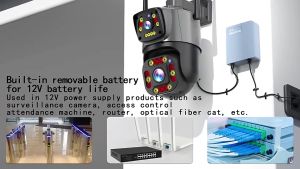
🇵🇭 OLOMM V380 PRO 6000mAh 12V UPS Monitoring Power Battery Backup Uninterruptible Power Supply For WiFi Router Modem CCTV Security Camera
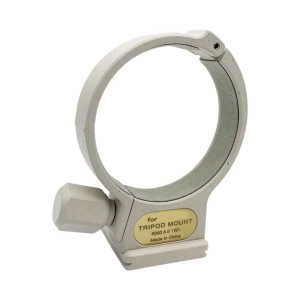
Tripod Mount Collar Mount Adapter For Telephoto Lens For EF 70-200mm F4 And More Precise Aluminum
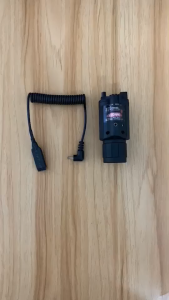
【Shipping From Manila+COD】100% Original Tactical Compact Red Green Laser Sight Combo LED Flashlight For 20mm Mount
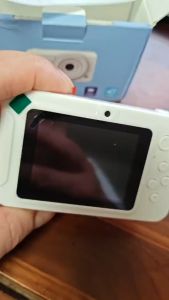
Kids Digital Camera 8X Zoom Dual Camera: Small Portable Selfie Camera
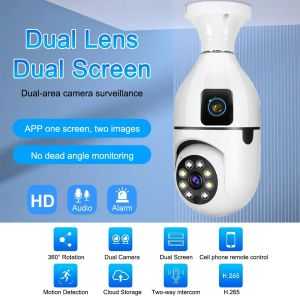
BUY 1 TAKE 1 V380 Bulb Dual Lens CCTV Camera 5G 8MP Smart surveillance camera Dual Screens wide angle Auto Tracking night vision two-way audio night vision APP remote Control Baby Monitor Video Playback WIFI connect to phone 1 YEAR WARRANTY
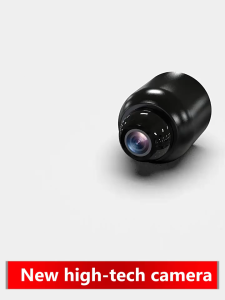
X5 Camera Super CCTV Wireless X5 mini Camera WiFi Wireless 1080P Home Surveillance Security Night Visio small
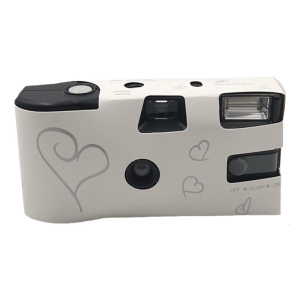
Retro Style 35mm Disposable Camera Flash Light Function Single Use Camera with Color Films for Weddings Parties
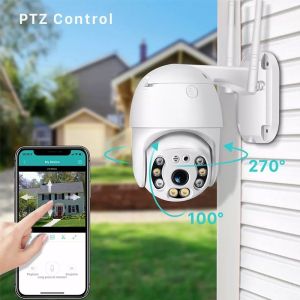
Xiaomi CCTV Camera Connect Cellphone V380 Pro Buy 1 Take 1 IP Security Cameras CCTV With Audio and Speaker 360 ° Panoramic Automatic tracking Indoor Outdoor IP66 Waterproof Wireless WiFi HD Night Vision Samsung Smart CCTV Security Cameras

✅100% Original Smilee 1080P Smart CCTV Camera WiFi Connect To Cellphone Night Vision Alarm 360 IP Outdoor Camera
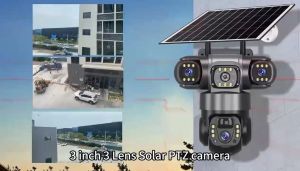
X-DEAL V380 CCTV 12MP HD Outdoor 4G Solar Camera Night Vision PIR Human Detection 6K Wireless Video Surveillance 4G sim