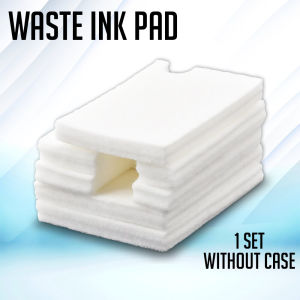
Printing View: Waste Ink Sponge Pad Tank for Epson Printers Set
Printing View: Waste Ink Sponge Pad Tank for Epson Printers Set
What is a Waste Ink Sponge Pad Tank?
A waste ink sponge pad tank is a crucial component of many Epson printers. This device serves as a receptacle for excess ink that is not used during the printing process. By capturing and storing this unused ink, the waste ink sponge pad tank helps maintain the quality of printed output and prolongs the lifespan of the printer itself. The waste ink sponge pad tank consists of several key components that work together to ensure optimal performance.
Key Components of a Waste Ink Sponge Pad Tank
The waste ink sponge pad tank comprises the following essential parts:
- Ink Absorption Sponge: This sponge-like material absorbs excess ink and helps prevent it from leaking out of the printer.
- Tank Shell: The tank shell houses the ink absorption sponge and protects it from external contaminants.
- Waste Ink Outlet: This outlet allows excess ink to flow into the waste ink sponge pad tank.
Benefits of Using a Waste Ink Sponge Pad Tank
There are several advantages to using a waste ink sponge pad tank in your Epson printer, including:
- Improved Print Quality: By capturing excess ink, the waste ink sponge pad tank helps maintain the consistency and quality of printed output.
- Reduced Maintenance Costs: With a waste ink sponge pad tank, you can avoid costly repairs and replacements caused by ink leaks or spills.
- Extended Printer Lifespan: By preventing ink buildup and damage to internal components, the waste ink sponge pad tank helps prolong the life of your printer.
How to Install a Waste Ink Sponge Pad Tank
Installing a waste ink sponge pad tank is a straightforward process that requires only a few tools and some basic knowledge of your printer's inner workings. Here's how to install a waste ink sponge pad tank in your Epson printer:
Tools Needed for Installation
Before you begin, gather the following tools:
- Screwdriver
- Replacement waste ink sponge pad tank
Step-by-Step Installation Process
Follow these steps to install a waste ink sponge pad tank in your Epson printer:
- Turn off and unplug your printer.
- Remove the existing waste ink sponge pad tank by unscrewing any securing screws and gently lifting it out of the printer.
- Insert the new waste ink sponge pad tank into the designated slot in your printer.
- Secure the new tank in place by replacing any removed screws.
- Plug in and turn on your printer.
Compatible Printers with Waste Ink Sponge Pad Tank
Not all Epson printers are compatible with a waste ink sponge pad tank. However, many popular models are designed to work with this component. Here are some Epson printer models that are suitable for use with a waste ink sponge pad tank:
- Epson Stylus Color 800
- Epson Stylus Photo R280
- Epson Stylus Photo R300
- Epson Stylus Photo R800
Advantages of Using Compatible Printers
Using a waste ink sponge pad tank with a compatible Epson printer offers several benefits, including:
- Improved Performance: Compatible printers are designed to work seamlessly with a waste ink sponge pad tank, resulting in optimal performance and print quality.
- Cost Savings: By extending the lifespan of your printer and reducing maintenance costs, using a compatible printer with a waste ink sponge pad tank can save you money in the long run.
Maintenance and Care of Waste Ink Sponge Pad Tank
Proper maintenance and care of your waste ink sponge pad tank are essential for ensuring its longevity and optimal performance. Here are some tips for maintaining and caring for your waste ink sponge pad tank:
Cleaning and Replacing Ink Sponge Pad
Over time, the ink absorption sponge in your waste ink sponge pad tank may become clogged with ink and debris. To keep your tank functioning properly, it's important to clean or replace the ink sponge pad as needed. Follow these steps to clean or replace the ink sponge pad in your waste ink sponge pad tank:
- Turn off and unplug your printer.
- Remove the waste ink sponge pad tank from your printer.
- Gently remove the ink absorption sponge from the tank shell.
- Clean the ink absorption sponge with a damp cloth or replace it with a new one.
- Reinsert the cleaned or replaced ink absorption sponge into the tank shell.
- Reinstall the waste ink sponge pad tank into your printer.
- Plug in and turn on your printer.
Troubleshooting Common Issues
If you encounter issues with your waste ink sponge pad tank, try the following troubleshooting steps:
- Check for Clogs: If your printer is producing poor-quality prints or experiencing frequent ink leaks, check the ink absorption sponge for clogs or debris.
- Replace the Ink Absorption Sponge: If the ink absorption sponge is damaged or worn out, replace it with a new one.
- Clean the Tank Shell: If the tank shell is dirty or clogged, clean it with a damp cloth before reinserting the ink absorption sponge.
Conclusion
In conclusion, a waste ink sponge pad tank is an essential component for maintaining the quality and longevity of your Epson printer. By capturing excess ink and preventing ink buildup, this device helps improve print quality, reduce maintenance costs, and extend the lifespan of your printer. With proper installation, maintenance, and care, a waste ink sponge pad tank can help you get the most out of your Epson printer.
Summary of Key Points
- A waste ink sponge pad tank is a receptacle for excess ink in Epson printers.
- Key components include the ink absorption sponge, tank shell, and waste ink outlet.
- Benefits include improved print quality, reduced maintenance costs, and extended printer lifespan.
- Compatible printer models include the Epson Stylus Color 800, R280, R300, and R800.
- Proper maintenance and care are essential for optimal performance and longevity.
Additional Resources for Further Reading
For more information about waste ink sponge pad tanks and compatible Epson printers, consult the following resources:
- Epson Support Website
- Epson User Manuals
- Epson Forums and Online Communities

Printing View Ph
Review

You May Also Like

NIIMBOT B21Pro Label Printer&Photo Label Stickers | Home/School/Office Smart Portable Bluetooth

HP ink GT53 / GT52 Ink Bottle Printer inks HP GT GT53/GT52 /HP ink GT53 BLACK/ GT52 CYAN YELLOW MAGENTA
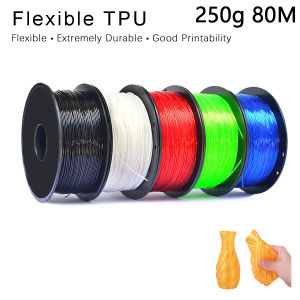
TPU 3D Printer Flexible Filament - 250g 1.75mm Length 80M
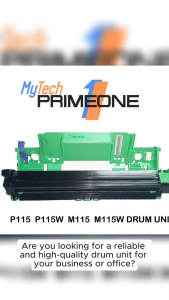
Premium DRUMKIT P115 P115W M115 M115W (CT351005) I COMPATIBLE MONO UNIT FOR FUJI XEROX
JAPAN Fuser Film Sleeve Compatible and for Use in IR2016 2318 2420 3245 4570
16x36mm 32x36mm MY-380 Coding Printer Hot Ink Roller CPI Hot Ink Roller
AOS Compatible Toner Cartridge CE285A 85A for HP Printer

MP2014 Thermistor Genuine Ricoh for Use and Compatible

50/100ml Jacquard Cyanotype Sensitizer Set: A Comprehensive Guide

IR-40/IR-40T Ink Roller Replacement Calculator Printer Cash Register Ribbons Ink Roller Black & Red
Compatible Refillable Ink Cartridge For HP305 305XL 305XXL Deskjet Plus 4120 4122 4125 4130 4132 4133 4135 4136 4140 Printer