



Broadlink RM4 Pro: A Universal Remote Control for Smart Home Automation & Voice Integration
Broadlink RM4 Pro: A Universal Remote Control for Smart Home Automation & Voice Integration
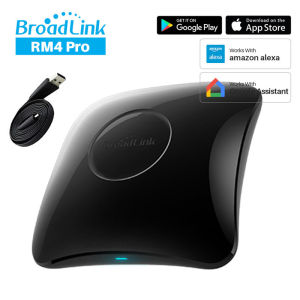
Broadlink RM4 Pro is a powerful universal remote control that combines infrared (IR) and radio frequency (RF) technologies with WiFi connectivity, making it an ideal solution for smart home automation and voice integration. This versatile device is compatible with both Alexa and Google Home, allowing users to effortlessly control their connected devices using voice commands.
What is Broadlink RM4 Pro?
The Broadlink RM4 Pro is a state-of-the-art universal remote control designed specifically for smart home automation. It supports both IR and RF signals, enabling it to control a wide range of devices, including air conditioners, TVs, sound systems, and more. Additionally, its built-in WiFi connectivity allows seamless integration with popular voice assistants like Alexa and Google Home.
Key Features
- Universal Remote Control: Supports both IR and RF signals, allowing control over a variety of devices.
- WiFi Connectivity: Connects to your home network, enabling remote access and voice control.
- Voice Assistant Compatibility: Works seamlessly with Alexa and Google Home for hands-free operation.
- Smart Home Automation: Easily integrate with other smart home devices for a cohesive ecosystem.
Compatibility with Alexa & Google Home
The Broadlink RM4 Pro is fully compatible with Amazon Alexa and Google Home, making it easy to control your connected devices using voice commands. Simply set up the device through the corresponding app and start enjoying hands-free convenience.
Setting Up Your Broadlink RM4 Pro
Setting up your Broadlink RM4 Pro is a straightforward process that involves connecting it to your Wi-Fi network and pairing it with your desired devices.
Connecting to Wi-Fi
To connect your Broadlink RM4 Pro to your Wi-Fi network, follow these steps:
- Download the Broadlink app from the App Store or Google Play.
- Open the app and sign in or create an account.
- Tap on the 'Add Device' button and select 'RM4 Pro'.
- Follow the on-screen instructions to connect your RM4 Pro to your Wi-Fi network.
Pairing with Devices
Once your Broadlink RM4 Pro is connected to your Wi-Fi network, you can begin pairing it with your desired devices. To pair a device, follow these steps:
- In the Broadlink app, tap on the '+' icon to add a new device.
- Select the type of device you want to control (e.g., TV, air conditioner).
- Point the RM4 Pro at the device and press the 'Learn' button.
- Press the desired button on the original remote control to teach the RM4 Pro the corresponding command.
Enhancing Your Smart Home Experience
The Broadlink RM4 Pro offers numerous features that can enhance your smart home experience, including voice control with Alexa and Google Home and integration with other smart home devices.
Voice Control with Alexa & Google Home
With the Broadlink RM4 Pro, you can easily control your connected devices using voice commands through Alexa and Google Home. Simply set up the device through the corresponding app and start enjoying hands-free convenience.
Integrating with Other Smart Home Devices
The Broadlink RM4 Pro is designed to work seamlessly with other smart home devices, creating a cohesive ecosystem that simplifies your daily routine. Whether you're controlling your lights, thermostat, or security system, the RM4 Pro makes it easy to manage everything from one convenient location.
Troubleshooting Common Issues
If you encounter any issues while setting up or using your Broadlink RM4 Pro, refer to the following troubleshooting tips.
Connectivity Problems
If you're experiencing connectivity problems with your Broadlink RM4 Pro, try the following solutions:
- Restart your router and the RM4 Pro.
- Check your Wi-Fi signal strength and ensure that the RM4 Pro is within range.
- Reset the RM4 Pro to factory settings and reconnect it to your Wi-Fi network.
Device Pairing Issues
If you're having trouble pairing your devices with the Broadlink RM4 Pro, try the following solutions:
- Ensure that the original remote control is within range of the RM4 Pro.
- Press the 'Learn' button on the RM4 Pro before pressing the desired button on the original remote control.
- Try pairing the device again after resetting the RM4 Pro to factory settings.

GlobalLifestyle
You May Also Like
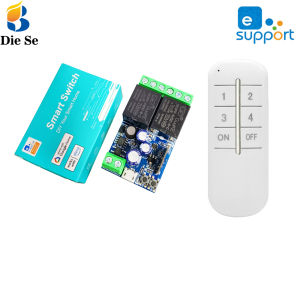
Diese Ewelink APP DC 12V 24V 48V 2Ch 10A WiFi Smart Switch 6 button Remote Voice Control for Google Assistant/Alexa Receiver Relay Module
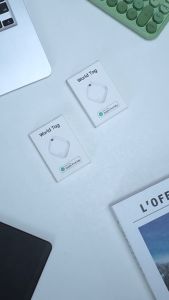
Smart Tag GPS Wireless Tracker Anti-lost Alarm with iOS Find My Waterproof Long Distance Privacy Protection Anti Lost Alarm Tag for Child/Pet Finder/Key/Bike/Wallet Anti loss(Only iOS)
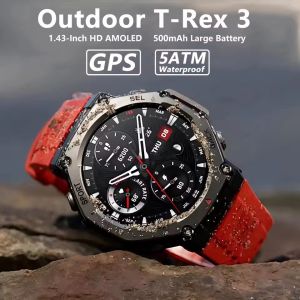
2025 New T-REX3 GPS Outdoor Military Men Smart Watch 10ATM Waterproof 500mAh Battery 170+sport Mode AMOLED HD Watches
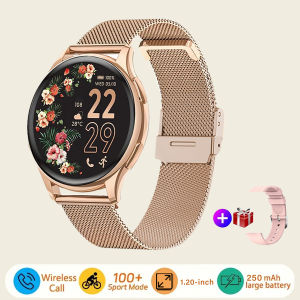
Smart watch for women always-on display IP67 fitness tracker with sleep monitoring/menstrual cycle black gold
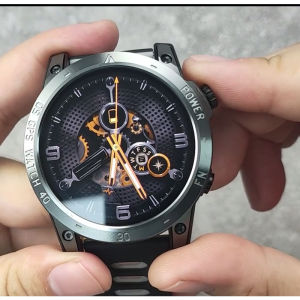
NORTH EDGE CROSS FIT3 GPS Watch: A Comprehensive Guide
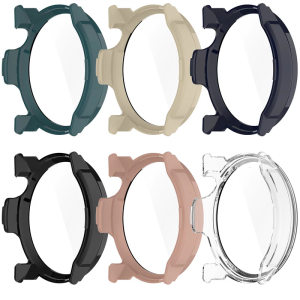
Watch Cover Screen Protector Tempered Glass Film PC Case for PACE Watch Scratchproof Case Smartwatch Film Dustproof
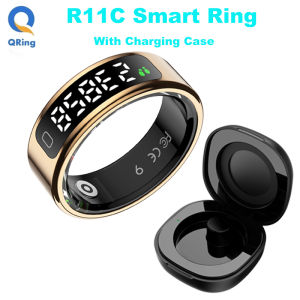
R11C Smart Ring with Touch Display - Gesture Control for TikTok/Video Browsing 24/7 Heart Rate & SpO2 Health Monitor 1ATM Waterproof Sleep Tracking - Compatible with Android & iOS Smartphones

2025 New Watch 8 Ultra Classic GPS Compass NFC SmartWatch 46mm LTE Sports Version BT Call 3ATM Waterproof AMOLED Men Smartwatch
Air Tracker Tags-2 Pack Bluetooth Tracker Works with Apple Find My APP (iOS Only Not for Android) Keys Finder Item Locator for Keys Luggage Backpack Replaceable Battery
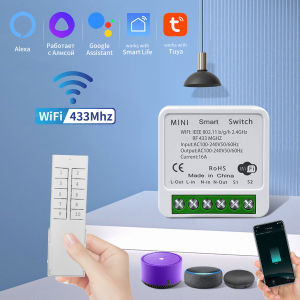
Tuya Wifi Smart Switch with RF 433Mhz Remote Control 10-Channel Wireless Smart Life App Voice Control by Alexa Google AC100-240V
Little Meatball Lady Fashion Smart Watch Women 1.32 AMOLED HD Screen Heart Rate Bluetooth Call Waterproof Sport Woman Gift


















