


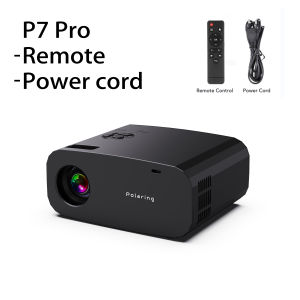
Polaring P7 Pro Projector: A Portable 4K Android Projector
Polaring P7 Pro Projector: A Portable 4K Android Projector
Key Features of Polaring P7 Pro
The Polaring P7 Pro Projector is a versatile, portable 4K Android projector designed for both home cinema and office presentations. With a brightness of 350 ANSI lumens, this projector delivers crisp, clear visuals for movies, TV shows, presentations, and gaming. It comes equipped with Bluetooth connectivity, allowing you to stream audio wirelessly, and supports 6G WiFi for seamless connectivity.
4K Android Projector
The Polaring P7 Pro Projector features a powerful Android operating system, providing a user-friendly interface and access to a wide range of apps and streaming services. With its 4K resolution, this projector delivers stunning picture quality, bringing movies and TV shows to life like never before.
350ANSI Lumens Home Cinema
The Polaring P7 Pro Projector boasts a brightness of 350 ANSI lumens, making it ideal for home cinema setups. This level of brightness ensures clear visuals even in moderately lit rooms, allowing you to enjoy your favorite movies and TV shows without the need for complete darkness.
Office Projector with Bluetooth
In addition to its home cinema capabilities, the Polaring P7 Pro Projector is perfect for office presentations and meetings. With Bluetooth connectivity, you can easily stream audio from your device, enhancing the overall presentation experience. Its compact size and portability make it easy to transport to different locations, whether it's a conference room or a client meeting.
Setup and Installation
Setting up the Polaring P7 Pro Projector is a breeze. Follow these simple steps to get started:
How to Set Up the Projector
- Unbox the projector and remove all packaging materials.
- Connect the power adapter to the projector and plug it into a power outlet.
- Turn on the projector using the power button on the side.
Connecting to WiFi & Bluetooth
- Open the settings menu on the projector and select 'WiFi'.
- Choose your preferred network from the list of available options and enter the password if required.
- Once connected, open the settings menu again and select 'Bluetooth'.
- Enable Bluetooth and pair your device by selecting it from the list of available devices.
Adjusting Picture Settings
To optimize picture quality, adjust the settings according to your preferences:
- Open the settings menu and select 'Picture'.
- Adjust the brightness, contrast, and color settings until you achieve the desired picture quality.
- Save your changes and exit the settings menu.
Using the Polaring P7 Pro
With its versatile capabilities, the Polaring P7 Pro Projector offers endless possibilities for entertainment and productivity. Here are some ways to make the most of this projector:
Watching Movies & TV Shows
Enjoy your favorite movies and TV shows on the big screen with the Polaring P7 Pro Projector. Connect your device via HDMI or USB and stream your content through popular streaming services like Netflix, Hulu, and Amazon Prime Video.
Presentations & Meetings
Transform your office presentations and meetings with the Polaring P7 Pro Projector. Connect your laptop or tablet via HDMI or USB and display your slideshows and documents on a large screen. The built-in Bluetooth connectivity allows you to stream audio wirelessly, enhancing the overall presentation experience.
Gaming & Streaming
Take your gaming and streaming experience to the next level with the Polaring P7 Pro Projector. Connect your gaming console or streaming device via HDMI and enjoy your favorite games and live streams on a large screen. With its 4K resolution, this projector delivers stunning visuals that will immerse you in the action.
Maintenance & Troubleshooting
To ensure the longevity and optimal performance of your Polaring P7 Pro Projector, follow these maintenance tips and troubleshooting solutions:
Cleaning the Lens
Regularly clean the lens to prevent dust buildup and maintain optimal picture quality. Use a soft, lint-free cloth to gently wipe the lens surface.
Resolving Common Issues
If you encounter any issues with your projector, refer to the troubleshooting guide in the user manual. Common issues include connectivity problems, picture quality issues, and sound problems. Follow the recommended solutions to resolve these issues.
Extending Battery Life
To extend the battery life of your Polaring P7 Pro Projector, follow these tips:
- Turn off the projector when not in use.
- Reduce the brightness level to save power.
- Regularly update the firmware to ensure optimal performance.

GlobalLifestyle
You May Also Like
HY300 Smart Projector: A Comprehensive Guide
XGODY Gimbal A6 4K Decoding Native 1080P 500 ANSI 180° Rotation Android TV Portable Smart Projector ScreenCast Airplay MiraCast Automatic Keystone Home Theater
EXPOSE Smart TV 32 inch 4K UHD Google TV Flat Screen Android 14.0 TV Built in Bluetooth Netflix Digital Televisions
Remote Control Full Functionality Reature Sensitive Button Compatible for CPAW312WN CPD27WN CPD32WN Projector Black
![[NEW] Wanbo Vali 1 Gimbal Projector Free 200° Angle 1080P Full HD Support 4K 900ANSI Android TV 11 ASA 3.0](https://img.lazcdn.com/g/ff/kf/S0af88a49ef644b6c86355593bd588a9d4.png_300x300q80.png)
[NEW] Wanbo Vali 1 Gimbal Projector Free 200° Angle 1080P Full HD Support 4K 900ANSI Android TV 11 ASA 3.0
MONOZ Projector A10 PRO: The Ultimate 5500 Lumens Full HD 4K Android Projector
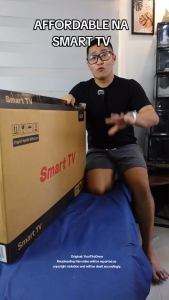
EXPOSE Smart TV 43 Inch 4K TV flat screen Smart TV Smart TV 50 Inches on Smart TV Google TV Android TV
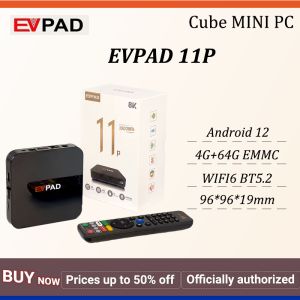
2025 New EVPAD 11P TV BOX H618 Android 12 4GB DDR3 64GB EMMC 8K WIFI6/7 VOICE RC 1000M ethernet WIFI6 BT5.2 hot sell
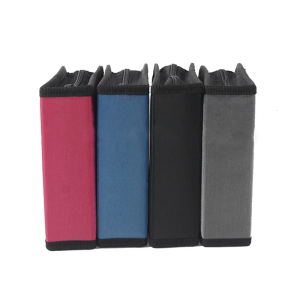
40Pcs Anti-Scratch Organizer Bag DVD Discs Handbag DVD Storage Case- DVD Holder Booklet
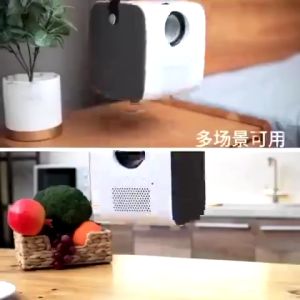
Projector Q3PRO Portable Smart Mini 4K Full HD Projector Build-in Android WiFi Bluetooth HDMI USB
39 Inch Model 39DL649 Digital TV: A Second Hand Clear Choice