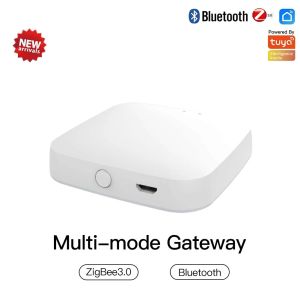
MOES Multi Mode Tuya Smart Gateway ZigBee Bluetooth Mesh Hub
MOES Multi Mode Tuya Smart Gateway ZigBee Bluetooth Mesh Hub
The MOES Multi Mode Tuya Smart Gateway is a versatile, multi-functional hub that serves as the backbone of any smart home system. This comprehensive guide will walk you through everything you need to know about this powerful device, including its key features, compatibility, setup process, and troubleshooting tips.
What is MOES Multi Mode Tuya Smart Gateway?
The MOES Multi Mode Tuya Smart Gateway is a cutting-edge ZigBee Bluetooth Mesh Hub designed to work seamlessly with a wide range of smart home devices. It acts as a central hub for controlling and managing your smart home ecosystem, providing a unified interface for monitoring and controlling all connected devices.
Key Features & Benefits
- Multi-Mode Connectivity: The MOES Multi Mode Tuya Smart Gateway supports multiple communication protocols, including ZigBee, Bluetooth, and Wi-Fi, allowing it to connect with a wide range of smart home devices.
- Easy Setup: The gateway is incredibly easy to set up, with a step-by-step installation process that guides you through every step of the way.
- Customizable Settings: The MOES Multi Mode Tuya Smart Gateway offers a wide range of customizable settings, allowing you to tailor the device to your specific needs and preferences.
- Compatibility: The gateway is compatible with a wide range of smart home systems, including Amazon Alexa, Google Assistant, and Apple HomeKit, making it easy to integrate with your existing smart home ecosystem.
Compatibility with Home Automation Systems
The MOES Multi Mode Tuya Smart Gateway is compatible with a wide range of home automation systems, including Amazon Alexa, Google Assistant, and Apple HomeKit. This makes it easy to integrate the gateway with your existing smart home ecosystem, allowing you to control all connected devices from a single interface.
How to Set Up Your MOES Multi Mode Tuya Smart Gateway
Setting up your MOES Multi Mode Tuya Smart Gateway is a simple process that can be completed in just a few steps.
Step-by-Step Installation Process
- Connect the gateway to your Wi-Fi network by following the on-screen prompts in the MOES app.
- Once connected, the gateway will automatically scan for nearby smart home devices and connect them to the network.
- Customize the settings and configurations to suit your needs and preferences.
Connecting Devices to the Gateway
To connect devices to the gateway, simply follow these steps:
- Ensure that the device is within range of the gateway and powered on.
- Open the MOES app and select the device you want to connect.
- Follow the on-screen prompts to complete the connection process.
Maximizing the Potential of Your MOES Multi Mode Tuya Smart Gateway
Once your MOES Multi Mode Tuya Smart Gateway is set up, there are several ways to maximize its potential and get the most out of your smart home system.
Customizing Settings & Configurations
The MOES Multi Mode Tuya Smart Gateway offers a wide range of customizable settings and configurations, allowing you to tailor the device to your specific needs and preferences. Some of the key settings include:
- Device Grouping: Group devices together to control them simultaneously.
- Scene Creation: Create custom scenes to automate specific tasks, such as turning off all lights when you leave the house.
- Voice Control: Enable voice control using Amazon Alexa, Google Assistant, or Apple HomeKit.
Integrating with Other Smart Home Devices
The MOES Multi Mode Tuya Smart Gateway is compatible with a wide range of smart home devices, including lights, thermostats, security cameras, and more. Integrating these devices with the gateway allows you to control them all from a single interface, making it easy to manage your smart home ecosystem.
Troubleshooting Common Issues
If you're experiencing issues with your MOES Multi Mode Tuya Smart Gateway, there are several common problems and solutions to consider.
Gateway Not Responding
If the gateway is not responding, try the following steps:
- Restart the gateway by unplugging it and plugging it back in.
- Check that the gateway is connected to the Wi-Fi network.
- Ensure that the MOES app is up-to-date.
Connectivity Problems
If you're experiencing connectivity problems, try the following steps:
- Check that the gateway is within range of the smart home devices.
- Ensure that the devices are powered on and connected to the Wi-Fi network.
- Restart the gateway and devices.
Conclusion & Final Thoughts
The MOES Multi Mode Tuya Smart Gateway is a powerful, versatile hub that serves as the backbone of any smart home system. With its multi-mode connectivity, customizable settings, and compatibility with a wide range of smart home devices, it's the perfect solution for anyone looking to take control of their smart home ecosystem. So why wait? Get started today and experience the convenience and peace of mind that comes with a fully integrated smart home system!

GlobalTechMart
Review
You May Also Like
XUNDD Beatle Series AIRBAG Shockproof Case POCO F5 F5 PRO
Huawei Qinyun C5S Protective Case 11.5 Inch Rotatable Leather Cover for Tablet Computer Anti-Fall 10.4 Inch Compatible with C7 2nd Generation

100 Speeds Portable Mini Fan USB Rechargeable Foldable Neck Fan with Display Handheld Fan Cooler

Slim Leather Strap for Apple Watch: APband Review & Guide
Huawei Nova2S Full Screen Tempered Glass Film Protection: Anti Explosion Clear HD Blue Light Filter Fingerprint Resistant
Samsung S23 Ultra Camera Lens Protector: A Comprehensive Guide
Dopamine Fairy Candy Colored Silicone Phone Case for Apple 16 15 13 pro Max 14 New Model 13 Transparent Full Cover Soft Case for Men And Women

Silicone Strap for Suunto Race 2 Vertical 2 Smart Watch Band Backup Wristband Suunto 9 Peak 9 Peak Pro 5 Peak Race S Bracelet Belt

Cartoon Tablet Cases: Protection & Expansion for Your Device
150cm Universal Adjustable Phone Lanyard Anti-lost Lanyard Strap Detachable Neck Cord Phone Safety Tether Keychain Chain Rope

Wireless Presenter Remote: A Comprehensive Guide