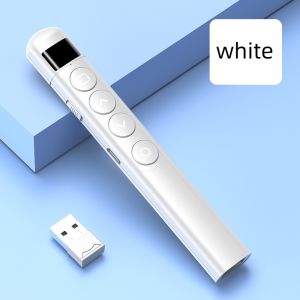
Pointer USB Charging Clicker: A Comprehensive Guide
Pointer USB Charging Clicker: A Comprehensive Guide
What is a Pointer USB Charging Clicker?
A pointer USB charging clicker is a wireless device used to control presentations, such as those created in Microsoft PowerPoint. This clicker is powered by a rechargeable battery, which is charged via a USB port. The clicker allows users to navigate through slides, highlight important points, and control multimedia elements during presentations.
Key Features of USB Charging Clicker
- Wireless Control: Utilizes 2.4GHz technology for reliable wireless connectivity.
- Rechargeable Battery: Eliminates the need for disposable batteries, making it more eco-friendly and cost-effective.
- Compact Design: Sleek and portable, allowing users to easily carry the clicker in their pocket or purse.
- Power Display Support: Enables seamless integration with various presentation software, including Microsoft PowerPoint.
How Does a USB Charging Clicker Work?
A pointer USB charging clicker works by transmitting wireless signals to a receiver connected to the computer. When the user presses a button on the clicker, the signal is sent to the receiver, which then triggers the corresponding action in the presentation software. The 2.4GHz frequency ensures low latency and reliable performance, allowing users to control their presentations with ease.
Choosing the Right Clicker for Presentations
Selecting the right clicker for your presentations is crucial to ensure smooth navigation and control during your presentation.
Factors to Consider When Selecting a Clicker
- Compatibility: Ensure the clicker is compatible with your presentation software and computer operating system.
- Battery Life: Look for a clicker with a long-lasting battery life, as this will reduce the frequency of recharging.
- Range: Choose a clicker with a sufficient range to allow you to move around freely during your presentation.
- Additional Features: Some clickers come with additional features, such as laser pointers, stylus pens, or multimedia control buttons.
Top Clickers for Powerpoint Presentations
- Logitech R800 Presentation Remote: A popular choice among users, offering a sleek design, long battery life, and compatibility with Microsoft PowerPoint.
- Anker 2.4GHz Wireless Presenter: A budget-friendly option with a range of up to 100 feet and a long-lasting battery life.
- ELECOM Wireless Presentation Remote: A reliable clicker with a compact design and compatibility with various presentation software.
Using a USB Charging Clicker Effectively
To make the most out of your pointer USB charging clicker, follow these steps:
Setting Up Your Clicker
- Connect the receiver to your computer's USB port.
- Charge the clicker using the included USB cable.
- Press the pairing button on the clicker to establish a connection with the receiver.
Maximizing the Functionality of Your Clicker
- Practice Beforehand: Familiarize yourself with the clicker's buttons and functions before presenting.
- Use the Laser Pointer: Highlight important points on your slides using the laser pointer feature.
- Control Multimedia Elements: Use the multimedia control buttons to play or pause videos, audio clips, or animations during your presentation.
Enhancing Your Presentation with Power Display Support
Power Display Support allows your clicker to seamlessly integrate with various presentation software, enhancing your overall presentation experience.
Benefits of Power Display Support
- Seamless Integration: Enables effortless navigation through slides, multimedia elements, and annotations.
- Improved Control: Provides greater control over your presentation, allowing you to focus on delivering your message effectively.
- Enhanced User Experience: Improves the overall user experience by providing a more intuitive and responsive presentation environment.
How to Enable Power Display Support on Your Clicker
To enable Power Display Support on your clicker, follow these steps:
- Connect the receiver to your computer's USB port.
- Open your presentation software and navigate to the settings menu.
- Locate the option to enable Power Display Support and select it.
- Restart your presentation software to apply the changes.
Conclusion
A pointer USB charging clicker is an essential tool for anyone delivering presentations. With its wireless control, rechargeable battery, and Power Display Support, it offers a convenient and efficient way to navigate through slides, highlight important points, and control multimedia elements during your presentation. By selecting the right clicker and maximizing its functionality, you can enhance your overall presentation experience and deliver a more engaging and effective message to your audience.

Island mood
You May Also Like
Case for OPPO F11 Pro OPPO F11 phone casing hard case TPU Protector Smooth shockproof Cover new design aesthetic with holder for men Gyro mount CYTLZJ01

Vivo V40 V29 V27 5G Case Vivo V40 V27 Pro 5G Cartoon Toy Strawbery Bear Alie With 3D Doll Ornament Flip Make Up Mirror Phone Case
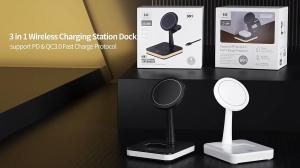
3 In 1 Wireless Charging Station Charger Dock For Smart Mobile Phones, Smartwatch, Headphones, and AirPods
Gigabit 1.25G Mini Reverse POE Media Converter Slot SFP Transceiver RPOE 5V-24V Input 1SFP Slot 1 RJ45 Ethernet SFP Fiber Switch
IPX7 Waterproof 4inch Speaker 4ohms Bass Loudspeaker with Rubber Edged and 25W Power for Deep Bass Sound
Hero 2 Battery 1100mAh
Magnifier Photography Lens 18X/28X/36X/64X Telephoto Lens with Mount Clip Telephoto Phone Lens for Most Phones
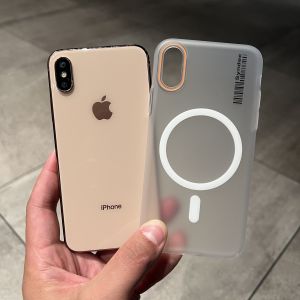
Ultra-Thin Frosted Semi-Transparent White Magnetic Absorption Magsafe Charging Anti-Oil Protective Phone Case for iPhone X/XS

Oppo K3 Privacy Screen Protector High Definition Tempered Glass Anti Blue Light Anti Glare Mobile Phone Film Full Screen Protection
![IPAD Case For Apple iPad 10.2/iPad 10Gen 10.9/iPad Air4 Air5/iPad Pro11/iPad9.7 Tulips Smart Case Trifold Cover Stand with Detachable Back Cover [Auto Sleep/Wake]](https://img.lazcdn.com/g/ff/kf/S6f934bab802f4a50bb922913f721e504s.jpg_300x300q80.jpg)
IPAD Case For Apple iPad 10.2/iPad 10Gen 10.9/iPad Air4 Air5/iPad Pro11/iPad9.7 Tulips Smart Case Trifold Cover Stand with Detachable Back Cover [Auto Sleep/Wake]

Blue Hat Bear 40W Charger Protective Case Suitable for iPhone 17/16 Fast Charging Head Protective Cover Cartoon Style TPU Material