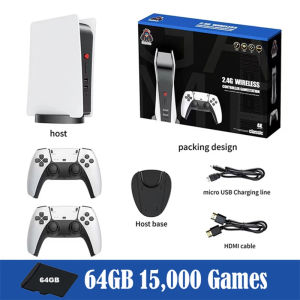
10000Games 64GB M8 Video Game Console With 2.4G Wireless Double Game Controller 9 Emulators 4K Ultra HD Video Games TV 2 Player Portable Gaming Machine Controller Family Video Game Console For TV Projector
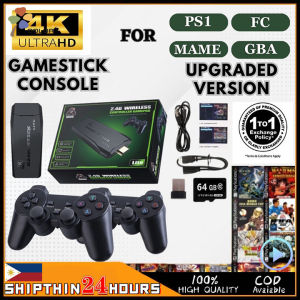
10000Games 64GB M8 Video Game Console With 2.4G Wireless Double Game Controller 9 Emulators 4K Ultra HD Video Games TV 2 Player Portable Gaming Machine Controller Family Video Game Console For TV Projector
What is the 10000Games 64GB M8 Video Game Console?
The 10000Games 64GB M8 Video Game Console is a versatile gaming machine designed for both casual and avid gamers. This portable console features a 64GB storage capacity, allowing users to store numerous games and applications. It supports 4K Ultra HD video games, providing a stunning visual experience. The console comes equipped with two 2.4G wireless game controllers, making it perfect for multiplayer gaming sessions. Additionally, it includes nine emulators, enabling users to play classic games from various platforms.
Key Features & Specifications
- Storage Capacity: 64GB
- Video Output: 4K Ultra HD
- Controllers: Two 2.4G wireless controllers
- Emulators: Nine emulators supporting various platforms
- Compatibility: Compatible with TV and projector
How to Choose the Right Gaming Console for Your Needs
When selecting a gaming console, consider factors such as storage capacity, video output quality, controller compatibility, and emulator support. The 10000Games 64GB M8 Video Game Console offers a great balance of these features, making it an ideal choice for families and gamers looking for a portable, versatile gaming experience.
Setting Up Your 64GB M8 Video Game Console
Setting up your 10000Games 64GB M8 Video Game Console is a straightforward process. Follow these steps to get started:
- Connect the console to your TV or projector using the provided HDMI cable.
- Insert the power adapter and plug it into a nearby outlet.
- Turn on the console and follow the on-screen instructions to complete the initial setup.
Connecting the 2.4G Wireless Double Game Controller
To connect the wireless game controllers, follow these steps:
- Press and hold the pairing button on the console until the LED indicator blinks.
- Press and hold the pairing button on the controller until the LED indicator turns solid.
- Repeat steps 1 and 2 for the second controller.
Configuring 9 Emulators for Optimal Performance
To configure the nine emulators included with the console, follow these steps:
- Navigate to the emulator settings menu.
- Select the emulator you wish to configure.
- Adjust the settings according to your preferences, such as screen resolution, audio output, and input configuration.
Playing 4K Ultra HD Video Games on Your Portable Gaming Machine
The 10000Games 64GB M8 Video Game Console supports 4K Ultra HD video games, offering a stunning visual experience. To maximize your gaming experience, consider the following tips:
- Use High-Quality Audio: Connect your console to a high-quality audio system for an immersive experience.
- Adjust Display Settings: Fine-tune the display settings to suit your preferences, such as screen resolution, aspect ratio, and color balance.
- Optimize Performance: Adjust the emulator settings to optimize performance and minimize lag.
Troubleshooting Common Issues
If you encounter issues while using your 10000Games 64GB M8 Video Game Console, refer to the troubleshooting guide below:
- Controller Not Responding: Ensure that the controllers are properly paired and within range of the console. Restart the console and controllers if necessary.
- Emulator Not Working: Verify that the emulator settings are configured correctly. Restart the console and try again.
Sharing the Fun: Multiplayer Gaming & Family Entertainment
The 10000Games 64GB M8 Video Game Console is perfect for multiplayer gaming sessions and family entertainment. To set up a family-friendly gaming environment, consider the following tips:
- Set Time Limits: Encourage healthy gaming habits by setting time limits for gaming sessions.
- Choose Age-Appropriate Games: Select games that are appropriate for all family members.
- Encourage Social Interaction: Use multiplayer games to encourage social interaction and teamwork among family members.
Setting Up a Family-Friendly Gaming Environment
To create a family-friendly gaming environment, consider the following tips:
- Designate a Gaming Area: Create a dedicated space for gaming, away from distractions and noise.
- Establish Rules: Set clear rules for gaming sessions, such as no cheating, no bad language, and no physical altercations.
- Encourage Healthy Habits: Encourage healthy habits, such as taking breaks, staying hydrated, and maintaining good posture while gaming.
Encouraging Healthy Gaming Habits
To encourage healthy gaming habits, consider the following tips:
- Set Time Limits: Set time limits for gaming sessions to prevent excessive screen time.
- Take Breaks: Take regular breaks during gaming sessions to rest your eyes and stretch your muscles.
- Stay Hydrated: Drink plenty of water during gaming sessions to stay hydrated.
- Maintain Good Posture: Sit in a comfortable chair with good posture to avoid strain and injury.

Color 1613915344
Review

You May Also Like
2023 NEW Android TV box + GAME BOX G5 2in1 4K HD Game Console 30,000 Retro Classic Game TV Box + Dual

Smart Bluetooth Glasses Sunglasses with Speakers Bluetooth 5.3 Eyeglasses Audio Blue Tooth Glasses
XF35H handheld game console. Equipped with a 3.5-inch IPS screen Linux operating system and vibration function.
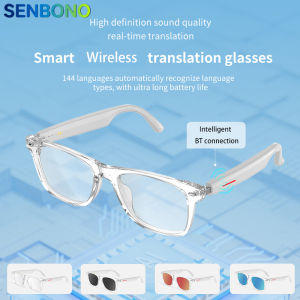
SENBONO Smart Glasses AI Translation Glasses 100+ Languages Real-time Translation Bluetooth Music Built-in Mic & Speakers
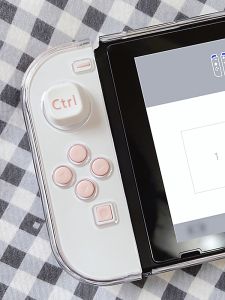
Nintendo Switch Oled Handheld Game Console Electroplated Key Modification ABXY Directional Keys LR Shoulder Buttons
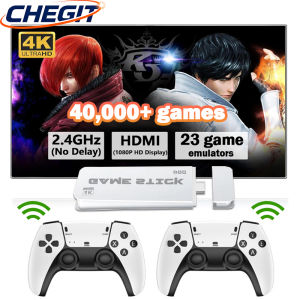
New 4K TV Game Stick M15 ultra 64GB Handheld Game Player 2.4G Dual Wireless Controller 3/40000+ Games Family Game Player
![[24h Delivery] M8 Video Game console 4KGames Set 2 Controllers Stick Retro-Games Built-In 20000 GAME](https://img.lazcdn.com/g/ff/kf/Sfbe23cfacdc44a86aced4b0ef59899baZ.png_300x300q80.png)
[24h Delivery] M8 Video Game console 4KGames Set 2 Controllers Stick Retro-Games Built-In 20000 GAME
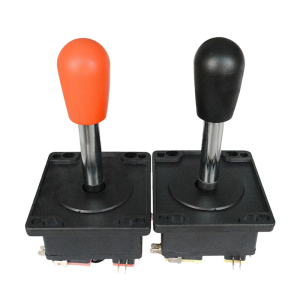
Competition Joystick with Spring Return Mechanism Strong 8 Way Arcade Stick Switchable To 4 Way Mode for Metal Panel
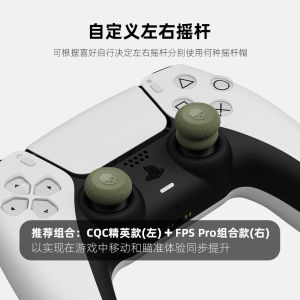
Skull & Co. PS5/PS4/NS pro Controller Trigger Caps Anti-slip Gaming Accessories Universal Compatibility
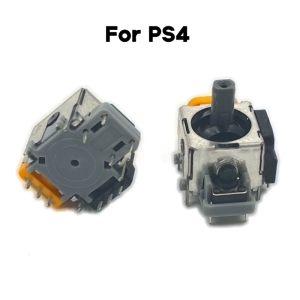
Hall Effect Joystick Module Controller Game Console Thumb Stick Analog Sensor Potentiometer Compatible 040 050 2x
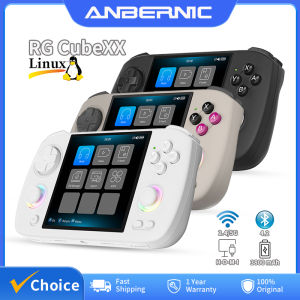
ANBERNIC RG Cubexx Retro Handheld Game Console 3.95" IPS 720*720 Screen Linux 64bit Support WiFi Bluetooth Streaming Video Games