



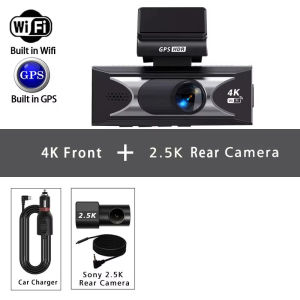
EKLEVA UHD 4K 2160P AI Driver Assistance Dash Cam Dual Lens ADAS WIFI Mini Car DVR Camera Video Drive Recorder Dashcam
High-Definition ImagingThe dash cam captures crystal-clear footage in 4K+2.5K resolution, ensuring every detail is captured.Advanced Driver Assistance System (ADAS)Integrated ADAS features enhance safety by providing real-time alerts for potential collisions, keeping you secure on the road.Wi-Fi & GPS IntegrationSeamlessly connect via Wi-Fi and GPS for real-time tracking and easy sharing of your journeys, enhancing the dash cam's functionality.Dual Lens RecordingWith dual lenses, this dash cam captures a 360-degree view, offering comprehensive coverage and security for your vehicle.Large Memory CapacitySupports up to 512G of external memory, allowing you to store extensive footage without worrying about space limitations.Important reminder: Due to the high-speed storage requirements of high-definition DVR, please ensure to use high-quality U3 grade branded memory cards with C10 speed. Some low-quality low-priced memory cards on the market may not support DVR to function properly.Supported Languages:English, Chinese, Korean, Japanese, Russian, Arabic, Spanish, Portuguese, Polish, Turkish, French, German, Italian, Hebrew,Indonesia,Thai,Vietnamese.About WIFI Connection:1. Before connecting to the DVR on the phone, it is necessary to install the WIFI connection app "Viidure APP" in advance.You can search for "Viidure" installation in the Apple App Store or Google App Market.2.Open the "Viidure" APP on your phone, enter the configuration mode, turn on the wifi function of the phone, follow the prompts to find the SSID wifi signal(FHCAM***) of the DVR and enter the password(12345678) to connect;3.After successful configuration, you can connect and operate the DVR through the "Viidure" APP.About 24-Hour Parking Monitoring: If you need the 24 hour parking monitoring function, you can order the corresponding Buck Line accessories to replace the car charger.Through Buck Line, the DVR power can be obtained directly from the car battery or car ACC, so that the DVR can maintain normal recording work even when the car is turned off.(Since different car models have different battery interfaces or ACC interfaces, it is not recommended to install it by yourself. It is recommended to find a professional to install the Buck Line.)About The Installation And Use Of GPS: 1. Connect the GPS module to the DVR;2. Install the DVR on the car and start the recording mode. Start the car outdoors and drive for a certain distance. The GPS module will automatically capture the satellite signal and the DVR will automatically record the video with the GPS driving track. Video Playback Of GPS Tracks:1. Install the GPS dedicated video player "Hit GPS Player" on your computer. Please enter the link below in your computer browser to download and install;Download link: https://pcgps.ce2ce.com/hit/hitplayer.html2. Open the recorded DVR video with GPS track information on the computer through "Hit GPS Player" to play back the GPS driving track.

ekleva
Review
You May Also Like
Mitsubishi Xpander 2018 to 2026 / Xpander Cross 2020 to 2026 INJECTION Black White Window Door Rain Visor Thailand Quality Car Accessories
Rain Visor For hyundai accent 2011 2012 2013 2014 2015 2016 2017 2018 Window Vent Shades Deflector Guard Door Chrome Sunvisor car accessories

For KTM HONDA YAMAHA EXC KLX YZF CRF Dirt Bike Enduro Handlebar Protection Universal Hand Guards Motorcycle Handguard Protector

HD Backup Camera AHD1080P/720P Car Rear View License Plate Bracket Cam Frame Bracket Decor Universal Car Accessories
Aprilia RS660 2021-2026 100% Carbon Fiber Fuel Tank Protective Case Motorcycle Shell Decoration Sliders Protector for Enhanced R
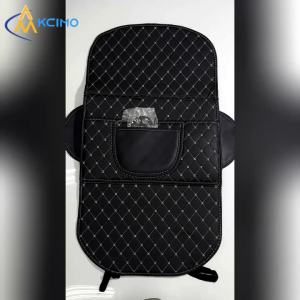
New Seat Anti Kick Pad for Kia Ceed CD XCeed Proceed 2018–2025 PU Leather Car Anti-Kick Mats Auto Seat Back Protector Cover Pads

For Mercedes Benz W211 E Class CLK CLS SL Car Radio Autoradio Player 12V 6M Power Cable Harness with Integrated Antenna
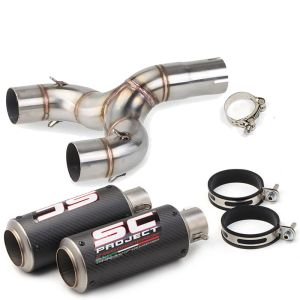
51mm Motorcycle Central Exhaust pipe connection Exhaust Middle Pipe Link Pipe Connector Adapter For Benelli 600 BN600 BJ600 TNT600 TNT 600 accessories

Ride Fresh Helmet Deodorizer Spray Lavender
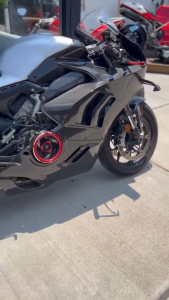
3K Dry Carbon Fiber Fairing Body Shell Modified Accessories For DUCATI PANIGALE V4 /STREETFIGHTER V4 Motorcycle Mod Parts

DOMHOAI | Home Use Stainless Steel Mini Argon Arc Welder 220V