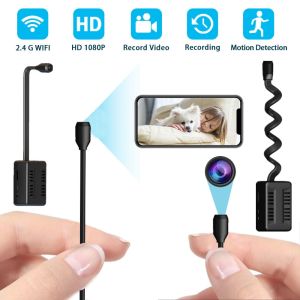
5MP Wireless WiFi Indoor Surveillance Camera: A Comprehensive Guide
5MP Wireless WiFi Indoor Surveillance Camera: A Comprehensive Guide
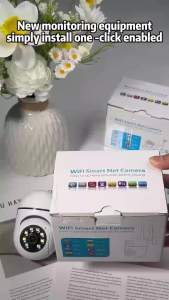
Welcome to our comprehensive guide on the 5MP Wireless WiFi Indoor Surveillance Camera, a versatile security solution designed to enhance your smart home security system. This article will cover its key features, installation process, usage, and maintenance tips.
Key Features & Benefits
High-Definition Resolution
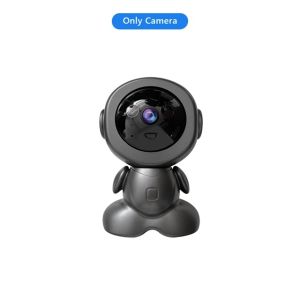
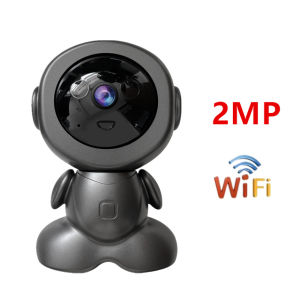
Equipped with a 2/5MP high-definition resolution sensor (optional), this camera delivers crisp and clear images even in low-light conditions. The high-definition resolution allows you to capture every detail, making it easier to identify individuals and objects within the camera's field of view.
Bidirectional Voice Calls
With support for bidirectional voice calls, you can communicate with anyone within the camera's range, making it an ideal solution for baby monitoring or pet care. The two-way audio feature ensures that you can stay connected with your loved ones even when you're away from home.
Intelligent Automatic Tracking
The 5MP Wireless WiFi Indoor Surveillance Camera supports intelligent automatic tracking, which means it can automatically follow moving objects within its field of view. This feature is particularly useful for monitoring pets, children, or intruders. Additionally, the camera supports motion detection and intelligent tracking, allowing you to receive real-time alerts whenever movement is detected.
Installation & Setup
Connecting to Wi-Fi
To connect your camera to your home Wi-Fi network, follow these steps:
- Download and install the camera's mobile app on your smartphone or tablet.
- Connect your camera to power and wait for the LED light to turn green.
- Open the mobile app and select "Add Device."
- Follow the on-screen instructions to connect your camera to your Wi-Fi network.
Setting Up Motion Detection
To set up motion detection, follow these steps:
- Log in to your camera's mobile app.
- Navigate to the "Settings" menu.
- Select "Motion Detection" and adjust the sensitivity settings according to your preferences.
- Enable real-time alerts to receive notifications whenever motion is detected.
Configuring P2P Remote Access
To configure P2P remote access, follow these steps:
- Log in to your camera's mobile app.
- Navigate to the "Settings" menu.
- Select "Remote Access" and enable the feature.
- Follow the on-screen instructions to set up P2P remote access.
Usage & Maintenance
Recording with SD Card
To record video footage, insert a Micro SD card (up to 128GB) into the camera's slot. The camera will automatically save recorded footage to the SD card, allowing you to review and share video clips at any time.
Adjusting Digital Optical Zoom
To adjust the digital optical zoom, follow these steps:
- Log in to your camera's mobile app.
- Navigate to the "Settings" menu.
- Select "Zoom" and adjust the settings according to your preferences.
- Save your changes and exit the settings menu.
Troubleshooting Common Issues
If you're experiencing issues with your camera, try the following troubleshooting steps:
- Ensure that your camera is connected to power and your Wi-Fi network.
- Check if there are any firmware updates available for your camera.
- Restart your camera and mobile app.
- Contact customer support if the issue persists.

V380 Camera Factory Store
You May Also Like
XIAOMI V380 Pro cctv camera connect to cellphone Wireless WIFI Network Security Two-Way Audio Indoor Outdoor Camera 1080P HD cctv Night vision outdoor cctv HD Dome IP Camera Security Alarm Waterproof camera
![[OFFICIAL PH] LOMOGRAPHY NEW Petzval 55mm f1.7 MKII Sony Emount FULLFRAME MVP CAMERA](https://img.lazcdn.com/g/ff/kf/S025b93d79cc7498eab2db9e323c3f669r.jpg_300x300q80.jpg)
[OFFICIAL PH] LOMOGRAPHY NEW Petzval 55mm f1.7 MKII Sony Emount FULLFRAME MVP CAMERA
【COD 】Telescope original 10-380X100 High Magnification Long Range Zoom 10-60 Times Telescope Binoculars HD Professiona Zoom
Converter Ring Focus-infinity Camera Lens Adapter Ring M42 to EF-mount/EF-S Mount for Rebel T6i T6-T5i T5-T4i T4 T3i
HIKVISION CCTV Security Cameras DS-2CE12DF3T-F ColorVu 4in1 2MP 40meters White Light Range Outdoor Bullet Analog Camera IP67 Weatherproof Full Time Color CCTV with 130dB true WDR 3D DNR Colored Night Vision 12DF3T NASHANTOO - Lazada

Borescope Dual Lens Endoscope with Light 4.3" IPS 1920P HD Inspection Camera 7.9mm IP67 16.4FT Semi-Rigid Snake Cable for Sewer

Endura 1080P/720P Weatherproof Analog HD Twisted Passive Video Transceiver Single Channel (UTP CAT5/5E/6 Pigtail Pair)
BekinTek Handheld Night Vision Monocular Rechargeable Telescope NVG Goggles Full Dark Observing Adjustment 8x Digital Zoom 1080P Video Recording 8M Photo Support PC Control with 32G TF Card
![[BUY 1 TAKE 1] V380 Pro CCTV Camera 8MP Dual Lens Dual Screens Outdoor CCTV no Need Internet 360° Auto Tracking 4K HD Infrared Night Vision Waterproof Two-Way Audio and Speakers Video Playback Remote Surveillance](https://img.lazcdn.com/g/ff/kf/S04dae74e61174ccd86627ed5e1c60521A.png_300x300q80.png)
[BUY 1 TAKE 1] V380 Pro CCTV Camera 8MP Dual Lens Dual Screens Outdoor CCTV no Need Internet 360° Auto Tracking 4K HD Infrared Night Vision Waterproof Two-Way Audio and Speakers Video Playback Remote Surveillance
BUY 1 TAKE 1 V380 Pro Dual Lens CCTV Camera wifi connect 360 waterproof outdoor Smart HD 1080P remote surveillance two-way audio night vision auto tracking APP Control 1 YEAR WARRANTY
360° Rotate Industrial Endoscope Camera HD1080P 7-inch IPS Screen with Dual&Triple Lens Rotate Waterproof Borescope Split Design