ORICO 2.5 SATA SSD: A Comprehensive Guide to High Capacity Internal Solid State Drives
ORICO 2.5 SATA SSD: A Comprehensive Guide to High Capacity Internal Solid State Drives
Introduction to ORICO 2.5 SATA SSD
Overview of ORICO 2.5 SATA SSD
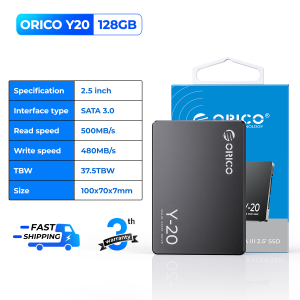
ORICO 2.5 SATA SSDs offer a reliable and efficient solution for users seeking to upgrade their computer's storage capacity. These solid-state drives provide exceptional performance and durability, making them a popular choice among DIY users. ORICO offers a range of SSDs with capacities from 120G to 4TB, ensuring there's an option to fit every user's needs.
Key Features & Benefits
Some of the key features and benefits of ORICO 2.5 SATA SSDs include:
- High capacity options: ORICO offers SSDs with capacities ranging from 120G to 4TB, allowing users to choose the perfect drive for their storage requirements.
- SATA3.0 compatibility: These drives support SATA3.0, providing fast data transfer rates and improved performance compared to older SATA versions.
- Easy installation: ORICO 2.5 SATA SSDs are designed for easy installation, making them accessible to both beginners and experienced DIY users.
- Reliable performance: With their robust design and high-quality components, ORICO SSDs deliver consistent performance and reliability.
Choosing the Right ORICO 2.5 SATA SSD for Your Needs
Understanding SSD Capacity Options (120G to 4TB)
ORICO offers a wide range of SSD capacities, allowing users to choose the perfect drive for their needs. When selecting an ORICO SSD, consider the following factors:
- Storage requirements: Determine how much storage you need based on your files, applications, and operating system.
- Budget: Higher capacity drives tend to be more expensive, so consider your budget when choosing an ORICO SSD.
Selecting the Best SATA3.0 SSD Option
When choosing an ORICO SATA3.0 SSD, consider the following factors:
- Performance: Look for drives with high read and write speeds to ensure optimal performance.
- Reliability: Choose drives with a good reputation for reliability and longevity.
- Compatibility: Ensure the drive is compatible with your computer's motherboard and other components.
Compatibility with Different Devices
ORICO 2.5 SATA SSDs are designed to be compatible with a wide range of devices, including desktop computers, laptops, and gaming consoles. Before purchasing, verify that the drive is compatible with your specific device.
Installing & Configuring Your ORICO 2.5 SATA SSD
Preparing for Installation
Before installing your ORICO 2.5 SATA SSD, gather the necessary tools and components:
- Screwdriver
- Anti-static wrist strap (optional)
- SATA data cable
- SATA power cable
Step-by-Step Installation Process
Follow these steps to install your ORICO 2.5 SATA SSD:
- Power off your computer and unplug it from the power source.
- Open your computer case and locate an available drive bay.
- Install the SSD into the drive bay using screws and the included mounting kit.
- Connect the SATA data cable to the SSD and motherboard.
- Connect the SATA power cable to the SSD and power supply.
- Close the computer case and power on your system.
Configuring Your New SSD
After installation, configure your new ORICO 2.5 SATA SSD by:
- Creating partitions: Use disk management software to create partitions on your new SSD.
- Formatting the drive: Format the SSD using a file system compatible with your operating system.
- Transferring data: Transfer your files, applications, and operating system to the new SSD.
Maximizing Performance & Reliability with ORICO 2.5 SATA SSD
Tips for Optimal Performance
To maximize the performance of your ORICO 2.5 SATA SSD, consider the following tips:
- Enable TRIM: Ensure TRIM is enabled in your operating system to maintain optimal SSD performance.
- Keep the drive cool: Proper airflow and cooling can help maintain the drive's performance and lifespan.
- Regularly update firmware: Keep your SSD's firmware up-to-date to ensure optimal performance and compatibility.
Maintaining & Extending SSD Lifespan
To extend the lifespan of your ORICO 2.5 SATA SSD, follow these maintenance tips:
- Monitor drive health: Regularly check your SSD's health status using diagnostic tools.
- Avoid overwriting data unnecessarily: Overwriting data can reduce the lifespan of your SSD, so avoid unnecessary writes whenever possible.
- Keep the drive cool: Proper cooling can help maintain the drive's performance and extend its lifespan.
Troubleshooting Common Issues
If you encounter issues with your ORICO 2.5 SATA SSD, try the following troubleshooting steps:
- Check connections: Ensure all cables are securely connected and seated properly.
- Update firmware: Ensure your SSD's firmware is up-to-date.
- Check for hardware conflicts: Verify that there are no hardware conflicts with other components in your system. " }

ORICO HOME
You May Also Like
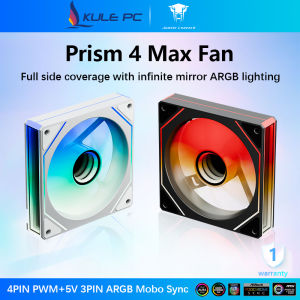
Jungle Leopard Prism 4MAX ARGB CPU Fan 120mm 5V 3PIN ARGB 4PIN PWM Infinite Mirror Lighting Lian Li Same Style Motherboard Lighting Sync Computer Case Cooler PC Fan
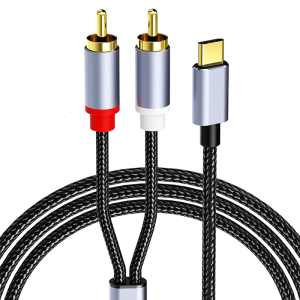
High Fidelitys Type C to 2RCA Sound Splitter Adapter Cable for Phone 15/16 Clear Sound Transmission
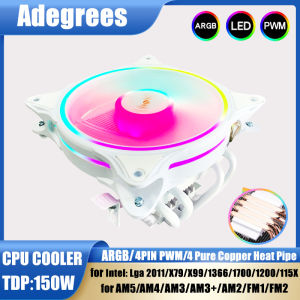
4 Heatpipes CPU Air-cooled Cooler ARGB PC Processor Thermalright fan for Intel LGA 1366 115X 1700 2011 AM5 AM4 AM3 ventilador
50mm 220V 50Hz 12W Inline Duct Fan Mini Exhaust Ventilation Fan for Grow Tent Pet Box Greenhouse Basement Workshop

14 Inch Laptop LCD Screen LP140QH2-SPA1 LP140QH2-SPB1 LP140QH2-SPD1 LP140QH2-SPC1 Display Matrix Panel QHD 2560x1440 eDP 40 Pins
Unew 15.6 inch 4K IPS 3840X2160 Ultra Clearscreen HD Gaming Monitor Portable Screen USB-C HDMI Compatible External for PC Xbox Switch Laptop
8025 80mm Fan For Delta FFB0812EH 80x80x25mm 12V 0.8A Dual Ball PWM High-Speed 5900RPM Chassis Fan

100*30CM DIY PVC Computer Dust Filter Covers Mesh PC Chassis Case Fan Cooler Dustproof Cover Sponge PVC Computer Mesh Cover

14" 120Hz Laptop LCD Screen M140NVF7 R0 For HP EliteBook 840 G5 Display Matrix Panel Replacement 1920x1080 eDP 40 Pins Non-Touch
Acrylic Shell Box High Transparent For PI 4A Featuring Easy Installation And Efficient Cooling
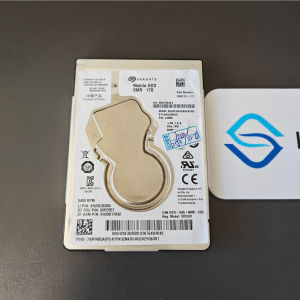
Seagate 1TB SATA III Laptop Hard Drive Disk 1000GB 2.5" III 128M Cache 7mm 5400RPM for PS4 Notebook Laptop ST1000LM035