Asawin CP91 Car Play 4K Dash Cam Wireless Apple Carplay & Android Auto with 1080P Backup Camera Front 4k Rear 1080P
Asawin CP91 Car Play 4K Dash Cam Wireless Apple Carplay & Android Auto with 1080P Backup Camera Front 4k Rear 1080P
Key Features of Asawin CP91 Dash Cam
The Asawin CP91 Dash Cam is a cutting-edge device that provides superior performance and features for drivers looking to enhance their driving experience. This wireless dash cam offers a seamless integration with both Apple CarPlay and Android Auto, making it an ideal choice for drivers who want to stay connected while driving.
4K Front Camera & 1080P Rear Camera
The Asawin CP91 Dash Cam boasts a 4K front camera and a 1080P rear camera, ensuring crystal-clear video quality and coverage. The front camera captures footage at a resolution of 3840 x 2160 pixels, while the rear camera records at 1920 x 1080 pixels. This combination allows you to monitor your surroundings with ease and capture important details in case of an accident.
Android Auto & Apple CarPlay Support
With support for both Android Auto and Apple CarPlay, the Asawin CP91 Dash Cam ensures compatibility with a wide range of smartphones. This allows you to access your favorite apps, music, and navigation systems directly from the dash cam's 9.1-inch IPS HD touch screen display.
Multiple Language Support
The Asawin CP91 Dash Cam supports multiple languages, including Spanish, French, German, English, and Italian. This makes it an excellent choice for drivers who may not be fluent in English and want to operate the device in their preferred language.
Installation & Setup Guide
Setting up the Asawin CP91 Dash Cam is straightforward and easy to follow. Here's a step-by-step guide to help you get started:
Connecting to Car Power Supply
To power the dash cam, connect it to your car's power supply using the included DC 5V_ 2.5A adapter. This ensures that the device remains powered while driving and provides a stable power source.
Setting Up WiFi & Bluetooth
Once connected to the power supply, turn on the dash cam and connect it to your smartphone via WiFi or Bluetooth. This allows you to access the device's features and control it from your phone.
Configuring Reversing Image & Parking Monitoring
To enable reversing image and parking monitoring, navigate to the dash cam's settings menu and select the appropriate options. This ensures that you have a clear view of your surroundings while reversing and can monitor your vehicle even when parked.
Maximizing the Performance of Asawin CP91 Dash Cam
To get the most out of your Asawin CP91 Dash Cam, consider the following tips:
Utilizing Built-In Functions
Take advantage of the dash cam's built-in functions, such as voice control, FM radio, and bucking line, to enhance your driving experience. These features allow you to stay connected and entertained while driving.
Enhancing Video Quality
To improve video quality, adjust the dash cam's settings to optimize image clarity and resolution. This ensures that you capture important details and maintain a high level of video quality.
Optimizing Battery Life
To extend battery life, turn off unnecessary features and reduce screen brightness when not in use. This helps conserve power and ensures that the device remains operational during long drives.

Asawin
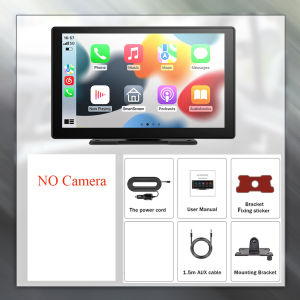
You May Also Like
HONDA WAVE 125 / WAVE125 Ignition Main Switch for Motorcycle Accessories
OCAS TRI FOLD TONNEAU COVER NAVARA NP300 2015+ (ABS) BLACK HT-NS025 (11826)
Automotive Engine Parts Neutral Safety Switch OEM 84540-43010 8454043010 84540 43010 89425-43010 8942543010 For Toyota 4Runner
SEEKER Motorcycle Front Brake Clutch Master Cylinder Pump Lever

Green sea Car Glossy Powerful Car Windshield Cleaner Oil Film Remover Car Window Cleaner Removes Dirt Car Cleaning Brush

4pcs/Set EVA Foam Anti-Collision Strip Car Side Door Edge Guards Protector Car Side Door Decoration

2/2.5icnh Car Exhaust OD Pipe Sleeve Coupler Stainless Steel Exhaust Pipe Clamp Tube Repair Parts
Rechargeable Car Sun Visor Mirror – LED Light Touch Control 3-Tone Dimmable Foldable
16 LED Car Strobe Light For Emergency Flash Warning Lamp Windshield Bar Red Blue Amber White Waterproof Auto Light Assembly 12V
EXPANSION VALVE 447500 3940 ALL VIOS
![[COD] shiou 5pcs Auto Car CD Radio Aerial Antenna Plug Adapter Plastic Handle Connector](https://img.lazcdn.com/g/p/dd9d99b7c5f6e9c1d3698e7848ab5fcf.jpg_300x300q80.jpg)
[COD] shiou 5pcs Auto Car CD Radio Aerial Antenna Plug Adapter Plastic Handle Connector