


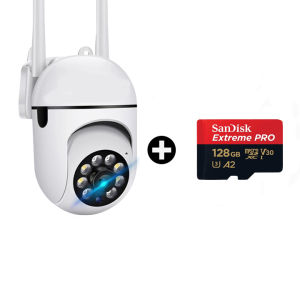
CCTV Outdoor Camera WiFi Connect to Cellphone Waterproof 360 Humanoid Auto WIFI IP Security Camera Night Vision cctv camera wifi connect 360

CCTV Outdoor Camera WiFi Connect to Cellphone Waterproof 360 Humanoid Auto WIFI IP Security Camera Night Vision cctv camera wifi connect 360
readFileBrokerError:file_is_deleted, msg:file is already deleted in filebroker,fileName=S989169249dee4b4fb782d9f4b3ef462cZ.txt

SanDisk Memorys
Seller ratings 91%
Review
5.0
/5
17 Ratings
L
l****f
Aug 16, 2024
Fast delivery and timing is very good. The CCTV camera works very well. Pan and tilt functions perfectly. Supplier is friendly, answer the questions related to the camera professionally. The holes for the screws (to be fixed to the wall)on the base of the camera can be extended 10 mm outward.\n
Helpful (0)
O
O****G
Aug 16, 2024
Thank seller and courier service for the fast delivery. First try hope can last longer time. I give them 5 star service.\n
Helpful (0)
You May Also Like
00:35
IMOU Cue2 3MP Indoor Camera with Magnetic Bracket WiFi Security CCTV Connect to Cellphone Baby / Pet Monitor 2-Way Audio
00:15
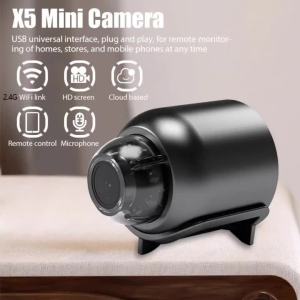
New X5 Mini Camera 1080P Night Vision Wireless Surveillance Wireless 2.4G WiFi Portable Smart Detection Security Cam
00:30
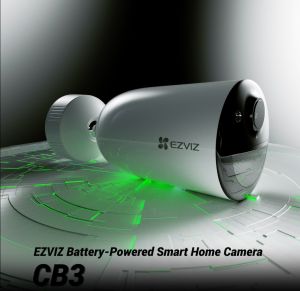
EZVIZ CB3 HD 1080P CCTV Camera connect cellphone IP security Camera Outdoor Waterproof 5200mAh cctv battery operated
00:51
HIKVISION 4CH 2MP Two Way Audio Smart Hybrid Light 4Cameras(2Bullet 2Turret) Outdoor/Indoor Acusense DIY CCTV Package Complete Kit NASHANTOO 4/4IRAA2 CPS(2B2T) (with optional HDD) (Cables are sold separately)
01:00
V380 Pro Three-lens surveillance camera outdoor HD definition night vision full-color solar cctv Support 4G WIFI network
00:28
5MP Mini Security Camera Wireless WiFi Indoor Cam with Motion Detection Smart Life Baby Monitor for Home Surveillance Tuya

01:00
V380 12MP Outdoor 3 PTZ Lens CCTV Camera Connect Cellphone Wifi Connect 360 Waterproof 1080P HD Full Color Night Vision Surveillance Cameras Two-way Audio and Speaker WIFI/4G outdoor high-definition night vision monitor

01:06
USB Endoscope for OTG For HW/Android Phone 8mm Borescope Inspection Snake Camera IP67 Waterproof with 6 LED Lights For Type C

00:55
HD Digital Microscope 7 Inch 1600X Electronic Magnifier 16MP Camera for PCB Coin Jewelry Soldering

00:11
Infrared Camera Detector for Hotel Hidden Portable Pinhole Scanner Detect Gadget Anti-Peeping Security Protection with LED Light
00:58
VILTROX | Full Frame Portrait Auto Focus 85mm f/2 Lens
00:15


















