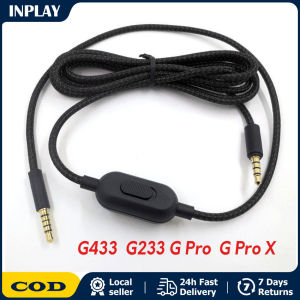
2M Braided Extension Aux Cable for Logitech G Pro X / G Pro / G233 / G433 Headset with Mute Volume Control Replacement Audio 3.5mm Audio Cable Inline Control for Logitech G633 G933 or For Logitech Astro A10 A40 or For G433/G233 Gaming Headset Headphone
2M Braided Extension Aux Cable for Logitech G Pro X / G Pro / G233 / G433 Headset with Mute Volume Control Replacement Audio 3.5mm Audio Cable Inline Control for Logitech G633 G933 or For Logitech Astro A10 A40 or For G433/G233 Gaming Headset Headphone
What is the 2M Braided Extension Aux Cable?
The 2M Braided Extension Aux Cable is a high-quality audio cable designed specifically for Logitech G Pro X, G Pro, G233, G433, G633, G933, and Astro A10/A40 gaming headsets. This cable features a durable braided design that provides a long-lasting connection and enhanced sound quality. It includes an inline control for mute and volume adjustment, making it easy to manage audio settings while gaming.
Key Features
- 2-meter length extension for added convenience
- Durable braided design for extended life
- Inline control for mute and volume adjustment
- Compatible with multiple Logitech gaming headsets
Compatibility with Logitech Headsets
The 2M Braided Extension Aux Cable is compatible with several popular Logitech gaming headsets, including:
- Logitech G Pro X
- Logitech G Pro
- Logitech G233
- Logitech G433
- Logitech G633
- Logitech G933
- Logitech Astro A10/A40
How to Install the 2M Braided Extension Aux Cable
Installing the 2M Braided Extension Aux Cable is simple and straightforward. Follow these steps to get started:
Preparing Your Headset
Before installing the cable, make sure your headset is powered off and disconnected from any devices. This will prevent any potential damage during installation.
Connecting the Cable
To connect the cable, follow these steps:
- Locate the 3.5mm audio jack on your headset.
- Insert the 3.5mm end of the 2M Braided Extension Aux Cable into the audio jack.
- Ensure the connection is secure by gently pulling on the cable.
Testing the Connection
After connecting the cable, power on your headset and connect it to your device. Test the audio output and inline controls to ensure everything is working correctly.
Benefits of Using the 2M Braided Extension Aux Cable
Using the 2M Braided Extension Aux Cable offers several benefits, including:
Improved Sound Quality
The durable braided design and high-quality components of this cable provide superior sound quality compared to standard audio cables. Enjoy clearer audio and deeper bass while gaming.
Enhanced Comfort & Convenience
With a 2-meter length extension, the 2M Braided Extension Aux Cable provides added comfort and convenience during gameplay. The extended reach allows for greater movement and flexibility, making it easier to game without being restricted by cable length.
Better Cable Management
The braided design of this cable helps prevent tangling and damage, making it easier to manage your headset cables. This results in a cleaner setup and reduced stress on your headset's audio jack.
Troubleshooting Common Issues
If you encounter any issues with your 2M Braided Extension Aux Cable, try these troubleshooting tips:
Volume Control Not Working
- Ensure the volume control is properly connected to your headset.
- Check if the issue persists with another audio source or device.
Mute Functionality Not Responding
- Make sure the mute button is functioning correctly.
- Verify that the issue is not caused by software settings or other audio devices.
Cable Connection Issues
- Inspect the cable for any visible damage or wear.
- Try connecting the cable to a different audio port or device to isolate the issue." }

INPLAY Mart
Review

You May Also Like
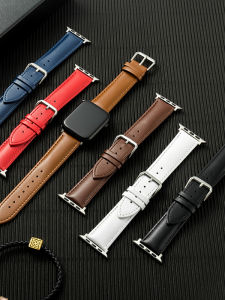
Genuine Leather Watch Band Compatible with iWatch8 Apple S9 Applewatch9 S8 S7 S6 Ultra 49mm Intelligent Device Accessories
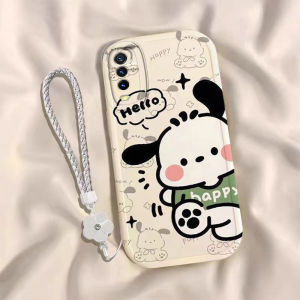
Vivoy30 Phone Case: A Comprehensive Guide

Ultra Clear OPPO Find X8 Ultra Full Screen Coverage Tempered Glass Film Anti-Fingerprint High Definition No Border Phone Sticker
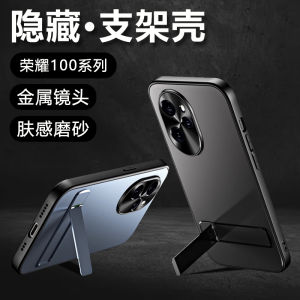
Honor 100 pro Phone Case New Curved Ultra-Thin Matte Silicone Full Cover Anti-Fall Protective Shell with Stand Heat Dissipation Back Cover Case
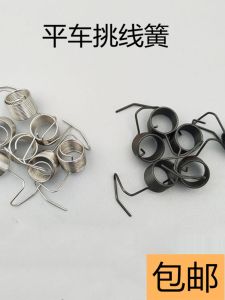
Computer-Controlled Machine Machine Flat Jumper Spring Industrial Sewing Machine Accessories Machine Flat Standard Brother Yarn Trapper Pick Spring
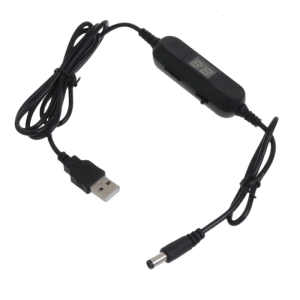
130cm USB to 1.5V 3V4.5V 6V 8V 12V 5.5x2.1mm Adjustable Voltages Cable with LED Voltmeter for Radio Light Fan Toy Clock
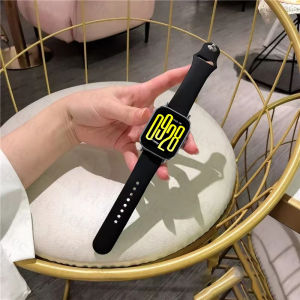
Sport Strap for Redmi Watch 5 Active/Redmi Watch 5 Lite Women Men Quick Release Replacement Band
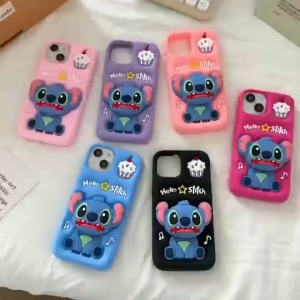
3D telescopic stand cartoon Stitch silicone phone case for iPhone 12 13 14 15 16 Pro Max Soft silicone protective cover for iPhone15Promax case casing

【Local Delivery】 4Pcs/Set Laptop Heat Reduction Pad Cooling Cool Feet Sucker Thermal Bracket for Notebook Kit Stand Holder Laptop Cooling Stand
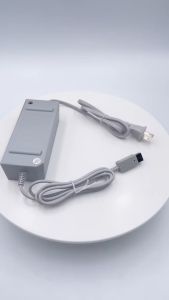
100-240V Nintendo Wii Console Power Supply AC Adapter Charger Replacement US PLUG
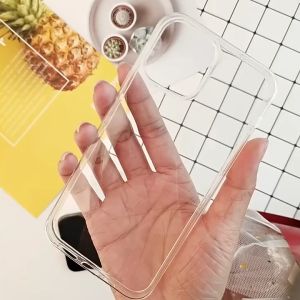
Clear Case For Xiaomi Redmi: Anti-Shock & Anti-Yellowing Protection