


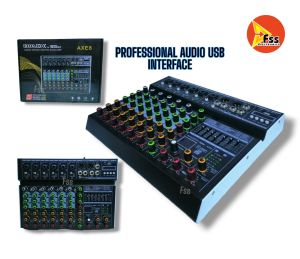
IMIX MIXER 8 CHANNEL WITH EQUALIZER AXE 8 BY TRIDENT 7-BAND STERIO GRAPHIC EQUALIZER

IMIX MIXER 8 CHANNEL WITH EQUALIZER AXE 8 BY TRIDENT 7-BAND STERIO GRAPHIC EQUALIZER
readFileBrokerError:file_is_deleted, msg:file is already deleted in filebroker,fileName=Sc2c7e5164cb44247ad957b65ffb470bbe.txt

FSS_Electronics
Seller ratings 100%
Review

Oops
This video has no reviews.
You May Also Like

00:29
JLab Go Pop+ True Wireless Bluetooth Earbuds & Charging Case - Black Dual Connect IPX4 Sweat Resistance Bluetooth 5 Connection 3 EQ Sound Settings Signature Balanced Bass Boost
01:12
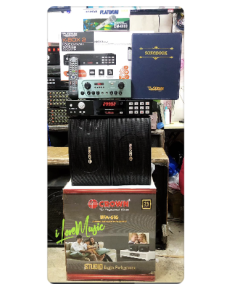
Videoke Bundle Karaoke Set Original Crown BFA-616 2000watts PMPO and Platinum KBOX2 karaoke player 20k songs FREE platinum dynamic microphone
01:00
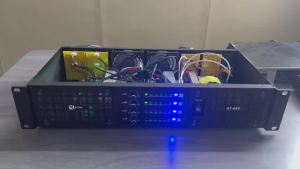
KYTAS 1200W Dual Channel Class D Digital Power Amplifier Optional 2CH/4CH Output for Home KTV Outdoor Stage Performance
01:59
Dual Lapel Microphone Wireless with Charging Case Lavalier Mic with Noise Cancellation Microphone Circular Button For Vlogging Livestream Lapel Microphone Wireless with charging Case Dual Lavalier Mic Clip on Microphone for Video
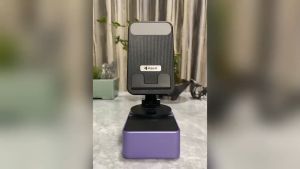
00:28
Bluetooth Speaker With Phone Stand 5 In 1 Mobile Phone Holder 360º Rotating Phone Stand With 9D Sound Anti-Slip Base
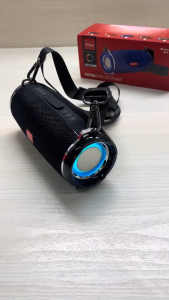
00:29
Original YOOBAO M14 RGB Portable Wireless Stylish Design Stereo Surround Sound Rechargeable Bass Speaker with Strap

00:29
ZICHAO | Practical Elegant Creative Birthday Gift Speaker For Female Friends
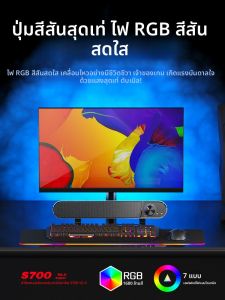
00:30
Niye | Home Gaming All-in-One Wired Desktop Speaker
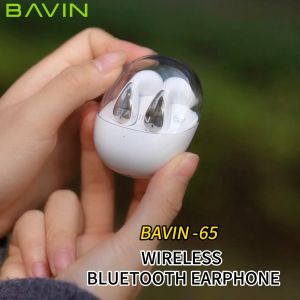
01:00
BAVIN BA65 Wireless Bluetooth Earphone Hi-Fi Audio Sounds Quality w/ Built-In Clear Voice Microphone Comfortable Earbuds
00:27
BLM : X15 TTWS Wireless Earbuds Bluetooth Earphones for Gaming Headset Noise Cancelling Hifi Bass with Mic

00:49
Lenovo | 2026new Lenovo TA410 TWS Wireless Gaming Earphones Panoramic Spatial Sound Effects Long Battry Life HDVoice Bluetooth Headphones

00:54
KZ EDX Pro X in Ear Monitor Headphones HiFi Stereo IEM Dynamic Driver Wired Earphones with Detachable Cable Deep Bass Noise Isolating Earbuds
Hot Search
arduino starter kitmotivational stickerHellochingusamsung s25 ultra lens protectortravel shoesusb voltmetermiyota 8205duke 200 panelmotor rusi classic 250 oil pump geardermasole plus shampoospinner toy for babytoyota wigo brake pads genuinewide tooth metal comb for cat9mm pistol with licenseslim cee vitamins


















