V380 Pro Bulb Dual Lens CCTV Camera: Connect Your Phone & Monitor Your Home
V380 Pro Bulb Dual Lens CCTV Camera: Connect Your Phone & Monitor Your Home
Introduction to V380 Pro CCTV Camera
The V380 Pro Bulb Dual Lens CCTV Camera is a state-of-the-art security device designed to provide comprehensive indoor and outdoor surveillance. With dual lens technology, wireless connectivity, and two-way audio capabilities, this camera offers a versatile and reliable solution for protecting your home or business. In this article, we will delve into the key features, installation process, and maintenance tips of the V380 Pro CCTV Camera, helping you make the most of this advanced security system.
Key Features & Benefits
The V380 Pro CCTV Camera boasts a range of impressive features that set it apart from other security cameras on the market:
- Dual Lens Wireless Surveillance: The dual lens technology allows for simultaneous wide-angle and zoomed-in views, providing a comprehensive overview of your surroundings.
- Indoor Outdoor Waterproof Camera: The V380 Pro is weather-resistant and suitable for both indoor and outdoor use, making it a versatile security solution.
- Two-Way Audio Surveillance: With built-in microphones and speakers, you can communicate with anyone in the camera's field of view, enhancing situational awareness and security.
- 8MP Night Vision Camera: The V380 Pro delivers high-resolution images, even in low-light conditions, thanks to its advanced night vision capabilities.
Package Contents
Each V380 Pro CCTV Camera comes with the following components:
- 1x Camera
- 1x Power Supply
- 1x User Manual
- 1x Screws
How to Install & Set Up V380 Pro CCTV Camera
Installing and setting up the V380 Pro CCTV Camera is a straightforward process that can be completed in just a few simple steps.
Connecting to Wi-Fi & Power Supply
To connect your V380 Pro to Wi-Fi, follow these steps:
- Plug the power supply into the camera and connect it to a power outlet.
- Download the accompanying app from the App Store or Google Play Store.
- Open the app and follow the on-screen instructions to connect the camera to your Wi-Fi network.
Mounting the Camera Indoors & Outdoors
The V380 Pro CCTV Camera can be mounted both indoors and outdoors using the screws provided in the package. Ensure that the camera is securely attached to a stable surface and positioned to cover the desired area.
Enhancing Security with V380 Pro CCTV Camera
To maximize the security benefits of the V380 Pro CCTV Camera, consider utilizing its advanced features:
Utilizing Two-Way Audio & Speaker
The built-in microphones and speakers enable two-way audio communication, allowing you to interact with anyone in the camera's field of view. This feature is particularly useful for deterring potential intruders or communicating with visitors.
Maximizing Night Vision & Auto Tracking
Take advantage of the V380 Pro's advanced night vision capabilities by adjusting the camera's settings to optimize performance in low-light conditions. Additionally, the auto tracking feature automatically follows moving objects within the camera's field of view, ensuring that no suspicious activity goes unnoticed.
Maintaining & Troubleshooting V380 Pro CCTV Camera
Regular maintenance and troubleshooting can help ensure that your V380 Pro CCTV Camera continues to function optimally.
Regular Maintenance Tips
- Clean the camera lens: Regularly clean the camera lens to maintain optimal image quality.
- Check the power supply: Ensure that the power supply is functioning correctly and that the camera is receiving sufficient power.
- Update firmware: Periodically check for firmware updates and install them to keep your camera running smoothly.
Common Issues & Solutions
If you encounter any issues with your V380 Pro CCTV Camera, refer to the user manual or consult the manufacturer's support team for troubleshooting advice. Some common issues and their solutions include:
- Camera not connecting to Wi-Fi: Restart the camera and the router, then try reconnecting to Wi-Fi.
- Poor image quality: Clean the camera lens and adjust the camera settings to optimize image quality.
- Audio issues: Check the camera's audio settings and ensure that the microphones and speakers are functioning correctly.

Clobal RaeIme
You May Also Like

Hikvision 2MP(1080P) / 5MP Value Series Tubro HD Indoor Camera Built-In Mic
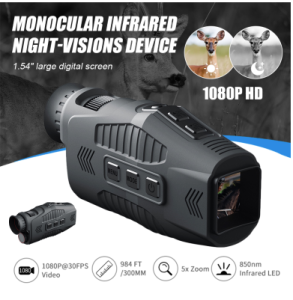
【big discount】1080P Monocular Infrared Night Vision Day Night Use Device 5X Digital Zoom 300M Full Dark Viewing Distance H-unting Telescope
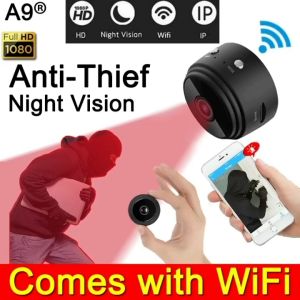
Not Afraid of Being Stolen: A9 CCTV Camera Connect Cellphone & No Internet No WiFi
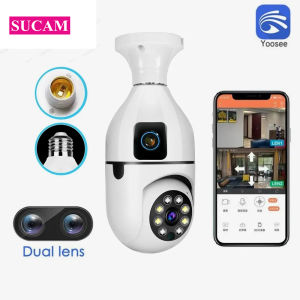
Yoosee E27 Bulb WiFi Camera Dual Lens Dual Screen Auto Tracking Two Way Audio Color Night Vision Indoor Security WIFI Camera 4MP
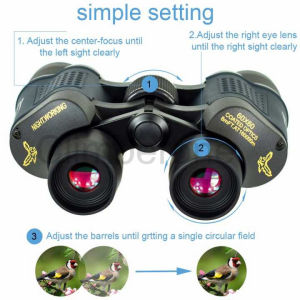
binoculars long range original high clarity telescope 60X60 binocular fixed zoom telescope original telescope long range original binocular long range original high power telescope binacular original
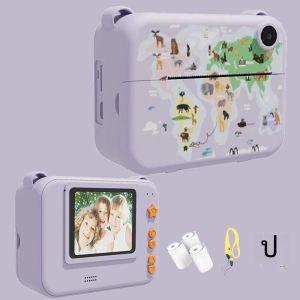
2.0 Inch Portable Digital Children's Mini Thermal Instant Photo Printer: A Multifunctional Gift for Kids
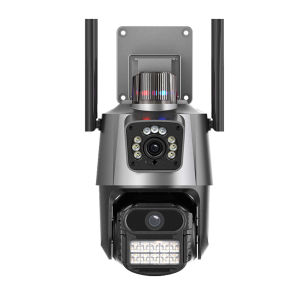
V380 PRO 4K 8MP Dual Lens CCTV Camera PTZ Control Outdoor Waterproof 360° Night Vision With Light And Alarm Surveillance IP Camera Wireless Wifi Camera CCTV With Audio And Speaker CCTV Connect To Cellphone
A9 Cctv Camera Connect Cellphone 1080p Ultra Hd No Need Internet No Need Wifi With Night Vision With 360°Panoramic Infrared Security Camera Motion Detection Hd Cctv Camera
Supremo Air 5K Action Camera - Black Ultra HD & 64MP Photos IP68 Professional Waterproof Case
Bundle 4 Supremo Ace 4K Dual Display + Monopod
![Kodak Professional Ektar 100 35mm film[GRAB/COD] (36 shots)](https://img.lazcdn.com/collect/social-img/c9f3069ace2f4afba811aca226e19df5_6cd2630302ae4176a58cd7442cd01816.png_300x300q80.png)
Kodak Professional Ektar 100 35mm film[GRAB/COD] (36 shots)