


[Local 24H] E-Sports Gaming Headset Computer Headset 3D Surround Sound Microphone for Desktop Laptops

[Local 24H] E-Sports Gaming Headset Computer Headset 3D Surround Sound Microphone for Desktop Laptops
[Local 24H] E-Sports Gaming Headset Computer Headset 3D Surround Sound Microphone for Desktop Laptops
Introduction to the Local 24H E-Sports Gaming Headset
The Local 24H E-Sports Gaming Headset is a top-tier gaming headset designed specifically for desktop and laptop users. With its 3D surround sound microphone and high-quality audio, it offers a unique gaming experience that immerses players in their favorite games. This article will guide you through choosing, using, and maintaining this fantastic gaming headset.
Key Features
- 3D Surround Sound Microphone: Enjoy a realistic gaming experience with the 3D surround sound technology.
- Compatibility with Desktop Laptops: This headset is compatible with both desktop computers and laptops, making it versatile for any gaming setup.
- High-Quality Gaming Headphones: The Local 24H Gaming Headset boasts superior audio quality, allowing you to hear every detail in your game.
How to Choose the Best Gaming Headset for Your Needs
When selecting a gaming headset, consider the following factors to ensure you find the perfect one for your needs:
Considering Comfort and Design
- Comfort: Look for headsets with padded ear cups and adjustable headbands for extended gaming sessions.
- Design: Choose a design that complements your gaming setup and personal style.
Evaluating Audio Quality
- Sound Quality: Opt for headsets with clear, crisp audio and a wide frequency range.
- Surround Sound: If you want a more immersive experience, look for headsets with built-in surround sound.
Assessing Additional Features
- Microphone: A high-quality microphone is essential for communicating with teammates and opponents.
- Additional Features: Consider features like noise cancellation, Bluetooth connectivity, and customizable RGB lighting.
Using Your Local 24H E-Sports Gaming Headset Effectively
To get the most out of your Local 24H Gaming Headset, follow these steps:
Connecting Your Headset to Your Device
- Plug and Play: Simply plug the headset's USB cable into your computer's USB port to start using it.
- Software Installation: Some headsets may require software installation for full functionality.
Customizing Audio Settings
- Adjust Volume Levels: Customize the volume levels for your headphones and microphone to suit your preferences.
- Equalizer Settings: Fine-tune the equalizer settings to enhance your audio experience.
Taking Advantage of Surround Sound
- Enable Surround Sound: Activate the 3D surround sound feature to immerse yourself in your games.
- Adjust Settings: Experiment with different settings to find the best balance for your ears.
Maintaining and Caring for Your Gaming Headset
To keep your Local 24H Gaming Headset in top condition, follow these tips:
Cleaning and Storage Tips
- Regular Cleaning: Wipe down the ear cups and headband with a soft cloth to remove dirt and sweat.
- Proper Storage: Store your headset in a cool, dry place away from direct sunlight and moisture.
Troubleshooting Common Issues
- Audio Problems: Check the headset's connection, drivers, and settings if you're experiencing audio issues.
- Microphone Issues: Test the microphone in another application or device to determine if it's the headset causing the problem.

FAST STORE(Computer Accessories)
Seller ratings 96%
![[Local 24H] E-Sports Gaming Headset Computer Headset 3D Surround Sound Microphone for Desktop Laptops](https://img.lazcdn.com/g/p/08021d6d3ae47bb0423535915cf15e78.jpg_300x300q80.jpg)
Review

Oops
This video has no reviews.
You May Also Like
00:59
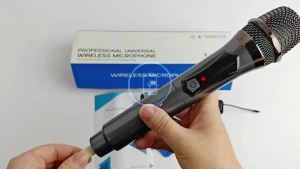
Professional Wireless Microphone X-108B-S Rechargeable UHF Dual Mic Set for Singing Karaoke
00:17
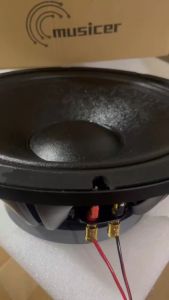
MUSICER Berserker SUB-12 800-1000W 12 Inch Professional Sub Bass Speaker(Aluminum Basin Stand) Musicer Subwoofer Kickers Subwoofer - Lazada
00:27
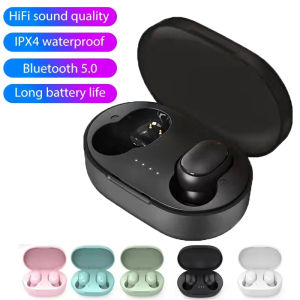
TWS Earphone 5.4 Bluetooth Headphones With Mic Waterproof Earbuds Wireless Bluetooth Headset HiFi Stereo Headsets For Smartphone

01:00
S.ony WH-ULT900N ULT WEAR Wireless Noise Canceling Headphones Powerful Bass Foldable Earphone
00:27
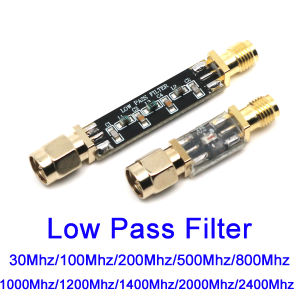
Low Pass Filter 30M 100M 200M 500M 800M 1000M 1200M 1400M 2000M 2.4Ghz LPF for RF Amplifier Signal Transmitter Receiver Radio
01:10
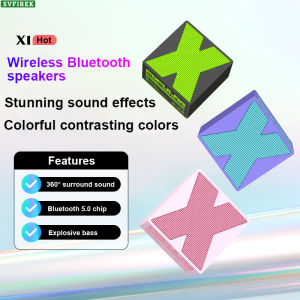
X1 Mini Wireless Bluetooth Speaker 360° Stereo Sound Portable Speaker Outdoor Mini Audio5 Excellent Bass
00:59
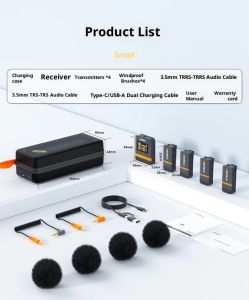
COMICA VimoQ One-for-four wireless collar-clip microphone mobile phone camera live noise reduction radio microphone

00:30
BTS-1955 Portable Karaoke Speaker Bluetooth 5.0 USB TF FM 3-Inch Speaker
00:36
CIGNUS UV8 High Power Dual Band Radio with Lifetime Warranty
00:35
T17 Bluetooth Wireless Stereo Single Air Conduction Music Sport Running Headset
00:40
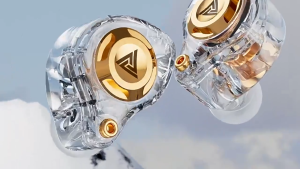
QKZ AK6 SRS Wired Earphones with Mic HIFI Deep Bass Headphones for Mobile Wired Headset with Powerful Bass for Music Lovers
00:17
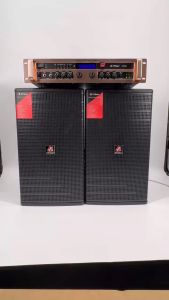
FT STAR FT-JB12 400watts 12 Inches 2-Way Passive Karaoke Speaker System(1 Pcs)
Hot Search
9T Trimmer Gearbox Partsboomstick paddle authenticGirls Ruffle Dresslg aircon window type inverter 1hpBasketball Shoes for Menscrew bolt for hardiflexpolyurethane foam sprayerGym chairmitsubishi adventure mattingsalon hair steamer machinefish caller for spearfishinglcd flare s4kuromi gownPruning sawtoyota camry reverse sensor module


















