Bosca C-803L: A Comprehensive Guide to 1000W USB SD FM Stereo Power Amplifier

Bosca C-803L: A Comprehensive Guide to 1000W USB SD FM Stereo Power Amplifier

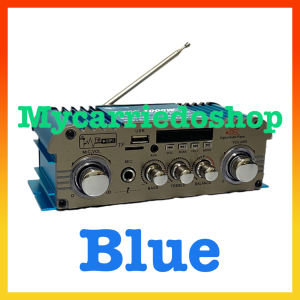
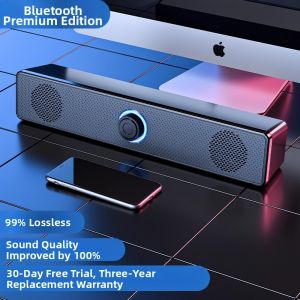
The Bosca C-803L is a top-of-the-line USB SD FM Stereo Power Amplifier designed to deliver unparalleled audio quality and versatility. This powerful 1000W amplifier features a wide range of connectivity options, including a microphone input, Bluetooth connectivity, and support for SD card audio players. In this article, we will delve into the key features, setup process, and troubleshooting tips for the Bosca C-803L.

Key Features of Bosca C-803L

Microphone Input & Bluetooth Connectivity

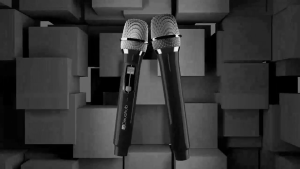
The Bosca C-803L offers a dedicated microphone input, allowing users to connect a dynamic microphone for live performances, presentations, or public announcements. Additionally, the amplifier supports Bluetooth connectivity, enabling wireless audio streaming from smartphones, tablets, and other Bluetooth-enabled devices.

2 Channel Output & Hi-Fi Audio Quality

The Bosca C-803L features a dual-channel output, delivering balanced audio signals to two separate speakers or subwoofers. This ensures optimal sound distribution and enhances the overall listening experience. With its high-fidelity audio quality, the amplifier faithfully reproduces every detail of your favorite songs, movies, or podcasts.

DC12V Power Supply & USB SD Card Support

The Bosca C-803L operates on a DC12V power supply, making it compatible with various portable power sources, such as car batteries or external power banks. This feature allows users to enjoy high-quality audio on-the-go, whether they're camping, boating, or traveling. Furthermore, the amplifier supports USB and SD card audio players, enabling users to play their favorite music files directly from these storage devices.

How to Set Up Bosca C-803L

Connecting External Devices

To connect external devices to the Bosca C-803L, follow these steps:

  1. Connect the speakers or subwoofers to the amplifier's output channels using speaker cables.
  2. Connect the microphone to the dedicated input port, if desired.
  3. If using Bluetooth connectivity, press and hold the Bluetooth button on the amplifier until the LED indicator blinks rapidly. On your Bluetooth-enabled device, select the "Bosca C-803L" from the list of available devices.
  4. If using a USB or SD card audio player, insert the storage device into the corresponding slot on the amplifier.

Configuring Bluetooth Pairing

To pair your Bluetooth-enabled device with the Bosca C-803L, follow these steps:

  1. Press and hold the Bluetooth button on the amplifier until the LED indicator blinks rapidly.
  2. On your Bluetooth-enabled device, select the "Bosca C-803L" from the list of available devices.
  3. Once paired, the LED indicator will stop blinking and remain lit, indicating a successful connection.

Setting Up Microphone Input

To set up the microphone input on the Bosca C-803L, follow these steps:

  1. Connect the microphone to the dedicated input port on the amplifier.
  2. Adjust the volume control knob to set the desired input level.
  3. If necessary, adjust the equalizer settings to optimize the audio quality.

Troubleshooting Common Issues

Volume Control Problems

If you're experiencing issues with the volume control on the Bosca C-803L, try the following solutions:

  • Ensure that the volume control knob is properly adjusted.
  • Check if the audio source is functioning correctly.
  • Verify that the speaker connections are secure.

Audio Distortion Solutions

If you're encountering audio distortion on the Bosca C-803L, consider the following troubleshooting tips:

  • Adjust the volume control knob to a lower setting.
  • Check if the audio source is causing the distortion.
  • Verify that the speaker connections are secure and not damaged.

Connectivity Issues

If you're experiencing connectivity issues with the Bosca C-803L, try the following solutions:

  • Restart the amplifier and the connected devices.
  • Ensure that the Bluetooth pairing process was completed successfully.
  • Verify that the audio source is functioning correctly.
mycarriedoshop

mycarriedoshop

Seller ratings 96%