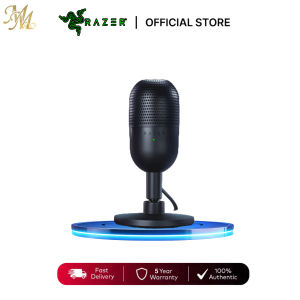
Razer Seiren Mini: The Ultimate Plug & Play USB Streaming Microphone
Razer Seiren Mini: The Ultimate Plug & Play USB Streaming Microphone
The Razer Seiren Mini is an ultra-compact, supercardioid condenser microphone designed specifically for streaming and voice recording purposes. With its plug-and-play connectivity and exceptional sound quality, it is the perfect choice for streamers, podcasters, and content creators looking to elevate their audio experience.
What is the Razer Seiren Mini Condenser Microphone?
The Razer Seiren Mini is a compact USB streaming microphone that offers a high-quality sound output, making it ideal for streaming, gaming, and other voice-related activities. This plug-and-play microphone is compatible with both Windows and Mac operating systems, ensuring seamless integration with your computer setup.
Key Features & Benefits
- Ultra-compact design: The Razer Seiren Mini is small and lightweight, making it easy to transport and store.
- Supercardioid condenser capsule: This microphone captures sound with precision and clarity, minimizing unwanted noise and background interference.
- Plug-and-play connectivity: Simply connect the microphone to your computer via USB, and you're ready to start streaming or recording.
- Low latency: The Razer Seiren Mini delivers near-instantaneous audio transmission, ensuring smooth and uninterrupted communication.
- Compatibility: Compatible with popular streaming software such as OBS, XSplit, and more.
Compatibility & Connectivity
The Razer Seiren Mini is compatible with both Windows and Mac operating systems, making it accessible to a wide range of users. Connect the microphone to your computer via USB, and it will automatically detect and install the necessary drivers. This plug-and-play design ensures a hassle-free setup process, allowing you to focus on creating engaging content.
How to Set Up Your Razer Seiren Mini Microphone
Setting up the Razer Seiren Mini is a straightforward process that can be completed in just a few simple steps.
Unboxing & Assembly
- Open the box containing the Razer Seiren Mini and carefully remove the microphone and all accompanying components.
- Attach the included stand to the base of the microphone.
- Position the microphone in your desired location, ensuring it is securely mounted and stable.
Connecting Your Microphone to PC/Laptop/Desktop
- Connect the USB cable to the Razer Seiren Mini microphone and plug the other end into an available USB port on your computer.
- Wait for your computer to detect and install the necessary drivers.
- Once the installation is complete, open your preferred streaming software and select the Razer Seiren Mini as your audio input device.
How to Optimize Your Razer Seiren Mini Microphone Performance
To get the most out of your Razer Seiren Mini, it's essential to fine-tune your settings and microphone placement.
Adjusting Settings for Best Sound Quality
- Open your streaming software and navigate to the audio settings.
- Adjust the microphone input level to ensure a balanced volume output.
- Experiment with different EQ settings to achieve the desired sound profile.
Maximizing Microphone Placement & Positioning
- Place the Razer Seiren Mini at a comfortable distance from your mouth, typically around 6-8 inches away.
- Position the microphone slightly off-center to minimize plosive sounds and breath noise.
- Ensure the microphone is facing directly towards your mouth to capture the best possible audio quality.
Frequently Asked Questions & Troubleshooting Tips
Common Issues & Solutions
Q: My computer isn't detecting the Razer Seiren Mini. A: Try disconnecting and reconnecting the USB cable, or restart your computer and attempt to connect the microphone again.
Q: I'm experiencing audio latency issues. A: Adjust your streaming software's buffer settings to reduce latency. Additionally, ensure your computer meets the minimum system requirements for smooth audio transmission.
Tips for Best Performance
- Use a pop filter: A pop filter can help minimize plosive sounds and breath noise, resulting in cleaner audio output.
- Invest in a shock mount: A shock mount can help isolate the microphone from vibrations and external noise, further improving sound quality.
- Monitor your audio levels: Regularly check your audio input levels to avoid clipping or distortion during live streams or recordings.

Mio Store.OS
You May Also Like
Platinum Dynamic Microphone DMD-5500 Professional microphone
Headphone Amplifier 4-Channel Ferroalloy Mono/Stereo Monitor Set Chargeable Headphone Amplifier AMP-i4 (100-240V)
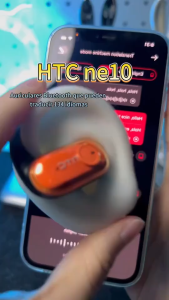
HTC NE10 AI Translator Earbuds Streaming Lighting Motion HiFi Stereo Sound Bluetooth 6.0 Wireless Earbuds (1-year warranty

T&G TG-424 Portable Bluetooth RGB Speaker Wireless V5.3 2400mAh support TF Card USB AUX In & FM Radio HiFi Bass Sound
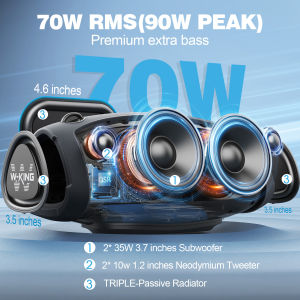
W-KING X10 Portable Loud Bluetooth Speakers with Subwoofer 70W Portable Outdoor Speakers Bluetooth Wireless Waterproof Triple Passive Radiators-Deep Bass/Hi-fi Audio/DSP/42H/Power Bank/TF/AUX/EQ/Opener

GasGak headset GT02-Pro5Bluetooth5.4 headphones with mic Wireless earbuds for Android/iosGaming Headset Touch Control Noise Cancelling
ZK-TB21 2.1 Channel High Power Bluetooth 5.0 Amplifier 160W*2+220W Portable para sa Car at Home
Mixer Audio Interface 6 Channel 99 DSP Reverberation Effects + 48V Phantom Power DJ Audio Mixer Recording Original System with Equalizer Mixer Balanced Bluetooth/Usb MP3 Playback KTV Performance with Foot Switch: A Comprehensive Guide
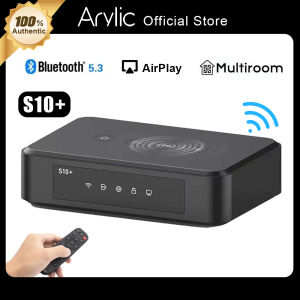
Arylic S10+ WiFi And Bluetooth 5.0 HiFi Stereo Audio Amplifier With Spotify Airplay DLNA Internet Multiroom Audio Preamplifier
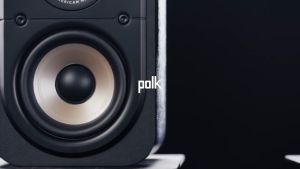
Polk Audio Signature Elite Series ES10 bookshelf/surround speakers (black)
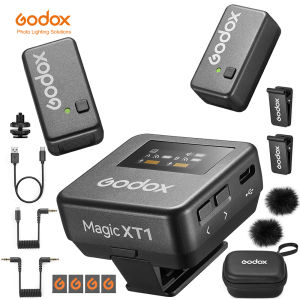
GODOX Magic XT1 2.4GHz Wireless Microphone System Max. 200M LOS Range Pro Audio Treatment UAC Support Digital Audio Recording