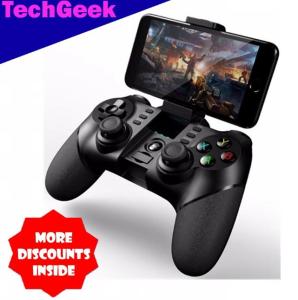
TG IPEGA 9076 Multi Functional Bluetooth 2.4G Wireless Game Controller For Android/Windows PC
TG IPEGA 9076 Multi Functional Bluetooth 2.4G Wireless Game Controller For Android/Windows PC
TG IPEGA 9076 is a highly versatile Bluetooth wireless game controller designed for Android and Windows PC users. This multifunctional gamepad offers exceptional gaming experience with its ergonomic design, precise controls, and easy-to-use features.
What is the TG IPEGA 9076 Multi Functional Bluetooth 2.4G Wireless Game Controller?
TG IPEGA 9076 is a high-quality wireless game controller that provides users with a seamless gaming experience. The product comes with a PG-9076 gamepad, a USB to Micro USB charging cable, and a user manual. This game controller supports both Bluetooth and 2.4G wireless connectivity, making it compatible with various devices, including Android and Windows PCs.
Key Features & Specifications
- Connectivity: Supports Bluetooth and 2.4G wireless connectivity
- Compatibility: Works with Android and Windows PC devices
- Battery: Rechargeable battery with a micro-USB charging port
- Controls: Precise analog sticks, directional buttons, and trigger buttons
Compatibility with Android & Windows PC
The TG IPEGA 9076 game controller is compatible with both Android and Windows PC devices, offering users the flexibility to play their favorite games on different platforms. With its easy-to-use features and versatile connectivity options, this game controller is an excellent choice for gamers who want to enjoy their games on multiple devices.
How to Set Up Your TG IPEGA 9076 Controller
Setting up your TG IPEGA 9076 game controller is a straightforward process. Follow these steps to connect your gamepad to your device and start gaming:
Connecting via Bluetooth
- Turn on your TG IPEGA 9076 game controller by pressing the power button.
- Enable Bluetooth on your Android or Windows PC device.
- Pair your gamepad with your device by selecting it from the list of available Bluetooth devices.
Connecting via 2.4G Wireless
- Turn on your TG IPEGA 9076 game controller by pressing the power button.
- Insert the included USB receiver into your Android or Windows PC device's USB port.
- Your gamepad will automatically connect to your device via the 2.4G wireless connection.
Charging Your TG IPEGA 9076 Controller
To charge your TG IPEGA 9076 game controller, simply plug the included USB to Micro USB charging cable into the charging port on the back of the gamepad and connect it to a power source. The LED indicator on the gamepad will turn red while charging and green when fully charged.
How to Use Your TG IPEGA 9076 Controller
Using your TG IPEGA 9076 game controller is simple and intuitive. Follow these steps to customize controls and settings and start playing games on your Android or Windows PC device:
Customizing Controls & Settings
- Press the Menu button on your gamepad to access the settings menu.
- Use the directional buttons and analog sticks to navigate through the menu options.
- Customize your controls by adjusting the sensitivity, dead zones, and button mappings.
Playing Games on Android & Windows PC
Once your game controller is set up and connected to your device, you can start playing your favorite games. Simply launch your game and use the controls on your TG IPEGA 9076 gamepad to navigate through menus, move characters, and interact with the game environment.
Troubleshooting Common Issues
If you encounter any issues while using your TG IPEGA 9076 game controller, refer to the following troubleshooting tips:
Connection Problems
- Ensure Bluetooth is enabled on your device.
- Restart your game controller and device to reset the connection.
- Check if there are any other Bluetooth devices interfering with the connection.
Battery Issues
- Charge your game controller fully before use.
- Replace the battery if it is not holding a charge.
Control Malfunctions
- Reset your game controller by holding down the power button for 10 seconds.
- Check if the USB receiver is properly connected to your device.
- Restart your game controller and device to reset the connection.

TG
You May Also Like
![PS5 Spiderman 2 Spiderman Man 2 – Playstation 5 [R3][PRELOVED]](https://img.lazcdn.com/g/ff/kf/S9c5e2fd83a9a477aa72c259c66b60db2j.jpg_300x300q80.jpg)
PS5 Spiderman 2 Spiderman Man 2 – Playstation 5 [R3][PRELOVED]
Nintendo Kingdom Tears Docking Station 3in1 Portable Screen Thrower
10 Smart Glasses Bluetooth Audio Sunglasses for Men Women with Dual Stereo Speakers
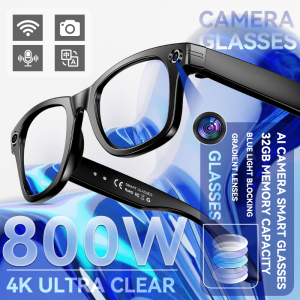
2025New Men AI Camera Smart Glasses Wifi 800W Pixel 4K Ultra Clear Videography AI Translation 32GB Anti Blue Light Women Glasses
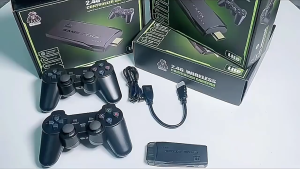
Mastering the Wired USB 2.0 Gaming Controller: A Comprehensive Guide
4K M8 Mini Video Game Console: A Comprehensive Guide
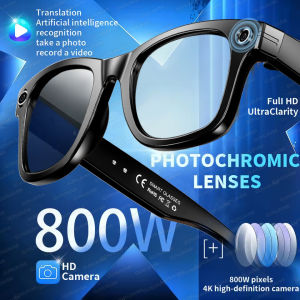
New Smart Glasses 8MP HD Camera AI Glasses Camera Photo Video Recording Translation Waterproof Anti-blue Camera Glasses Man Wome
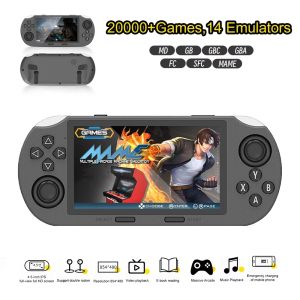
SF3000 Portable Mini Handheld Game Player 4.5 Inch IPS Screen Retro Video Game Console Built-in 20000+ Games for PS1/GBA/SFC
Xbox One X S Game Controller Stand Storage Display Holder for Microsoft Series X S Controller Organization Accessory
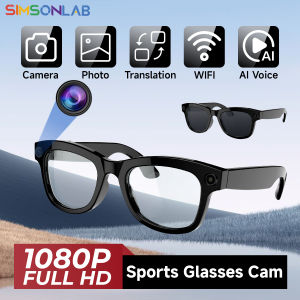
Smart Glasses With Camera 1080P Full HD AI Translator Wifi Sunglasses Outdoor Headphones Bluetooth Wireless Men Women Glasses
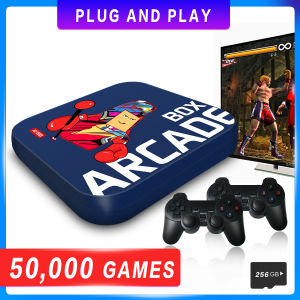
Arcade Box Video Game Console for PS1/DC/N64 50000+Games Game Box Plug and Play Game Console 4K HD Display Emulator Console