


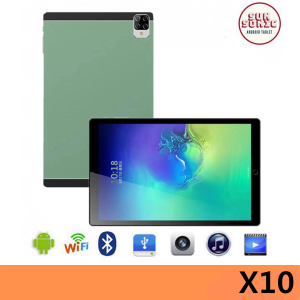
Tablet 11 Inch 8GB + 128GB Android Dual Sim High Resolution Student Learning Class WiFi Tablet
Tablet 11 Inch 8GB + 128GB Android Dual Sim High Resolution Student Learning Class WiFi Tablet
What is the Tablet?
Product Overview
The Tablet 11 Inch 8GB + 128GB Android Dual Sim High Resolution Student Learning Class WiFi Tablet is a versatile device designed specifically for students who require a reliable and efficient learning tool. This tablet features a large 11-inch display with high resolution, dual SIM capabilities, and ample storage space for educational resources.
Key Features
-
High Resolution Display: The tablet comes with a high-resolution display that provides a clear and crisp visual experience, making it ideal for reading textbooks, watching educational videos, and engaging in interactive learning activities.
-
Dual SIM Support: With dual SIM capabilities, this tablet allows students to stay connected with their friends, family, and teachers, even when they're away from home or school.
-
Ample Storage: The tablet offers 8GB RAM and 128GB storage, providing enough space to store textbooks, e-books, videos, and other learning materials.
-
WiFi Connectivity: This tablet supports WiFi connectivity, allowing students to access online resources and connect with their classmates and teachers remotely.
Benefits for Students
-
Improved Learning Experience: The tablet's high-resolution display and ample storage space make it an ideal tool for students to engage in interactive learning activities, watch educational videos, and access online resources.
-
Staying Connected: With dual SIM support, students can stay connected with their friends, family, and teachers, even when they're away from home or school.
-
Convenience: The tablet's WiFi connectivity allows students to access online resources and connect with their classmates and teachers remotely, making it a convenient learning tool.
How to Use the Tablet
Setting Up the Tablet
To set up the tablet, follow these steps:
-
Unbox the tablet and remove all the components from the box.
-
Charge the tablet using the included charger.
-
Power on the tablet by pressing and holding the power button until the screen lights up.
-
Follow the on-screen instructions to complete the setup process.
Connecting to WiFi
To connect to WiFi, follow these steps:
-
Open the Settings app on the tablet.
-
Tap on WiFi.
-
Select the desired WiFi network from the list of available networks.
-
Enter the password for the selected network, if required.
-
Tap Connect to establish the connection.
Downloading Educational Apps
To download educational apps, follow these steps:
-
Open the Google Play Store app on the tablet.
-
Search for the desired educational app using the search bar at the top of the screen.
-
Tap on the app to view its details.
-
Tap Install to download and install the app on the tablet.
Choosing the Right Tablet
Comparing X10 & X20 Models
The X10 and X20 models offer similar features, but there are some differences to consider when choosing the right tablet for your needs. The X10 model is a great choice for students who require a reliable and efficient learning tool, while the X20 model offers additional features, such as a more powerful processor and improved battery life.
Considering Your Needs
When choosing the right tablet, consider your learning needs and preferences. If you require a device with ample storage space and a high-resolution display, the Tablet 11 Inch 8GB + 128GB Android Dual Sim High Resolution Student Learning Class WiFi Tablet is a great choice. Additionally, consider the dual SIM capabilities and WiFi connectivity when choosing the right tablet for your needs.
Maintaining and Caring for Your Tablet
Cleaning and Storage Tips
To maintain and care for your tablet, follow these tips:
-
Clean the screen regularly using a soft, lint-free cloth.
-
Avoid exposing the tablet to extreme temperatures or humidity.
-
Store the tablet in a cool, dry place when not in use.
-
Charge the tablet regularly to maintain its battery life.
Troubleshooting Common Issues
If you encounter any issues with your tablet, try these troubleshooting steps:
-
Restart the tablet by pressing and holding the power button until the screen turns off, then press the power button again to turn it back on.
-
Update the tablet's software to the latest version.
-
Reset the tablet to factory settings, if necessary.

ETTE TRONICS
Review

You May Also Like
Samsung Galaxy Xcover 5 G525F Unlocked 5.3 Inch Octa-core 4GB RAM 64GB ROM 4G LTE 16MP Dual SIM Cards Android Phone
Teclast P30 10.1 inch Android Tablet 10GB RAM + 64GB Storage 1TB Expandable 1.8GHz Octa-Core CPU WiFi 6 BT5.4 Widevine L1 GMS Certified 6000mAh Battery Type-C 1280x800 IPS Display
Apple iPad Pro 13-inch (M4) Wi-Fi: High-Performance Tablet

Samsung Galaxy A15/14 Smartphone (RAM6GB+ROM128GB) 6.6 Inch 13 Million Pixels 5000mAh Battery COD With 5 Years Warranty
SEJUE4373 BM10 Low Radiation BM10 Mobile Phone Mini Dual Card Dual Standby Dual Standby Mini Mobile Phone Small Cellphone Pocket Tiny Keypad BM10 Mini Mobile Phone Kids Children Gifts
Original Redmi PAD SE Lite Android 5G Tablet PAD SE Lite 12 Inch 16GB+1TB Dual sim4K Display Dual SIM Card WIFI Tab
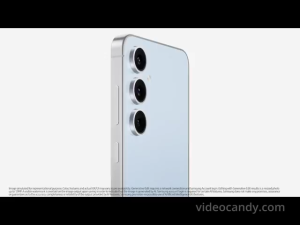
Samsung Galaxy S24 FE 5G-Nano-SIM + eSIM - Android Mobile Phone - Free shipping - Original - Smartphones - PRELOVED
i19 Pro Rotate Touch Screen Phone 4G 2 SIM 2.4"Display Magic Voice Flashlight FM Radio 90 ° Rotating Screen Mini Phone Mirror
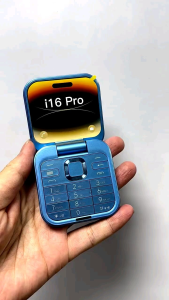
i16 Pro Mini Foldable Phone with Dual Nano SIM Slot & TF Memory Card
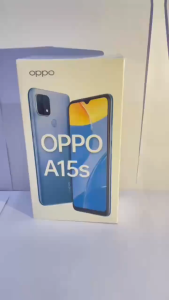
Original OPP0 A15s Smartphone 8GB+256GB Android cellphone 4230mAh 6.52-inch screen brand new moblie phone
Nokia N70 Radio & Symbian IOS Keyboard: A Comprehensive Guide