


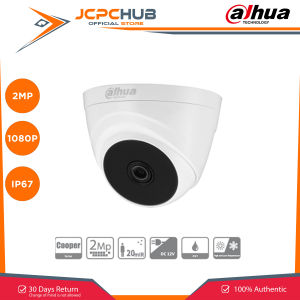
Dahua CCTV Indoor Camera HAC-T1A21 2MP HDCVI Smart IR Eyeball 30fps Full HD 1080p CVI/CVBS/AHD/TVI switchable IR 12V

Dahua CCTV Indoor Camera HAC-T1A21 2MP HDCVI Smart IR Eyeball 30fps Full HD 1080p CVI/CVBS/AHD/TVI switchable IR 12V
readFileBrokerError:file_is_deleted, msg:file is already deleted in filebroker,fileName=Sa8586f48f0274c1ca90a3cfe42b02dfd7.txt

JCPCHUB Mall Store
Seller ratings 97%
Review

Oops
This video has no reviews.
You May Also Like
00:25
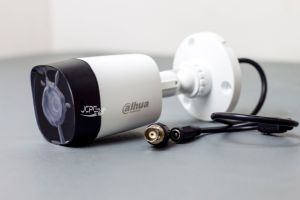
Dahua HAC-B1A21 2MP HDCVI IR Bullet Outdoor CCTV 1920 x 1080p High Resolution Night Vision Water Proof Camera
00:56
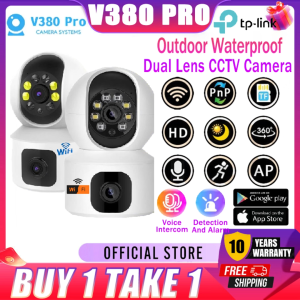
BUY 1 TAKE 1 CCTV Camera Wifi Connect Dual Lens HD Surveillance 360 Outdoor Waterproof Two-Way Audio Night Vision CCTV Security Cameras
00:53
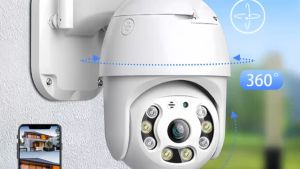
Full HD 1080P V380 Pro CCTV Camera 360 Panoramic PTZ Camera IP66 Waterproof Grade Camera Night Vision Outdoor Camera
00:22
Mini Wireless WiFi Camera Ultra HD Digital Clock Cameras With Night Vision Motion Detection Remote Viewing Recorders for Home
00:16
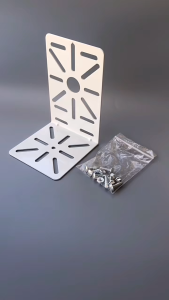
CCTV Camera Auxiliary Bracket L-Shape Metal Monitoring Bracket PTZ Dome Camera Adapter Mount Support
00:16
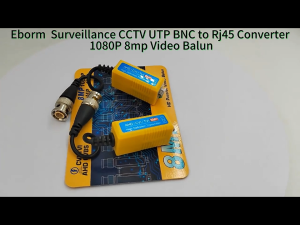
8MP CVI TVI AHD Transceiver for Security Camera System 1 Pair HD Video Balun Transmitter
00:40
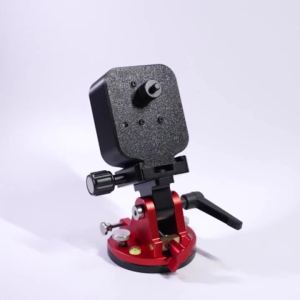
btnx Camera photography with latitude adjustment foundationportable equatorial installation 8N6Y2
00:14
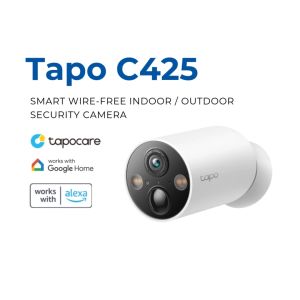
TP-Link Tapo C425 2K QHD Wire-Free Battery Camera - IP66 Color Night Vision Smart AI Detection
00:17
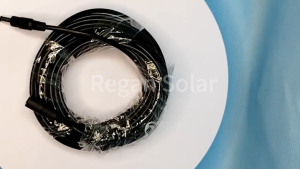
DC Power Extension Cable 15M/20M Jack Socket 5.5mmx2.1mm Male Plug For CCTV camera DC power extension cable DC extension cable DC male connector CCTV Power Cord CCTV tplink CCTV cable connector cctv power cord cctv cord extension

01:06
USB Piping Automotive Sewer Inspection Endoscope Camera TypeC For Android Endoscopic Camera Smartphone 1080p 7MM lens Tools
00:11
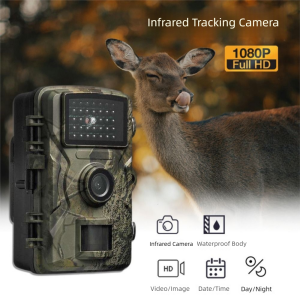
SEKINEW 16MP Image Resolution Outdoor Trail Camera IP66 Waterproof HD 1080P Video Motion Activated Wildlife Camera Quickly Responds with Straps Wildlife Photo Traps Wildlife Observation

00:27
Monitoring Cover Waterproof Wall Rain Sun Shield Anti-Glare Side Cctv Dome Turret Box Monitoring Access
Hot Search
HEFANG Jewelrysaigon perfume original for menElectric Bicycles Top Deals This Monthcnc swing arm for adv160Oishi Philippineskawasaki leostar spare partsrj45 cable connectorshonda xr150l chain lockfast charger realme 100w androidadidas top for womentoyota avanza 2016 ignition coildevant sws 018 speakertape measure 15maustralia to philippines adaptorpoco x7 lcd


















