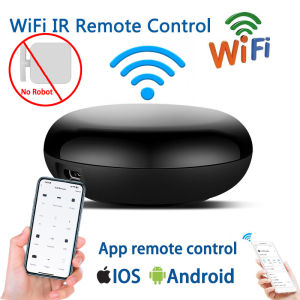
No Wiring Easy Installation WIFI Control with App Finger Robot Switch Wireless Remote Control Button Pusher Bot Physical Click Press Home appliances Socket on/off Upgrade Smart Home Finger press bot
No Wiring Easy Installation WIFI Control with App Finger Robot Switch Wireless Remote Control Button Pusher Bot Physical Click Press Home appliances Socket on/off Upgrade Smart Home Finger press bot
What is a WIFI Control Switch?
A WIFI control switch is a smart home device that enables remote control of electrical appliances via Wi-Fi connectivity. It eliminates the need for wiring, making installation easy and convenient. Users can manage their home appliances through a smartphone app or a finger press bot, which physically clicks the switch to turn appliances on or off.
Key Features & Benefits
Some key features and benefits of a WIFI control switch include:
-
Easy installation: No wiring required, making setup simple and hassle-free.
-
Remote control: Users can manage their home appliances from anywhere using a smartphone app or finger press bot.
-
Energy efficiency: Smart scheduling and automation help reduce energy consumption and save money on utility bills.
-
Safety: Remote control eliminates the need to physically touch electrical switches, reducing the risk of accidents.
How it Works
A WIFI control switch works by connecting to your home Wi-Fi network and communicating with a smartphone app or finger press bot. When a user sends a command through the app or bot, the switch receives the signal and physically clicks the switch to turn the appliance on or off.
App Remote Control & Finger Press Bot
To get started with a WIFI control switch, users must first install the app and configure the finger press bot.
Installing the App
To install the app, follow these steps:
-
Download the app from the Apple App Store or Google Play Store.
-
Create an account or log in if you already have one.
-
Connect the WIFI control switch to your home Wi-Fi network.
-
Follow the app instructions to pair the switch with your account.
Configuring the Finger Press Bot
After installing the app, users can configure the finger press bot to work with the WIFI control switch. Here's how:
-
Connect the finger press bot to the WIFI control switch.
-
Open the app and navigate to the finger press bot settings.
-
Configure the bot to click the switch at specific intervals or in response to certain triggers.
Upgrading Your Home with Wireless Socket Control
Upgrading your home with wireless socket control offers several advantages, including:
-
Convenience: Manage multiple electrical appliances from a single app or finger press bot.
-
Safety: Reduce the risk of accidents by eliminating the need to physically touch electrical switches.
-
Energy efficiency: Automate appliance usage to reduce energy consumption and save money on utility bills.
How to Install & Set Up
To install and set up wireless socket control, follow these steps:
-
Purchase the WIFI control switch and finger press bot.
-
Install the app on your smartphone.
-
Connect the WIFI control switch to your home Wi-Fi network.
-
Pair the switch with your account through the app.
-
Connect the finger press bot to the WIFI control switch.
-
Configure the bot to click the switch at specific intervals or in response to certain triggers.
Tips for Optimizing Your Smart Home Experience
To get the most out of your WIFI control switch and wireless socket control, follow these tips:
Best Practices for Remote Control
-
Schedule usage: Automate appliance usage to reduce energy consumption and save money on utility bills.
-
Use voice commands: Integrate the app with smart speakers for hands-free control.
-
Monitor energy usage: Track appliance energy consumption to identify areas for improvement.
Troubleshooting Common Issues
If you experience issues with your WIFI control switch or wireless socket control, try these troubleshooting steps:
-
Check Wi-Fi connection: Ensure the switch is connected to your home Wi-Fi network.
-
Restart the app: Close and reopen the app to refresh the connection.
-
Check finger press bot settings: Verify that the bot is configured correctly and clicking the switch at the appropriate intervals.
-
Contact customer support: If issues persist, reach out to the manufacturer's customer support team for assistance.

Suppliers
You May Also Like
2023 New NFC S9 Ultra Round Smart Watch Men AMOLED Ultra Series Sports Bracelet BluetoothCall Waterproof Voice Assistant Men Smartwatch Women
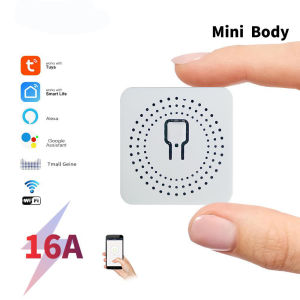
DIY WiFi Mini Smart Light Switch 16A Two Way Control Tuya/Smartlife APP Remote Control for Alexa Google Home Automation
Smartwatch Accessories 1m USB Fast Charging Cradle Dock For Pace A1602 Smartband Wristband Watch Accs
SMATRUL Tuya Wifi Touch Dimmer Switch Light Smart Life App Uk Wireless Remote Control With Alexa And Home 220v 110

2025 New Smart Watch 8 Classic 46mm Ultra HD Screen ChatGPT GPS NFC Compass Clock Bluetooth Call Waterproof Smartwatch Men Women
LAXASFIT 2025 New Smart Watch Women Men Ladies Gift Sports Fitness Watch Heart Rate Monitor Smart Watch For Android IOS
![[Local Stock]Portable Sensitivity Gp-pointer Hand Held Metal Detector Pinpointers](https://img.lazcdn.com/g/ff/kf/S6b2a2e5e96cd44379773eb61d58eaa09m.jpg_300x300q80.jpg)
[Local Stock]Portable Sensitivity Gp-pointer Hand Held Metal Detector Pinpointers
LOKMAT APPLLP 8 PRO 1.85-inch HD Screen Smart Watch Waterproof Bluetooth Calls Smartwatches Heart Rate Monitor Fitness Tracker(32G)
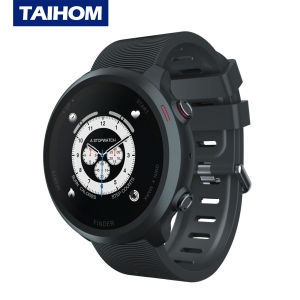
Taihom Smart Watch Z26 IP67 Waterproof Call Messages Notification Health Monitor For Men

Magnetic Studs Detectors Rapid Wall Studs Detectors With ABS Construction For Precise Metal Object Locating
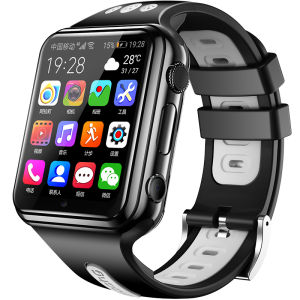
W5 Original Children Positioning Watch 4G SIM Card Smart Watch 200W Pixel Dual Camera wifi Video Call Kids GPS Tracker Recording Android 9.0 Smartwatch